Updated · By Peter Kovalsky
How to Use Your Phone as a Google Slides Remote Control (No App or Hardware)
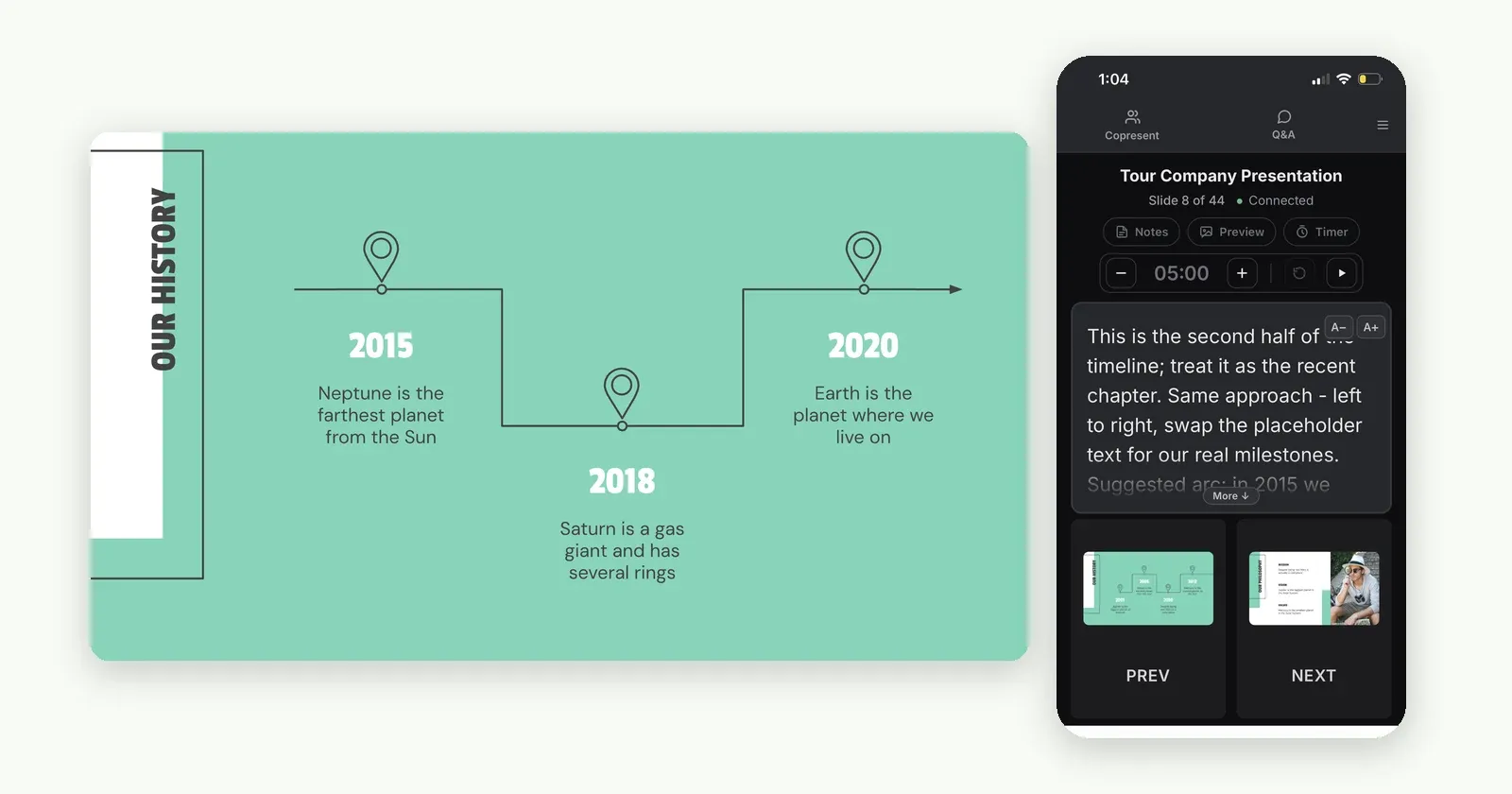
Quick answer: Install the Copresent Chrome extension on the computer that runs your slideshow. Open your deck, click the Copresent button next to Slideshow, and scan the QR code with your phone. Sign in with Google on your phone, start the slideshow, and use your phone to move between slides and read your speaker notes. Nothing to install on the phone.
Most guides to this assume you’ll buy a hardware clicker or download an app. You don’t need either. Your phone’s browser is enough, and it works the same on a Windows laptop, a Mac or a Chromebook.
This guide covers the setup, step by step. It also covers how to bring in co-presenters, and what to check when something doesn’t connect.
Why use your phone instead of a physical clicker?
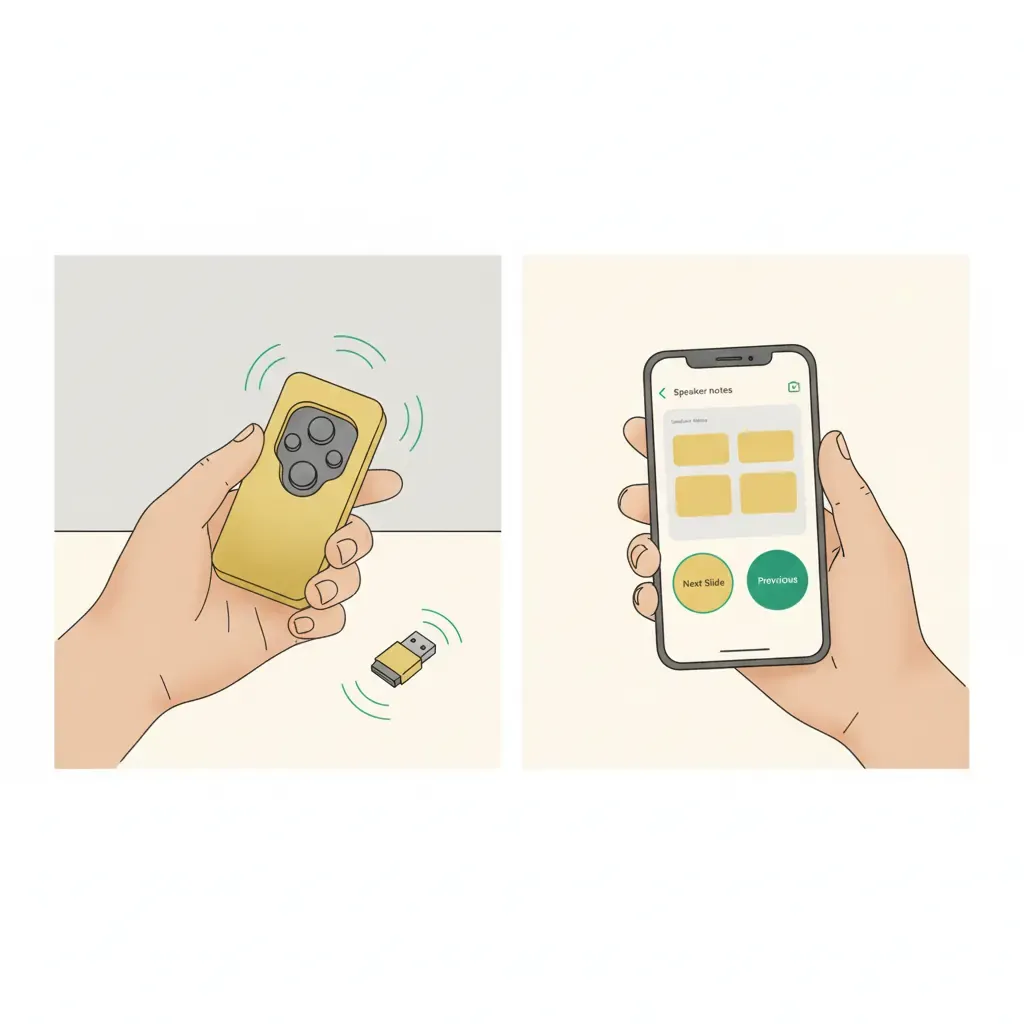
It’s already in your pocket
A hardware clicker with a USB dongle is useless once the dongle is left on your desk at home. Your phone comes with you anyway. With a phone remote, everything runs in a Chrome extension on the presenting computer and a browser tab on your phone.
Hardware clickers do have one real advantage: they talk to the computer directly over radio, so they keep working with no internet connection. A phone remote connects over the internet, so it needs a connection on both devices.
What your phone can do that a clicker can’t
A clicker sends two signals: next slide and previous slide. A phone remote also shows:
- Your speaker notes for the current slide, in a font size you can adjust
- A preview of the current slide
- A timer, so you can keep an eye on time without looking at the laptop
It can also be shared. A clicker pairs with one computer through one dongle. With Copresent, co-presenters join from their own phones or laptops and control the same deck.
Set up Google Slides remote control in under 2 minutes
Step 1: Install Copresent on your computer
Open desktop Chrome and add Copresent from the Chrome Web Store. Only the computer running the slideshow needs the extension. Nothing gets installed on the phone.
Step 2: Open your deck and click the Copresent button
Open your presentation in Google Slides. A Copresent button appears in the toolbar, next to Slideshow. If you had the deck open before installing, reload the tab first.
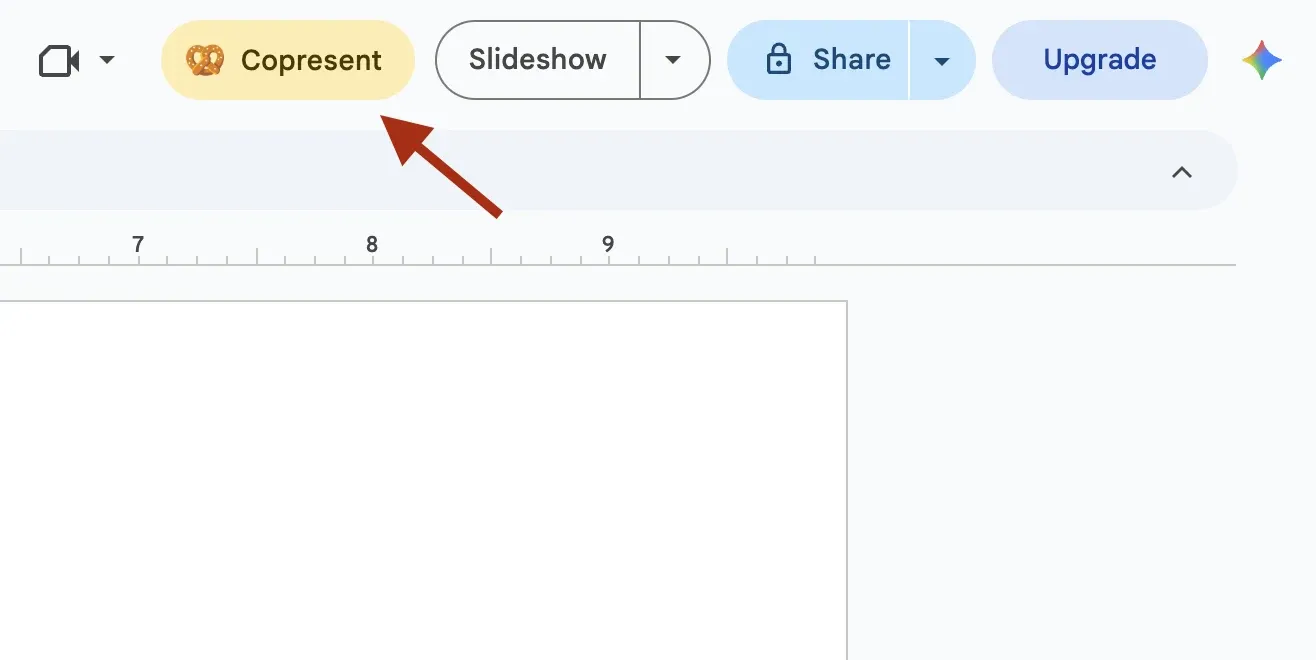
Step 3: Scan the QR code and sign in
Clicking the button opens a Ready to present dialog with a QR code. Scan it with your phone’s camera.
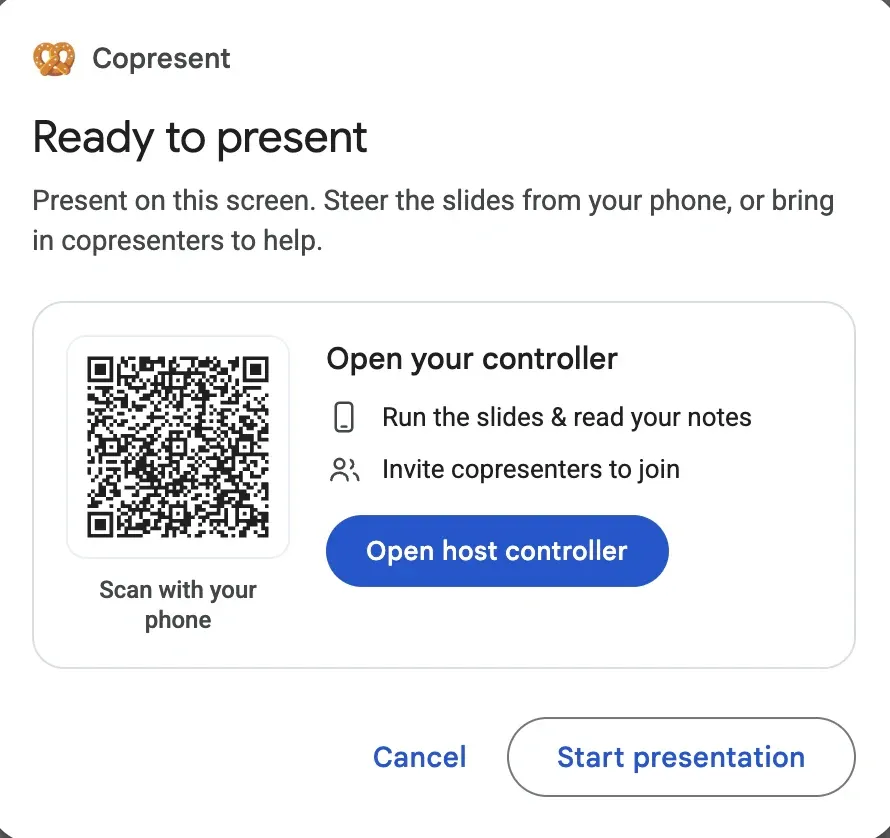
The host controller opens in your phone’s browser. On a laptop or tablet, select Open host controller instead.
Sign in with your Google account. When asked, select your deck. That gives Copresent permission to show your speaker notes and slide previews.
Step 4: Start the slideshow and present from your phone
Select Start presentation in the dialog, or start the slideshow as you normally would. Your phone now shows your speaker notes, a timer and Prev/Next buttons with previews of the neighbouring slides. Tap to move between slides. Notes update as the slide changes.
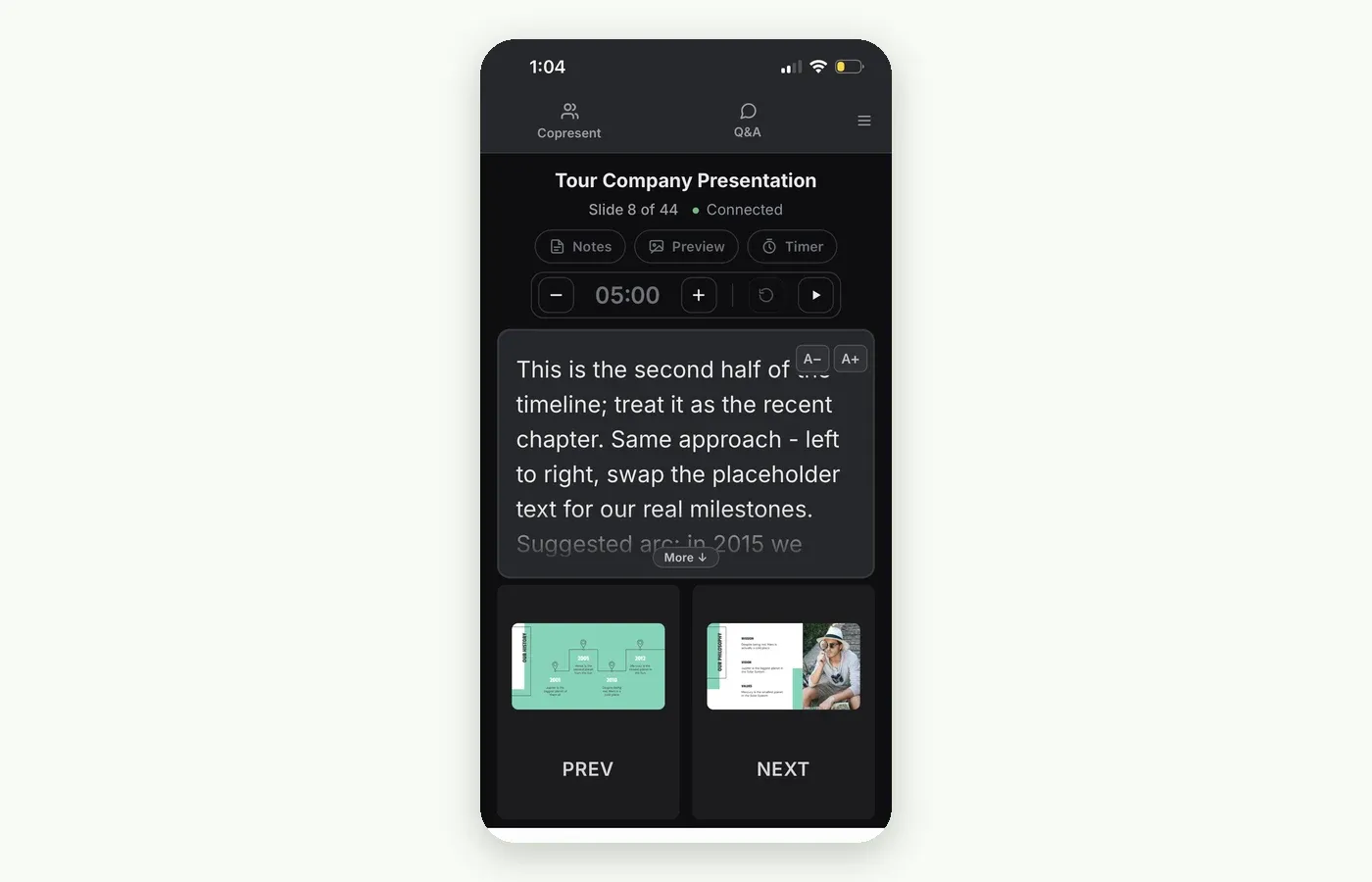
No second monitor? This is also the easiest way to see your notes without opening Presenter View: the audience sees the full-screen slides, and your notes stay on your phone.
Run a presentation with more than one speaker
Copresent lets several people control the same deck, each from their own device. You don’t have to pass a laptop around, and no one has to keep saying “next slide, please”.
Inviting co-presenters
In the host controller, copy the presenter invitation link and send it to your co-presenters by chat, email or text.
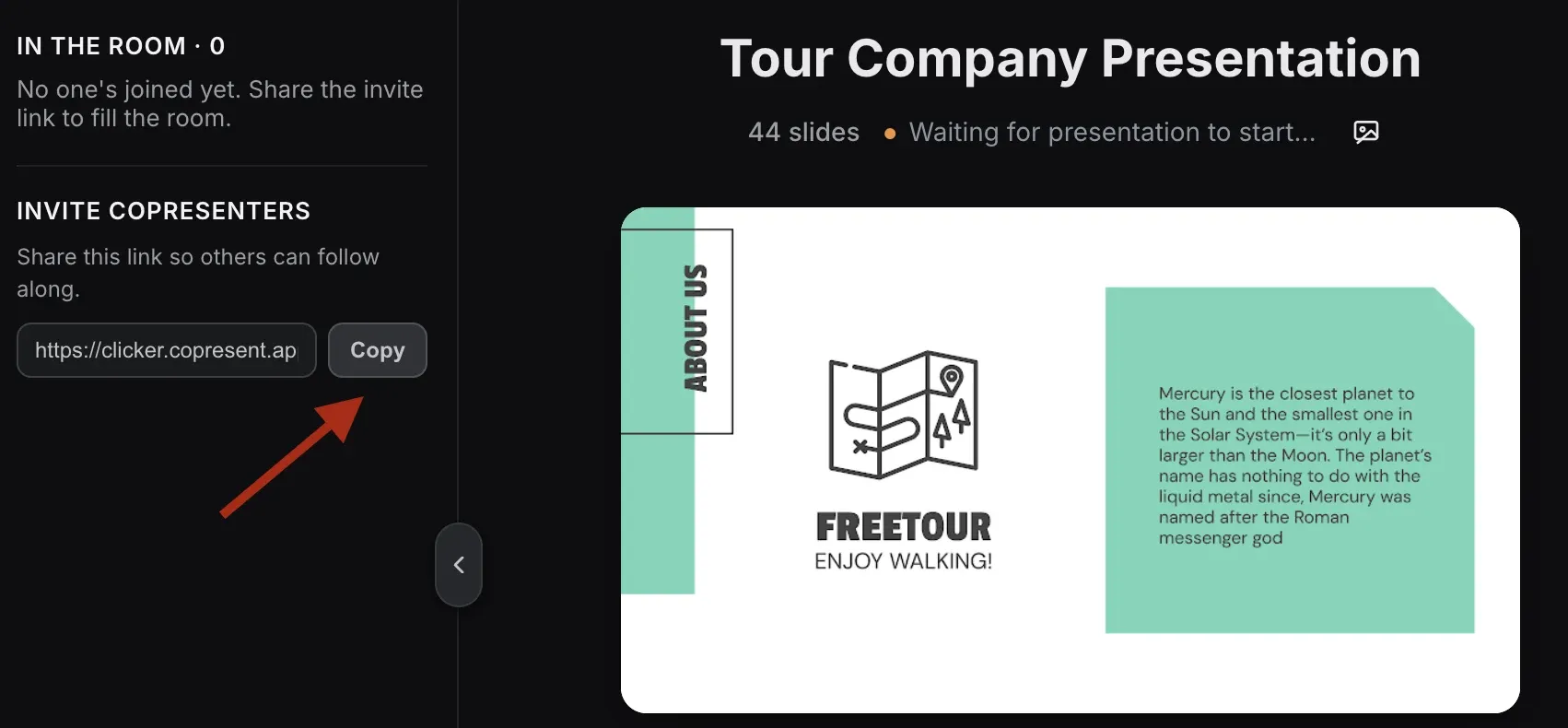
They open it in a browser on a phone, tablet or laptop. They don’t need the extension, and they don’t need an account.
Who controls the slides
Everyone who joins can move the slides, so each speaker drives their own section. As the host, you keep control:
- See who has joined, in the host controller’s list of presenters
- Pause one person’s control, then resume it when it’s their turn
- Lock control so only you can move the slides, for example during Q&A
Whoever moves the slides, the audience only sees the slides change.
Speaker notes for everyone
Co-presenters see the current slide and the speaker notes too, straight from the Google Slides file. If each speaker writes their cues into the notes of their own slides, those cues are on their phone when their section comes up. No separate notes document to share.
Works on Zoom, Google Meet and Teams
For a remote talk, share the Google Slides window in your usual video call, as you would anyway. Copresent controls the deck, not the call, so co-presenters can move slides without anyone taking over screen sharing.
Phone remote vs hardware clicker
| Copresent phone remote | Hardware clicker | |
|---|---|---|
| Next / previous slide | ✅ | ✅ |
| Speaker notes on the remote | ✅ | ❌ |
| Slide preview and timer | ✅ | ❌ |
| Several presenters control one deck | ✅ | ❌ (one dongle, one computer) |
| Works without internet | ❌ | ✅ |
| Extra hardware to carry | None | Clicker + USB dongle |
Comparing software instead? See Copresent vs Remote for Slides.
Does it work on a Chromebook?
Yes. Copresent is a Chrome extension, and Chromebooks run Chrome, so the setup is the same as on any other laptop: install the extension, open the deck, scan the QR code. Your phone doesn’t need to be signed in to the Chromebook or paired with it. On a managed school or work Chromebook, your administrator may need to allow the extension first.
Troubleshooting common connection issues
The Copresent button doesn’t appear in Google Slides
Reload the Google Slides tab. A tab that was open before the install, or before an extension update, won’t show the button until you reload it. If it’s still missing, go to chrome://extensions and check that Copresent is turned on. Extensions are also off by default in Incognito windows, so use a normal Chrome window.
Phone and computer are on different networks
That’s fine. The phone and the computer talk through Copresent’s server over the internet, not over local Wi-Fi, so they don’t need to be on the same network. If the phone still can’t connect, the network may be blocking secure WebSocket connections, which some corporate or school networks do. Try your phone on mobile data. If the presenting laptop is on the restricted network, ask IT to allow copresent.app.
Speaker notes or slide previews don’t show
Copresent needs permission to read the deck you’re presenting. If you skipped the deck selection when you signed in, the host controller will prompt you again. Choose the same presentation that’s open on the computer.
The slides stop moving when you tap
Check that the slideshow is still running on the computer, in the tab where you started it. Then reload the controller page on your phone, and it will reconnect. On iPhone, keep the browser tab in front and the screen awake: iOS pauses background tabs.
Frequently asked questions
Can you remotely control Google Slides?
Yes. The most common ways are a phone remote that runs through a Chrome extension, a USB hardware clicker that acts like your keyboard’s arrow keys, and the slide controls in Google Meet. A phone remote like Copresent also shows your speaker notes and lets co-presenters control the same deck.
Can I use my phone as a remote for Google Slides?
Yes. Install the Copresent extension on the presenting computer, open your deck, click the Copresent button and scan the QR code with your phone. Sign in with Google, start the slideshow, and your phone controls the slides. iPhone and Android both work in the browser; no app download is needed.
Can I use my iPhone as a slide clicker for Google Slides?
Yes. Scan the QR code with the iPhone camera and the controller opens in Safari. You can move between slides and read your speaker notes from the same screen. Keep the tab in front while you present, because iOS pauses background tabs.
Will a clicker work with Google Slides?
Most USB presentation clickers work with Google Slides, because they send the same keys as your keyboard’s arrow or Page Up/Page Down keys. Plug in the dongle and the buttons work. A clicker can’t show speaker notes, though, and it can’t be shared between presenters.
Can the Google Slides app control a presentation on my computer?
Not as a remote for a slideshow running in your computer’s browser. The Google Slides app is built for editing and for presenting from the phone itself, for example to a Chromecast or into a Google Meet call. To keep presenting from your laptop and use the phone as the remote, you need a tool like Copresent.
Can more than one person control the slides?
Yes. The host sends a presenter invitation link, and each co-presenter opens it on their own phone, tablet or laptop. Everyone who joins can move the slides and read the speaker notes, and the host can pause a person’s control or lock control at any time.
Related guides
- Need multiple co-presenters? Remote co-presenter setup with Copresent
- Setting up for the first time? How Copresent works, step by step
- Comparing tools? Copresent vs Remote for Slides
- Google Slides Co-Presenter Tips (2026 Guide)