Updated · By Copresent
How to Have Two (or More) Presenters on Google Slides
Google’s built-in co-presenter feature has been locked behind paid Workspace plans — Business Standard, Business Plus, Enterprise, and a handful of Education tiers — since its April 2023 launch, leaving free-account users with no native way to hand off slide control mid-presentation.
The workaround most teams need is straightforward. To add a co-presenter in Google Slides, you either use Google Meet’s built-in co-presenter tool (paid Workspace required) or a free alternative like copresent.app, which lets up to 10 people share control of the same deck through a single link — no account, no app install, no dependency on which video call software the team is using. Every co-presenter sees real-time speaker notes, the current slide, and a next-slide preview. They can take control from any device the moment they open the link the host sends them.
This guide covers both methods step by step, maps out exactly which Workspace plans unlock the Google Meet path, and puts the two options side by side so you can pick the right one before your next call starts.
Two ways to share Google Slides control
Method 1: Google Meet’s built-in co-presenter (paid Workspace)
Sarah had her slides open, her co-founder was in the Meet call, and then she hit the wall: the “Add as co-presenter” option in the People panel was greyed out. Her team was on a free Google account. The feature had launched in April 2023 — but only for Business Standard, Business Plus, Enterprise, and select Education tiers. The only fallback was manually passing screen share every time someone new needed to speak, which meant 30 seconds of fumbling mid-pitch.
For teams that do have an eligible Workspace plan, the Google Meet method works cleanly inside the call. One presenter at a time can be assigned control — they can advance slides and manage embedded media, but cannot end the overall screen share or close the presentation for the host.
Method 2: copresent.app — free, no account required
Copresent was built specifically for this gap: remote co-presenting of the same deck regardless of which video tool the team is using — Zoom, Meet, Teams, anything. The host installs the Chrome extension once; every co-presenter simply opens the magic link the host pastes into chat. No install. No account. No friction.
Up to 10 co-presenters can control the same deck simultaneously. Everyone sees speaker notes, the current slide, and a next-slide preview — and transitions between presenters stay smooth because no one ever touches the screen share.
How to add a co-presenter inside Google Meet
Step 1 — Share your Slides tab in the meeting
Open your Google Slides deck in Chrome or Edge — those are the only two browsers that support this. In your Google Meet call, click Present now at the bottom of the screen and choose A Tab (not a window, not your full screen). Pick the tab containing your presentation and click Share. Choosing the wrong sharing method disables the co-presenter option entirely, so this step matters.
Step 2 — Start the slideshow from the meeting tile
Once the Slides tab appears as a tile in Meet, hover over it and click Start slideshow. You must enter slideshow mode here — the co-presenter controls only activate after this step.
Step 3 — Open the People panel and grant co-presenter access
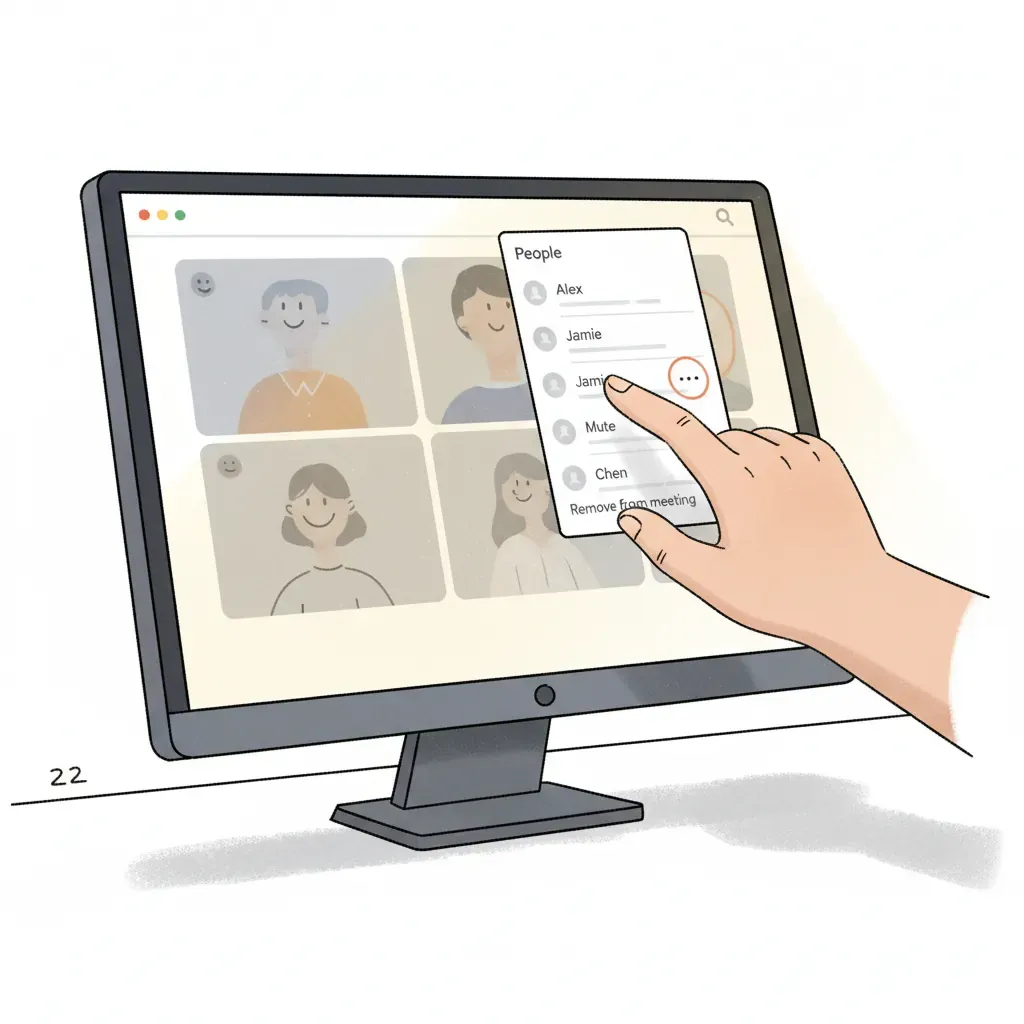
Click the People panel icon on the right side of Meet. Find your co-presenter’s name, hit the three vertical dots next to it, and select Add as co-presenter. They’ll receive a notification and must accept before gaining control.
What your co-presenter can (and cannot) do
Once they accept, your co-presenter can move through slides and view speaker notes on their own screen. Ending the presentation or stopping the screen share stays with the main host — those controls never transfer.
| Capability | Main presenter | Co-presenter |
|---|---|---|
| Advance / rewind slides | ✅ | ✅ |
| Control embedded media | ✅ | ✅ |
| View speaker notes | ✅ | ✅ |
| End the presentation | ✅ | ❌ |
| Stop the screen share | ✅ | ❌ |
Which Workspace plans include the co-presenter feature?

Free Google accounts and the co-presenter paywall
5 specific Google Workspace tiers support the co-presenter feature — and a standard Gmail account is not one of them. Sign into Google Meet with a personal @gmail.com address and the “Add as co-presenter” option in the People panel will either be missing or greyed out entirely. That’s not a bug or a settings issue; it’s a hard eligibility wall.
The plans that qualify are: Business Standard, Business Plus, Enterprise Starter, Enterprise Standard, and Enterprise Plus. Workspace Individual also makes the cut.
Education and Enterprise eligibility
Access on the education side is narrower than most teachers expect. Only Education Plus and the Teaching & Learning Upgrade include co-presenter — not the base Education Fundamentals tier that most schools run on. That gap catches a lot of educators off guard when they go looking for the feature mid-lesson.
For anyone outside these tiers, the paywall blocks the feature completely, regardless of how many people are in the meeting. That’s the practical reason copresent.app exists: it was built specifically for teams that need to control Google Slides together across any video tool — Zoom, Meet, or Teams — without a paid Workspace subscription as a prerequisite.
How copresent.app handles shared slide control without Google Meet
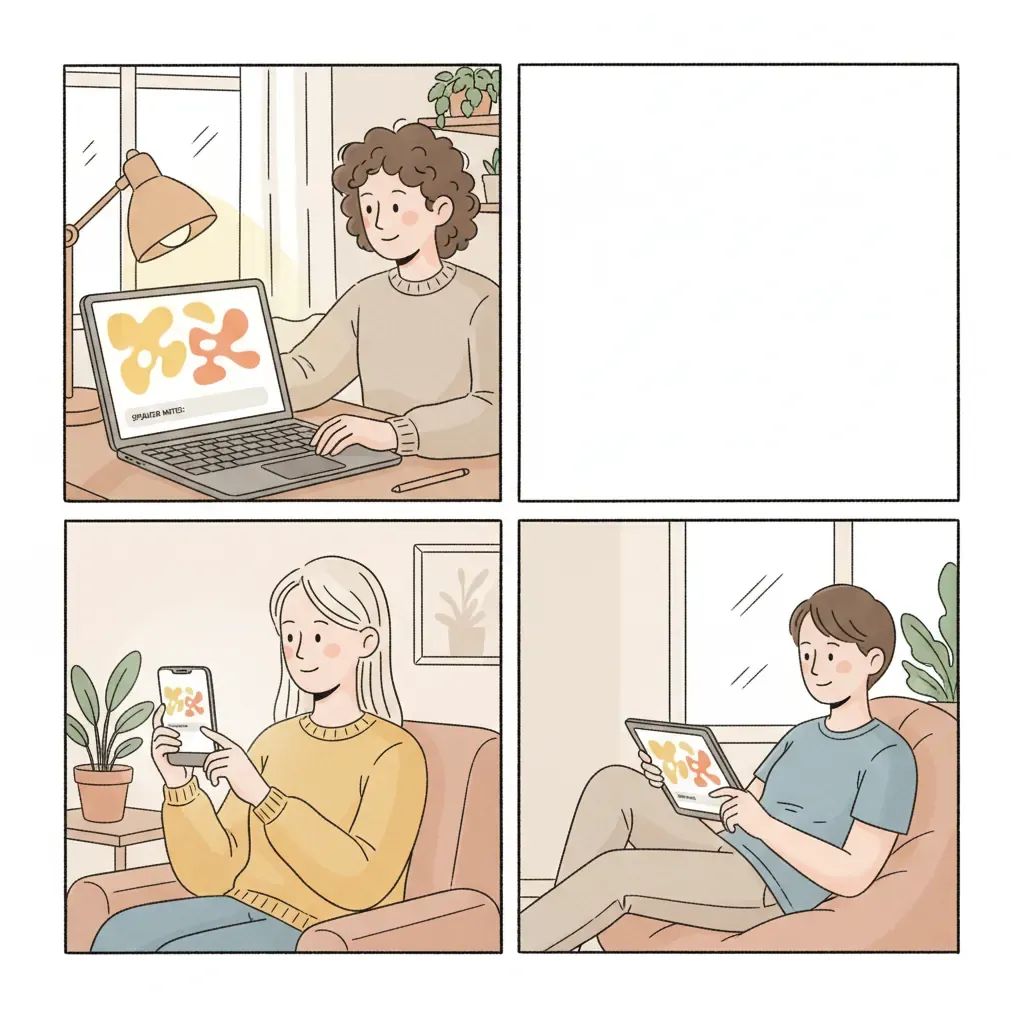
Picture this: your co-founder is on a Zoom call from a hotel lobby in Austin, you’re at a desktop in New York, and your third panelist is on a phone in London. None of you share a Google Workspace plan. Copresent was built exactly for that room.
Setting up shared control in under 60 seconds
Only the host does any work. They install the free Copresent extension once, open the Google Slides deck, and tap the Copresent button to generate a magic link. That link goes into the Zoom, Meet, or Teams chat — whichever call you’re already in. Co-presenters click it and instantly have a deck clicker in their browser. No account creation, no app install, no “OK Sarah, can you share your screen?” fumbling.
Real-time speaker notes sync across all presenters
Every person who joins via the link sees the same view: a live preview of the current slide and full speaker notes — simultaneously. That’s a meaningful difference from Google Meet’s method, where speaker notes are visible only to whoever controls the deck at that moment. Because everyone already sees exactly where the deck is, transitions between presenters are smooth.
Up to 10 co-presenters on one deck
Copresent supports up to 10 co-presenters controlling the same deck through a single link, and they can join from any device — phone included. Google Meet’s model, by contrast, has the main presenter assign one co-presenter at a time through the People panel. The magic link approach also means everyone is looking at the same deck version: no version-mismatch panic mid-pitch.
Side-by-side comparison: Google Meet vs. copresent.app
Most comparison guides treat Google Meet’s co-presenter feature as the default answer and mention free alternatives as a footnote. The numbers tell a different story.
| Google Meet co-presenter | copresent.app | |
|---|---|---|
| Cost | Paid Workspace plan required | Free |
| Account required | Yes — eligible Workspace tier | Host only (Chrome extension); co-presenters need nothing |
| Max co-presenters | 1 at a time (assigned by host) | Up to 10 simultaneously |
| Real-time speaker notes sync | Visible to the assigned co-presenter | Visible to all co-presenters |
| Current slide preview | No | Yes |
| Works outside Google Meet | No — Meet call is mandatory | Yes — Zoom, Teams, any video tool, or no call at all |
| Co-presenter device | Desktop Chrome or Edge only | Any device; co-presenter opens the magic link, no install |
| Smooth handoff between presenters | Host must reassign via People panel each time | Any co-presenter taps “Take Control” instantly |
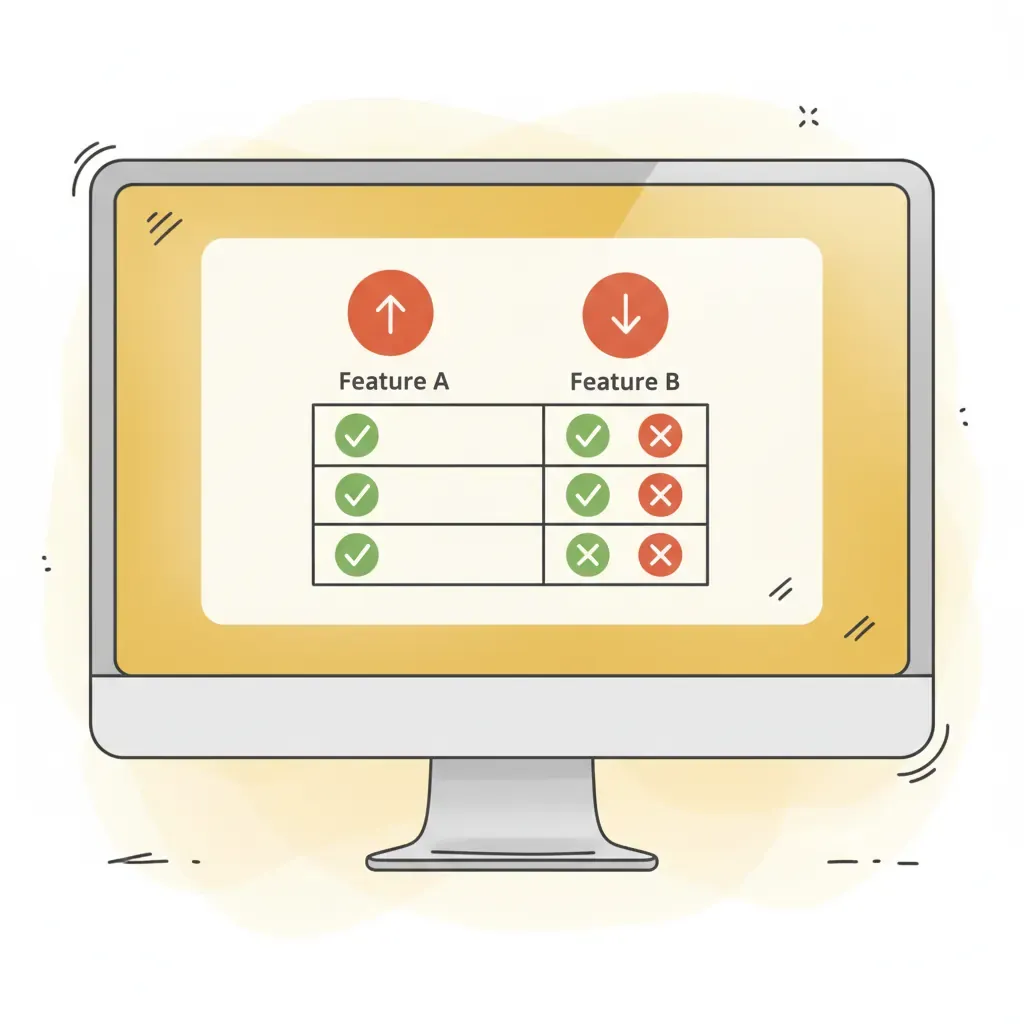
The Meet method works well if your entire team already sits on a qualifying Workspace plan and never leaves Meet. The moment one panelist is on Zoom, one co-presenter is on a phone, or anyone joins without a paid account, the Meet approach breaks down — and you’re back to “Sarah, can you share your screen?”
copresent.app was built for that gap: remote co-presenting across any video conferencing software, with smooth transitions between presenters, shared speaker notes, and instant deck access from any device the co-presenter happens to be holding.
When to use each method
Best for live video meetings: Google Meet co-presenter
A team running a weekly all-hands on Google Meet — everyone already on Business Standard, same org, same video tool — had the smoothest experience with the built-in method. The main presenter shared the tab, opened the People panel, hit “Add as co-presenter” next to a colleague’s name, and the handoff took under 30 seconds. No third-party tool, no link to paste, no extension for co-presenters to deal with.
That’s the scenario where Google’s native feature wins: everyone is on an eligible Workspace plan, the call is already in Meet, and you need exactly one co-presenter at a time.
Best for in-person or account-free presenting: copresent.app
The story changes the moment someone on your team isn’t on a paid Workspace plan, or the call is on Zoom or Teams instead of Meet. Copresent handles remote co-presenting across any video tool, not just Google Meet.
The host installs the Chrome extension once. Every co-presenter just opens the magic link the host drops in chat — no install, no account, no fumbling with screen-share buttons. They get instant clicker access on whatever device they’re holding, plus real-time speaker notes and a current-and-next-slide preview. Up to 10 people can hold the clicker simultaneously. Transitions between them are smooth rather than the 30-second “OK Sarah, can you share your screen?” silence. If your presenting team spans Zoom, Meet, and Teams in the same week, that flexibility matters every single time.
Frequently asked questions
How do you co-present in Google Slides?
The method depends on your setup. Inside Google Meet (paid Workspace), the main presenter shares their Slides tab, enters slideshow mode, opens the People panel, clicks the three-dot menu next to a participant’s name, and selects Add as co-presenter. Outside Google Meet — or if you’re on a free account — copresent.app lets the host share a magic link so anyone joins as a co-presenter instantly, on any device, in any video call.
Does Google Slides have a presenter mode?
Yes. Share your Slides deck as a tab in Google Meet, click Start slideshow, and a presenter view opens showing your speaker notes, a slide navigator, and a timer — while your audience sees only the slides. Co-presenters assigned through Google Meet can also view the shared speaker notes from their own screen.
Can multiple people control a Google Slides presentation at the same time?
Google Meet’s built-in feature assigns one co-presenter at a time, meaning control is passed rather than shared simultaneously. copresent.app takes a different approach: up to 10 co-presenters can hold the clicker and advance slides independently through a single shared session link — no handoff required, and any of them can take control at any moment.
Do co-presenters need a Google account to join?
Not with copresent.app. Co-presenters receive a magic link from the host and click it — that’s the entire join process. No account, no Chrome extension install, no Workspace plan. The Google Meet built-in method, by contrast, requires all participants to be in the same Meet call, and the feature itself is restricted to eligible paid Workspace tiers.
What can a co-presenter NOT do in Google Meet?
A co-presenter assigned through Google Meet can navigate slides, control embedded media, and view speaker notes — but cannot stop the main presenter’s screen share or end the presentation entirely. Only the main host retains those controls. This limitation is a common source of confusion and one reason teams running multi-speaker sessions look for alternatives.
Does copresent.app work with Zoom and Microsoft Teams?
Yes. Because copresent.app runs through the host’s Chrome extension and browser tab — not through Google Meet’s infrastructure — it works alongside any video conferencing tool. The host shares their screen in Zoom, Meet, or Teams as normal; co-presenters join via the link and control the same deck from their own devices without touching the screen share.
What do co-presenters see when they join a copresent.app session?
Each co-presenter gets a real-time view of the current slide and the speaker notes — all synced live. Anyone stepping in to present has the same context as the host, with no need for a separate copy of the deck or a pre-meeting briefing on where things stand.
Related guides
- Present from your phone? Google Slides Remote: Control from Your Phone Free
- Co-presenting tips, timing & the 5-5-5 rule? Google Slides Co-Presenter Tips (2026 Guide)
- Looking for the product page? Remote co-presenter setup with Copresent
- Comparing tools? Copresent vs Remote for Slides