Updated · By Peter Kovalsky
Google Slides Presenter View: How to See Your Speaker Notes While Your Audience Sees Only the Slides
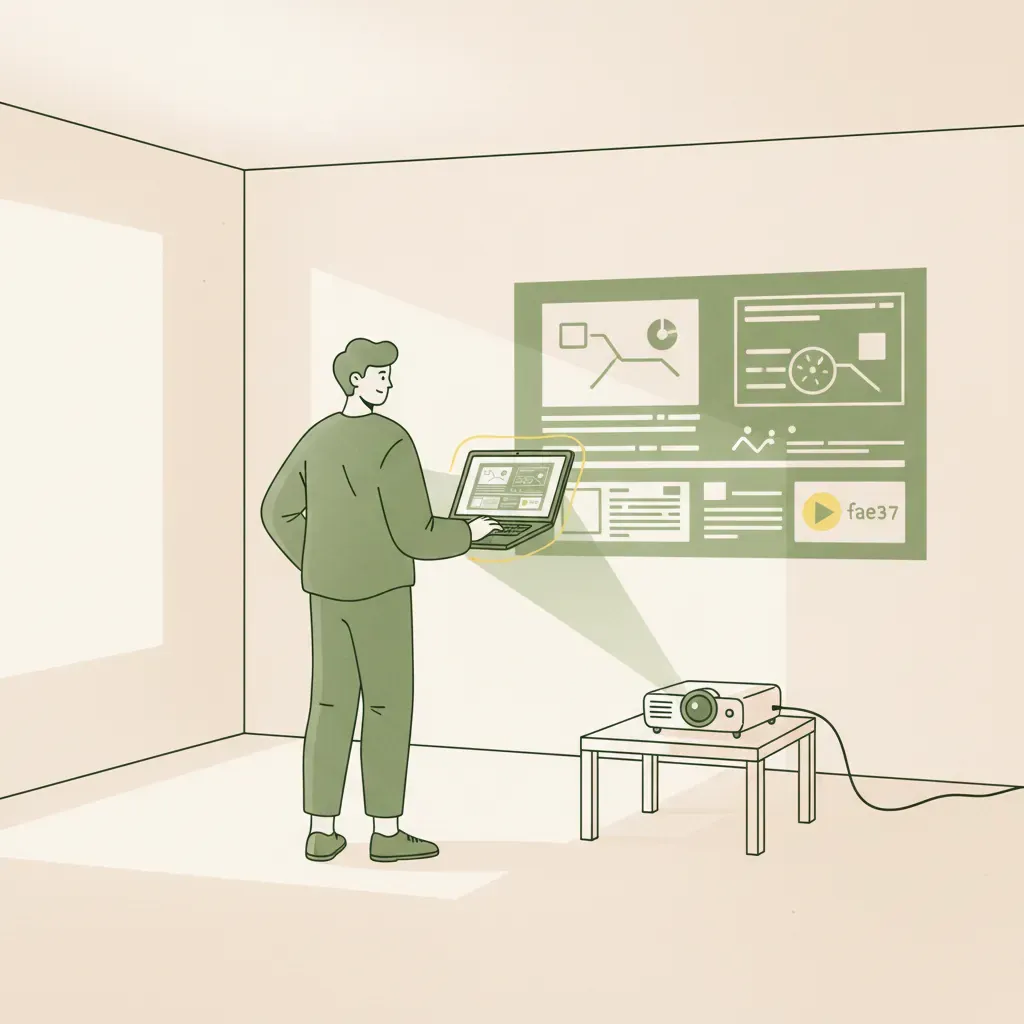
Most presenters discover the mirrored-notes problem thirty seconds before they walk on stage — their speaker notes plastered across the projector for everyone to read.
Google Slides Presenter View solves exactly that. Click the dropdown arrow next to “Slideshow,” select Presenter view, and a separate window opens on your screen showing your notes, a countdown timer, and a preview of the next slide — while the audience sees only the full-screen presentation. The catch most tutorials skip: it requires Chrome and an extended display, not a mirrored one. That single OS setting is why notes bleed onto the audience screen for thousands of presenters every day.
No second monitor at all? A phone can replace one entirely — but more on that after the step-by-step setup below.
What Presenter View actually shows you (and what it hides from the audience)
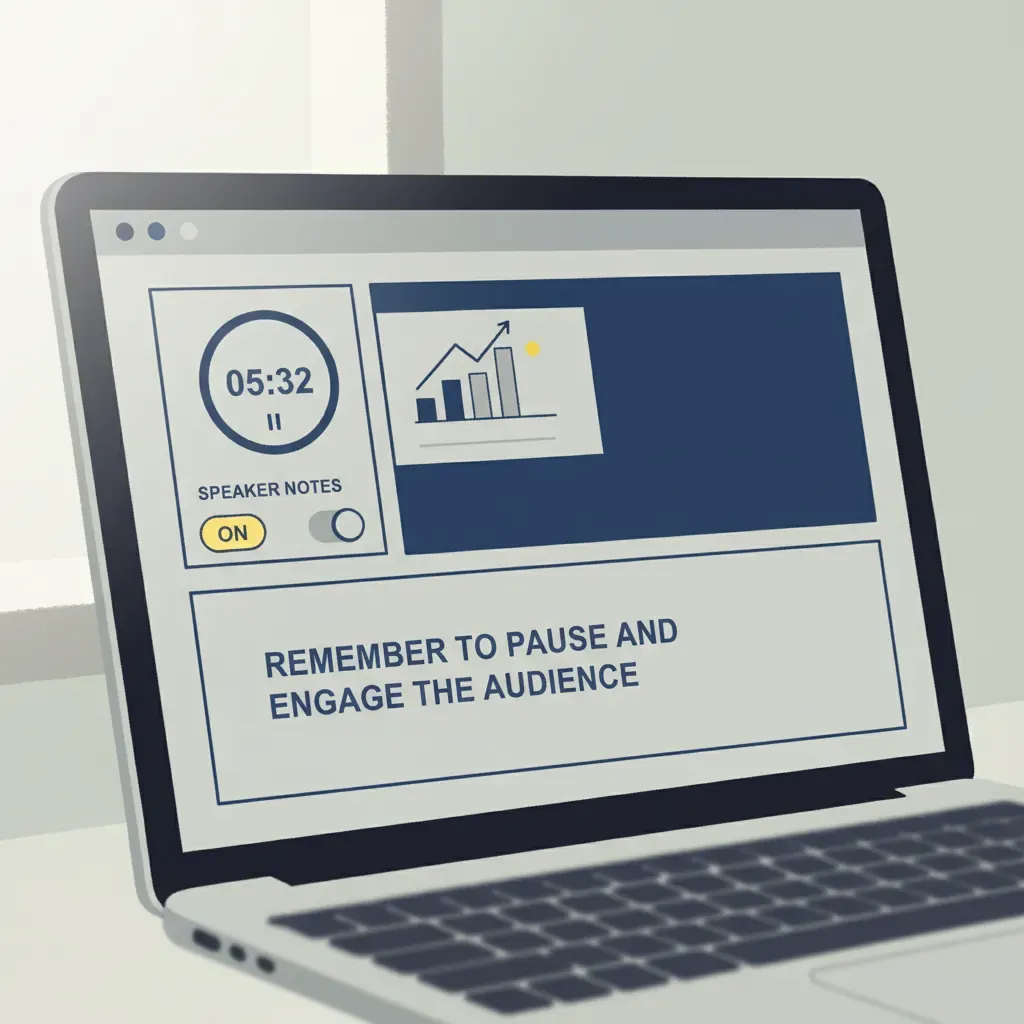
Picture a teacher two minutes before class: deck queued up, projector connected, Presenter View open for the first time. She glanced at her laptop screen and saw four distinct panels staring back — none of which the students could see on the board behind her.
Speaker notes panel
The largest panel is the speaker notes area. It mirrors whatever text you typed below each slide while building the deck, updating automatically as you advance. You can also drag the text-size slider to make notes bigger without changing anything the audience sees — useful when you’re standing three feet from a dim laptop screen.
Timer and slide navigator
A running clock sits in the top-left corner, counting up from zero the moment you hit play. Beside it, a thumbnail of the next slide gives you a one-beat preview before you advance — so you’re never caught mid-sentence by a slide you forgot you built.
Audience Q&A tool
Under “Audience Tools,” a toggle activates a live Q&A link your attendees can open on their phones. Audience members submit questions anonymously or with their Google profile. That link only appears in the audience’s full-screen view — not on your notes screen — so you control exactly when questions go live.
Step-by-step: how to open Presenter View in Google Slides
On a laptop with a second monitor or projector
3 ways to open Presenter View, compared:
| Method | How | Best for |
|---|---|---|
| Dropdown menu | Click the ▾ arrow next to “Slideshow” → select Presenter view | First-time setup |
| Menu bar | View → Presenter view | When you’re still editing |
| Keyboard shortcut | Press P while already in slideshow mode | Mid-presentation toggle |
For the dropdown route, connect your second screen before you click. Google Slides detects the extra display and routes the full-screen slide to it automatically, leaving your notes window on the laptop.
Works best in Chrome. Other browsers may not open the separate Presenter View window correctly — Safari and Firefox both have known rendering issues with the dual-window layout.
On a single screen (workaround)
No projector? Open Presenter View anyway. The notes window floats separately from the slideshow window, so you can resize and reposition both on one monitor — slides left, notes right. Cramped on a 13-inch screen, but functional for a rehearsal or a small-room setup where you’re the only one looking at the laptop.
Keyboard shortcut to toggle notes mid-presentation
Press P at any point during the slideshow. Google’s official help doc lists this for PC, Mac, and Chrome OS — but none of the top-ranking tutorials surface it clearly. It fires up the full Presenter View window without interrupting the audience’s slide display.
Slideshow view vs. Presenter View — what’s the difference?
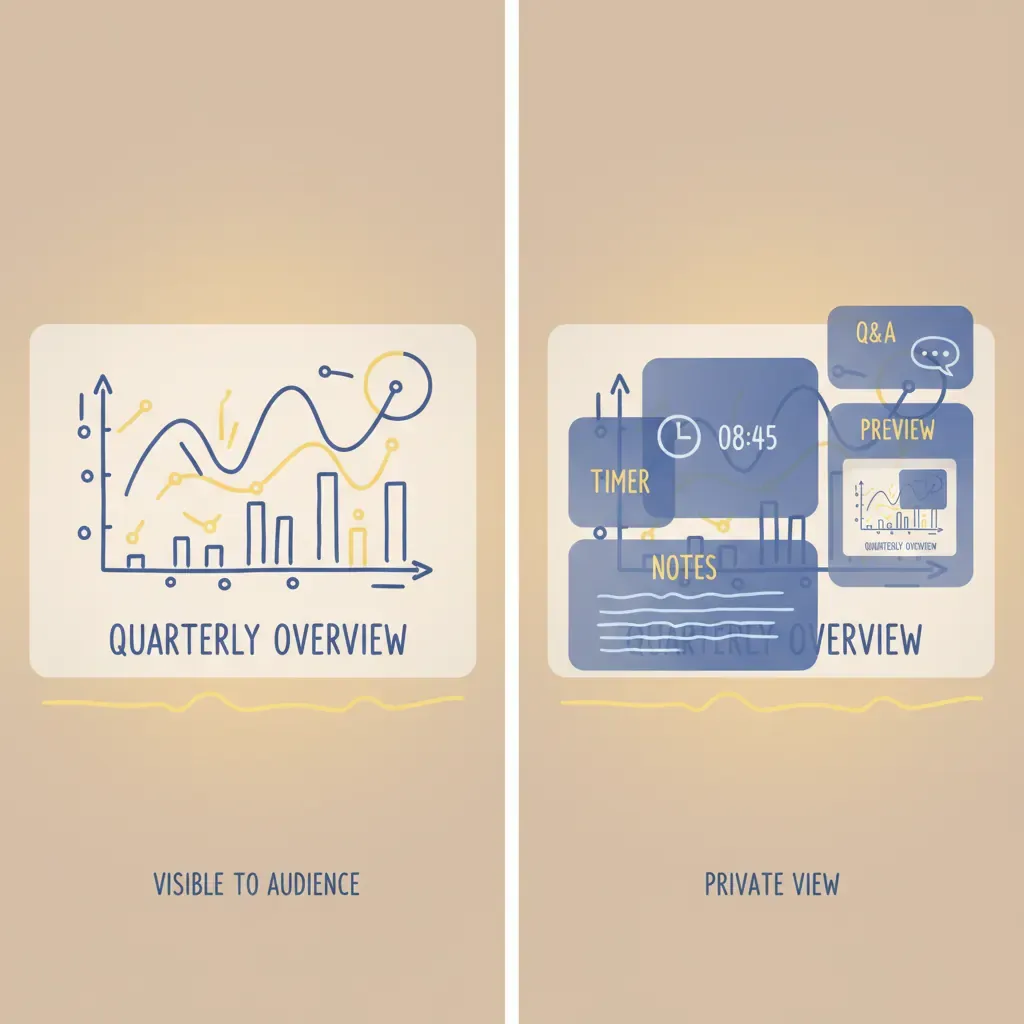
4 panels open in Presenter View; Slideshow mode gives you exactly 0 of them. That gap explains every use-case decision below.
When to use each mode
| Mode | What the presenter sees | What the audience sees | Best for |
|---|---|---|---|
| Slideshow view | Full-screen slide (same as audience) | Full-screen slide | Quick review, rehearsal, single-screen kiosk |
| Presenter View | Notes + timer + next-slide preview + Q&A panel | Full-screen slide only | Any live presentation where you need speaker notes private |
Slideshow view is fine when you’re rehearsing solo or running a self-advancing display with no one at the podium. The moment a live audience enters the room, Presenter View is the better call — it opens a separate browser window on your screen while the full-screen slide fills the second display.
Why the audience sees a different window than you
Google Slides spawns two independent windows when you launch Presenter View: one renders the full-screen slideshow, one renders your notes dashboard. Your operating system treats them as separate outputs and routes each to a different display — provided your displays are set to Extend, not Mirror. On an extended desktop, the two windows never share pixels, so notes stay on your screen regardless of what the projector shows.
Dual-screen setup: extend, don’t mirror
You’ve clicked Presenter view, your laptop shows notes, the projector shows slides — and then a student in the front row leans over and whispers, “I can see your notes up there.” That’s a mirrored display. One OS setting is the culprit every time.
Windows display settings
Press Win + P to open the Project panel (a thin flyout on the right). Choose Extend — not “Duplicate.” Windows will treat your laptop screen and the projector as 2 independent displays. If the slides and notes land on the wrong screens, hit the Swap button inside Google Slides Presenter View to reassign them without touching the OS settings again.
Mac display settings
Head to System Settings → Displays → Arrangement tab. Uncheck Mirror Displays. Drag the display thumbnails so your laptop sits where you physically stand — Presenter View will open there by default.
Chromebook display settings
Press Ctrl + brightness-down (or open Settings → Device → Displays) and set the external display to Extended desktop. The toggle is labelled “Mirror Built-in Display” — leave it off.
Works best in Chrome. All 3 of these workflows assume you’re running Google Slides in Google Chrome. Other browsers do not reliably support Presenter View’s dual-window layout.
Presenting remotely: keeping notes visible in Google Meet and Zoom
Every tutorial that covers remote presenting tells you to share your entire screen. That advice will expose your speaker notes to everyone on the call — and none of the top 8 articles on this topic flag it.
Google Meet: ‘Present in a meeting’ mode
Google Meet has a built-in fix. Instead of sharing your whole screen, click Present now → A window and select only the Chrome window running your slides in full-screen. Your Presenter View window — open in a separate Chrome window — stays private on your monitor. Google’s official help doc confirms this workflow but buries it under “Other actions while presenting” with zero elaboration. The practical sequence:
- Open Presenter View in one Chrome window.
- Launch the slideshow full-screen in a second Chrome window.
- In Meet, choose Present now → A window, then select the slideshow window only.
Your notes, timer, and Q&A panel remain invisible to participants.
Zoom: sharing a single window so notes stay private
Zoom works the same way. Hit Share Screen, switch to the Window tab (not the Screen tab), and select the slideshow window. Zoom shares only that window’s pixels — your Presenter View sits untouched behind it. One tab choice separates a clean remote presentation from an accidental notes leak.
Use your phone as the remote — no second monitor needed
A trainer named Dani had a 20-person workshop booked for 8 a.m. and no projector in the room — just her laptop and her phone. She needed her speaker notes visible without dragging in a second monitor. That’s the exact scenario Copresent was built for.
How Copresent syncs speaker notes to your phone in real time
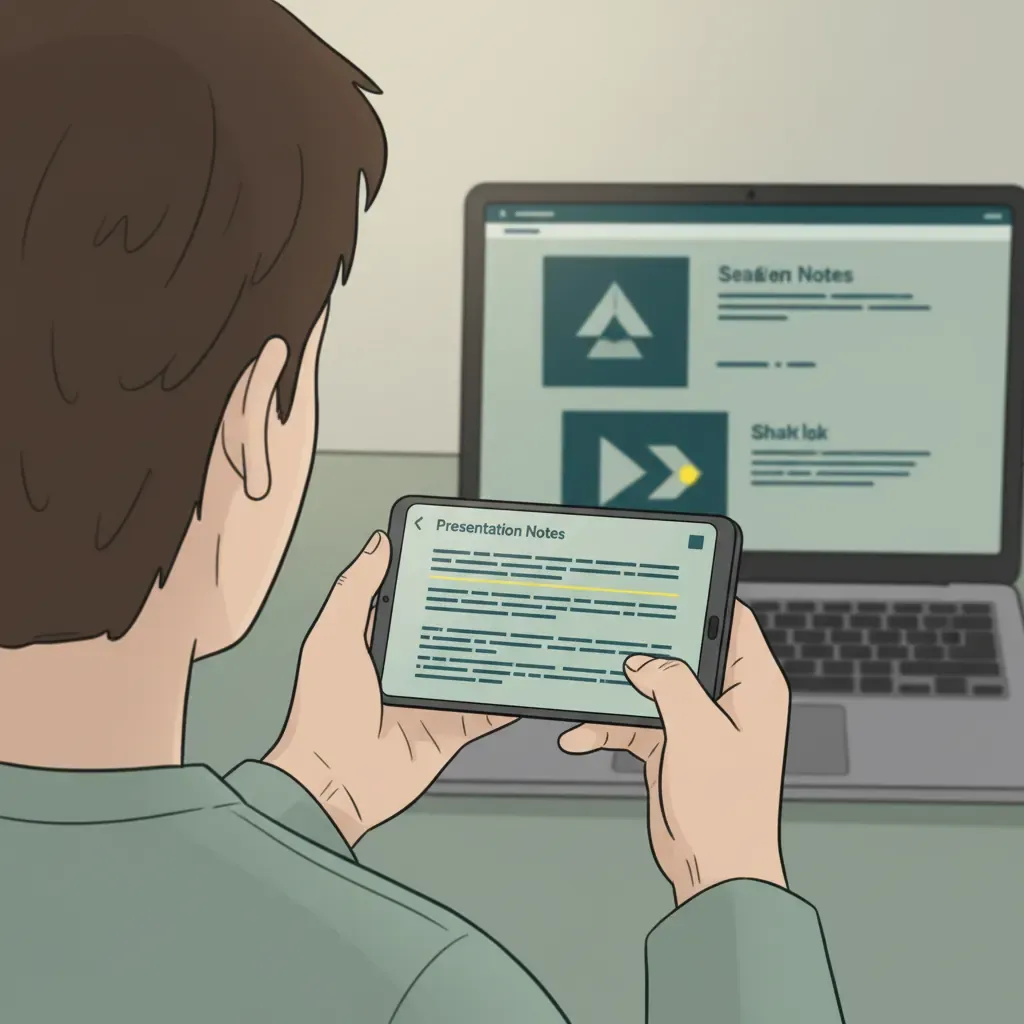
After installing the Copresent Chrome extension, Dani opened her deck and hit Presenter view. Her phone — connected via the Copresent companion app — showed the current slide’s speaker notes in real time, synced over Wi-Fi. No HDMI cable. No second screen. She held her phone like a notecard, and the audience saw only the full-screen slides on her laptop.
Swipe to advance slides without touching the laptop
A left-to-right swipe on her phone moved to the next slide. She controlled her slides wirelessly without stepping back to the keyboard once during the 45-minute session.
Co-presenter mode: share slide control with your team
When two facilitators split a workshop, Copresent’s co-presenter mode lets both control the deck simultaneously, and you can invite as many co-presenters as you need. No one has to hover near the laptop or shout “next slide” across the room.
Why your presenter notes are not showing up — and how to fix it
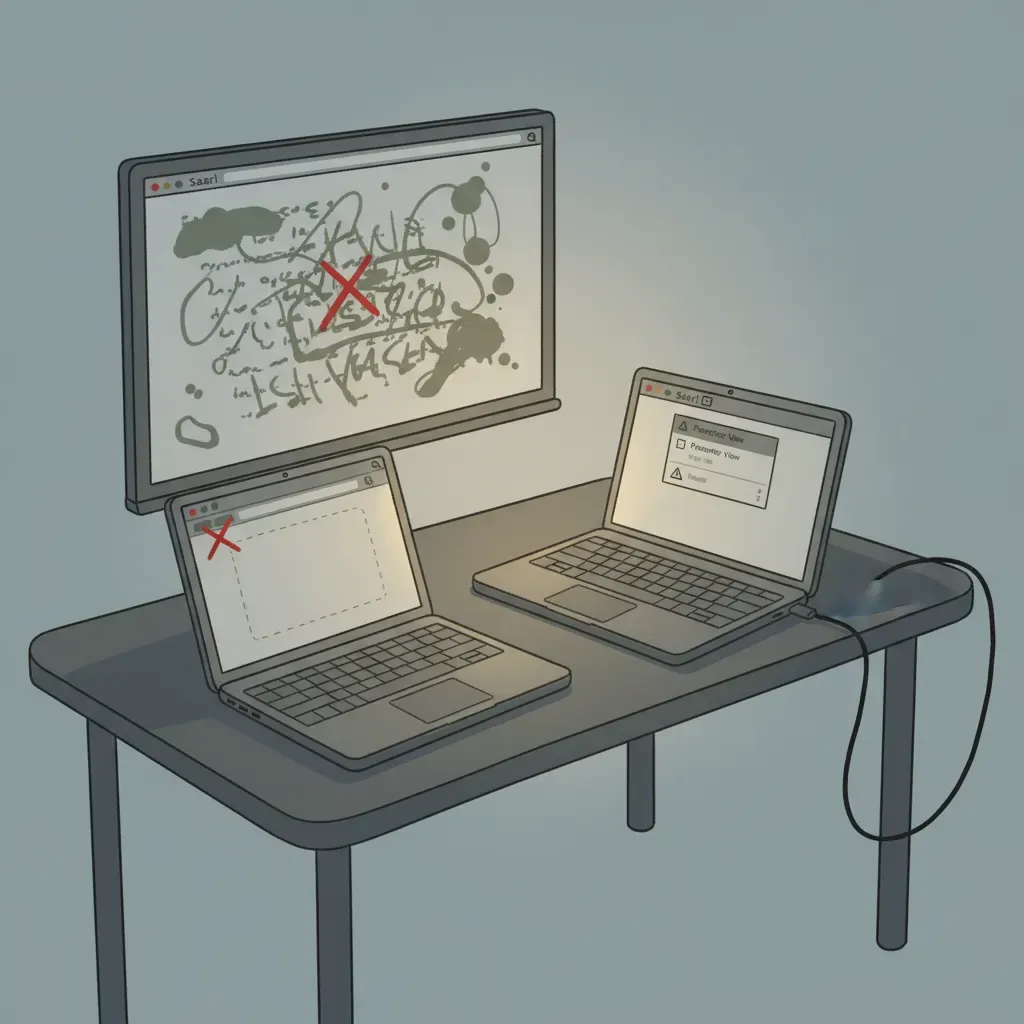
3 things break Presenter View. Here’s how to tell which one you’re hitting.
| Symptom | Root cause | Fix |
|---|---|---|
| Notes appear on the projector screen | Display is set to Mirror instead of Extend | Change OS display mode to Extend, then hit Swap inside Presenter View |
| ”Presenter view” option is greyed out or behaves unexpectedly | You’re using Firefox, Safari, or Edge | Switch to Chrome — Google’s own help doc lists Chrome as the required browser |
| Notes window opens but the panel looks blank | Notes panel is collapsed | Click the small arrow at the bottom edge of the notes panel to expand it |
Screen is mirrored instead of extended
This is the cause behind the majority of “my notes showed on the projector” complaints, including the 2019 Google support thread that still ranks on the first page today. The fix lives in your OS, not in Google Slides. Once you’ve switched to Extend mode, open Presenter View and press Swap to confirm which screen gets the slides and which gets the notes.
Using a non-Chrome browser
Presenter View’s separate window relies on Chrome’s multi-window handling. Other browsers either block the pop-up or render it incorrectly. No workaround exists — open slides.google.com in Chrome before you present.
Notes panel is collapsed or hidden
The panel collapses to a thin strip at the bottom of the Presenter View window. A single click on the chevron arrow restores it. If the text still looks tiny, drag the Notes Zoom slider (top-right of the notes panel) up to a readable size.
Frequently asked questions
How do I use Presenter View in Google Slides?
Click the ▾ dropdown arrow next to the “Slideshow” button in the top-right corner, then select Presenter view. A separate window opens on your screen showing your speaker notes, a countdown timer, and a preview of the next slide — while the audience sees only the full-screen presentation. Make sure you’re using Chrome and that your display is set to “Extend,” not “Mirror.”
What is the difference between Slideshow view and Presenter View?
Slideshow view fills every connected screen with the presentation — the audience and presenter see the same thing. Presenter View opens a second, private window on the presenter’s screen that shows speaker notes, a timer, slide navigation controls, and the Q&A tool. The audience display stays clean; only the presenter’s laptop shows the extra panels.
Why can’t I see presenter notes in Google Slides?
Nine times out of ten, your operating system is set to Mirror displays instead of Extend. When screens mirror, whatever is on your laptop — including the notes panel — duplicates on the projector. Switch your OS display settings to “Extend,” reopen Presenter View, then hit the Swap button inside the Presenter View window to assign notes to your screen and slides to the audience display.
How do I turn on Presenter View?
Two quick options: click the ▾ arrow next to “Slideshow” and choose Presenter view, or press P on your keyboard once you’re already in presentation mode. The keyboard shortcut is the fastest way to toggle the notes panel mid-presentation without reaching for a menu — and almost no tutorial surfaces it clearly.
Does Presenter View work without a second monitor?
Yes — with a workaround. On a single screen you can open Presenter View in one browser window and resize it alongside your slideshow window, though it’s clunky. A cleaner option is to use a phone-based remote like Copresent, which syncs your speaker notes to your phone in real time so you can read them there while the full-screen slides show on your laptop or projector.
Can presenter notes be seen by the audience during a Google Meet call?
They can if you share your entire screen — Presenter View’s notes panel will be visible to everyone on the call. To keep notes private, share only the presentation window (the one showing slides, not the Presenter View window). In Google Meet, use the “A tab” or “A window” option and select just the slideshow window, not your whole desktop.