Control Google Slides from your phone.
Change slides, read your speaker notes, and let teammates control the presentation too. Collect audience questions with a QR code.
Chrome Web Store reviews
See Copresent in action.
Reviews from Chrome Web Store users.



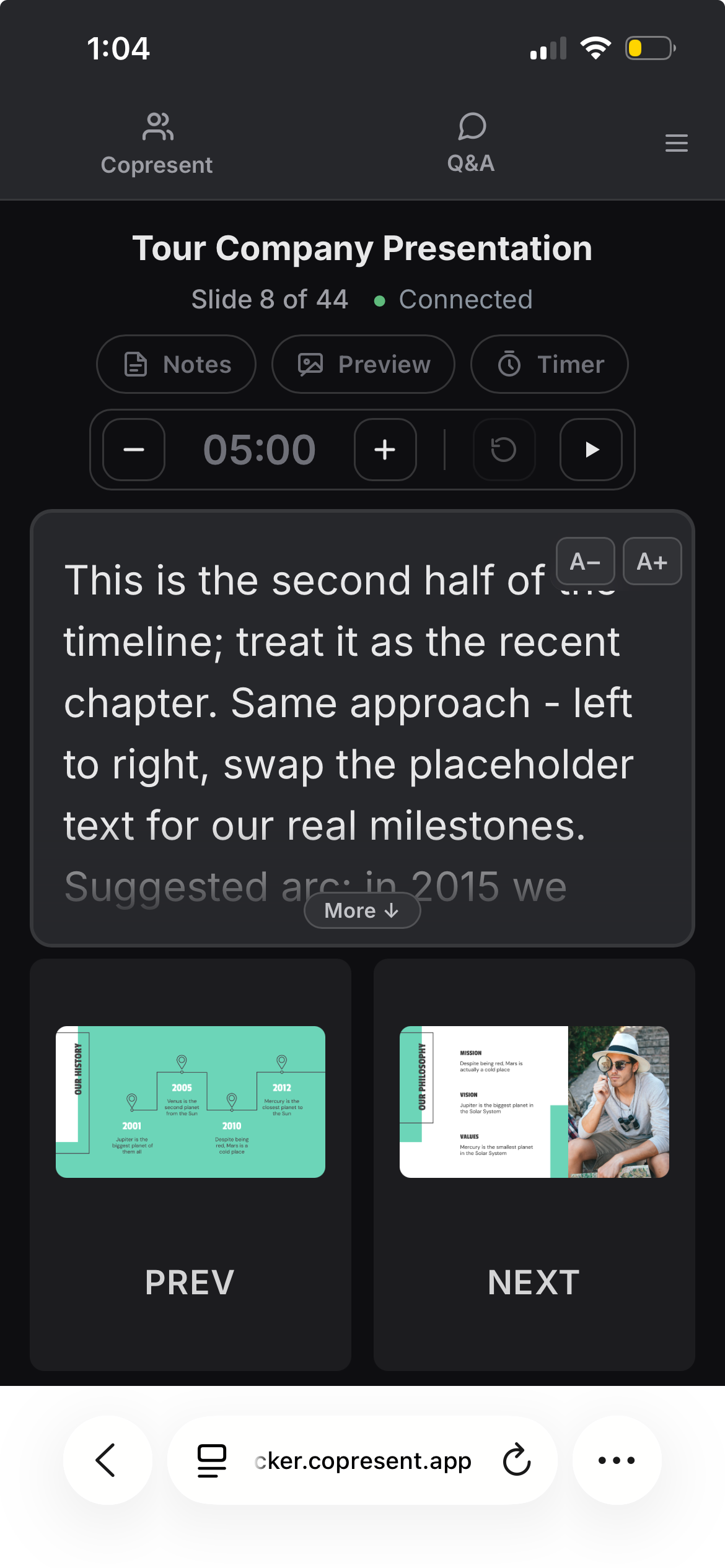
Change slides and read your notes on your phone.
Tap or swipe to move through your presentation. See your speaker notes without going back to your computer.
Turn on slide previews to see what’s on screen. Set a personal timer to keep track of your time.
Let teammates control the slides too.
Send an invitation link. Each presenter can open it on their phone or laptop and advance the same deck.
Keep one screen share running while people take turns. As host, you can pause and resume each person’s slide control.
Read more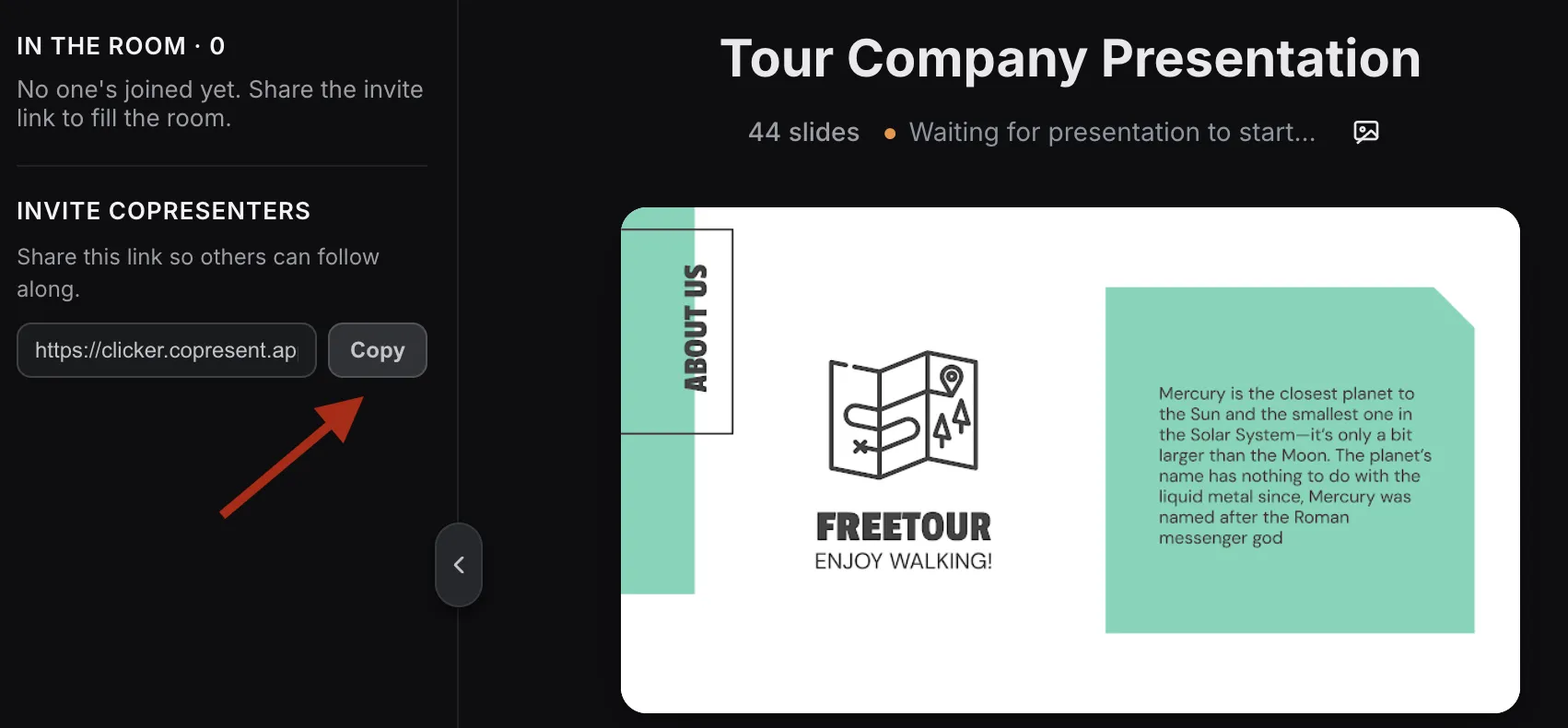
Keep track of your speaking time.
Set a countdown in your controller and see how much time you have left as you present. Add or remove a minute with the + and − buttons.
Pause for a question, resume when you’re ready, or reset to start again. Each presenter has their own timer on their own device.

Collect audience questions with a QR code.
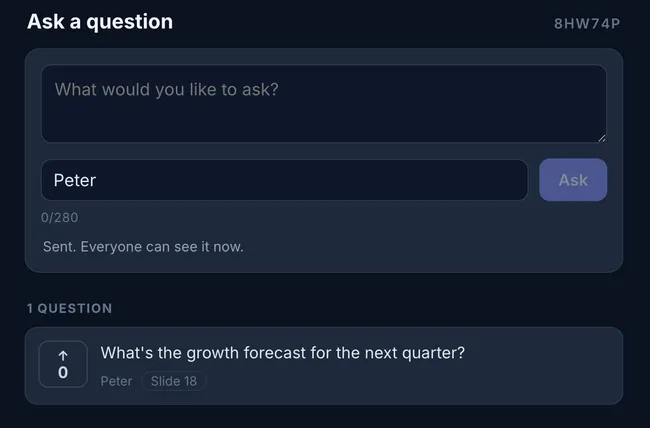
Show the code on your slides. People can ask questions and vote on others from their phones.
Questions arrive in your controller with the slide they relate to. Pin a question, mark it answered, or hide it.
Read more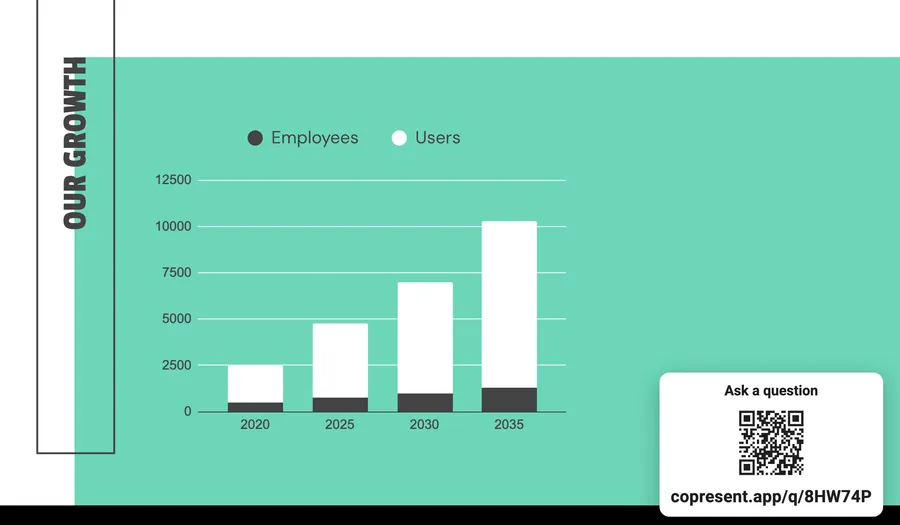
Use it in your usual video call.
Share your Google Slides window in Zoom, Meet, Teams, or any of the tools below. Use Copresent on your phone to change slides, read notes, and take audience questions while you present.
 Webex
Webex  Slack
Slack  Discord
  GoTo Meeting
  Jitsi Meet
 How to set up Copresent.
- 1
Add to desktop Chrome
Install the extension on the computer you use to present.
- 2
Open your Google Slides deck
Click Copresent, open the host controller, and sign in with Google.
- 3
Connect your phone
Open the controller link on your phone. Send teammates a guest link when you want to share control.
A few common questions
What do I need to get started?
A Google Slides presentation, desktop Chrome, and a Google account. Install Copresent on the presenting computer, open your deck, and sign in to the host controller. Your phone connects in its browser.
Do I need to install an app on my phone?
No. Open the controller link in your phone’s browser. You can also use a tablet or laptop.
Do my teammates need an account?
No. Only the host signs in with Google and installs the Chrome extension. Invited co-presenters open a link to join.
Does it work with Zoom, Google Meet, and Teams?
Yes. Share your Google Slides window in your usual video call, then use Copresent to control the deck. Your teammates can control the same slides without changing who shares their screen.
Does it work with PowerPoint or Keynote?
Copresent currently works with Google Slides only.
Use your phone to
control Google Slides.
Change slides, read your notes, and take audience questions.