Jeopardy
Teams pick a category and a points value from a board, then answer the question behind it.
Build it: Make a board slide with one box per question. Link each box to its question slide, and give every question slide a “Back to board” link.
Build a Jeopardy board, a trivia round or an escape room with linked slides and hidden answers. No add-ons needed.
Link slides to each other so a click jumps to a question, hide the answer until you reveal it, then present the deck. Four steps:
Sketch the start slide, a board or menu if the game has one, the question slides and the answer slides.
Select a shape or text, choose Insert → Link and pick a slide under “Slides in this presentation”. Links work when you present.
Put each answer on the next slide, or select it, choose Insert → Animation and set it to start On click.
Click Slideshow and play. Click right on a link: a click anywhere else on the slide moves to the next one.
Teams pick a category and a points value from a board, then answer the question behind it.
Build it: Make a board slide with one box per question. Link each box to its question slide, and give every question slide a “Back to board” link.
Teams guess the most popular answers to a survey question.
Build it: Put the ranked answers on one slide, each under a cover box. Slides reveals boxes in a set order, so to reveal them in any order, link each box to its own answer slide.
A quick round of questions, one per slide, for warm-ups and reviews.
Build it: One question per slide with the answer set to appear on click, or on the next slide. No links needed, so it runs with Next alone.
Two choices per slide. Students pick a side and explain why.
Build it: Split each slide in two, one option per side. Ask students to move to that side of the room, then ask a few to defend their choice.
Students guess a word letter by letter before the drawing is finished.
Build it: Draw one blank per letter and add the letters as movable text boxes. Play in edit mode on the projector and drag each correct letter onto its blank.
Students solve a chain of puzzles to unlock the last slide.
Build it: Give each puzzle slide a few answer buttons. Link the right answer to the next puzzle and the wrong ones to a “Try again” slide that links back.
Type each answer in the speaker notes. Presenter view shows them to you and not to the class.
When students play in edit mode, put the background and board on the theme (Slide → Edit theme). Students can then only move the pieces.
In the share link, replace “edit” and everything after it with “copy”. Anyone who opens it is asked to make their own copy.
On a board game, put a “Back to board” link on every question and answer slide, in the same corner.
Slides can’t mark a square as used during the show. Cross it off on the whiteboard or ask a student to keep score.
Click through every link in Slideshow before class. A link to the wrong slide is easy to miss in edit mode.
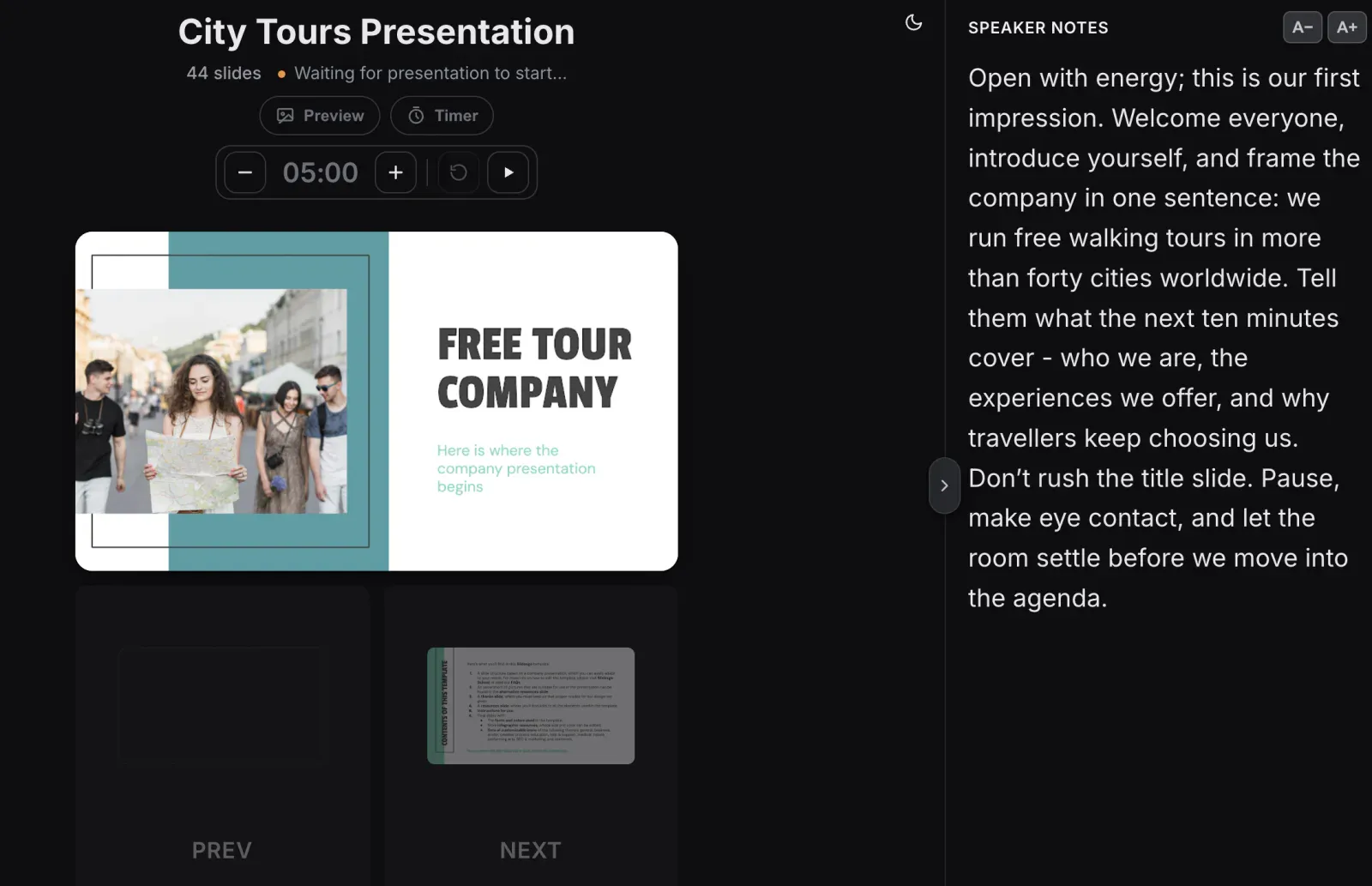
With Copresent, your phone changes the slides on the big screen, so you can host from the middle of the room. It shows the answers in your speaker notes and a timer for each round. Trivia and would you rather run on Next alone. For board games, a student clicks the squares on the computer.
Yes. Link shapes to other slides with Insert → Link, hide answers with On click animations or on the next slide, then present it. Jeopardy, trivia and escape rooms all work this way.
No. In edit mode, clicking a link only shows it. Links jump to their slide when you present with Slideshow.
Not with animations: Google Slides plays them in the order you set, with no click triggers like PowerPoint. To reveal answers in any order, link each box to its own answer slide.
Share a copy link so each student gets their own deck. For drag-and-drop games they play in edit mode. For games with links they click Slideshow.
Yes. Choose Insert → Audio to add a sound from Google Drive to a slide, such as a buzzer on a wrong-answer slide.
With Copresent, your phone moves to the next or previous slide and shows your speaker notes and a timer. It can’t click links, so for board games pick squares on the computer.
Change slides, read your notes, and take audience questions.