Updated · By Peter Kovalsky
How to Add a Timer to Google Slides
Google Slides has no countdown timer you can insert. There is no Insert → Timer, and the only clock built into Slides is the count-up timer in Presenter view, which only you can see. To put a countdown on a slide, most people do one of two things: insert a YouTube timer video (Insert → Video, search “5 minute timer”, then set it to play automatically), or install the free Slides Timer Chrome extension and type a code such as <<5:00->> into a text box.
Which one is right depends on who needs to see the clock. A timer for the room, such as “three minutes to discuss this with your partner”, belongs on the slide. A timer for you, so you finish your talk on time, is better kept off the slide altogether. This guide covers both: the steps for each method, what each one can’t do, a fix for the usual problems and a short check before you present.
Steps follow Google’s help pages and what we saw in the Slides editor on 25 October 2026. Menu names shift as Google updates Slides, so the exact wording on your screen may differ a little.
Which timer do you need?
| YouTube timer video | Slides Timer extension | Presenter view clock | Timer on your phone | |
|---|---|---|---|---|
| Who sees it | Everyone | Everyone | Only you | Only you |
| Counts | Down | Down or up | Up, from when you start | Down |
| Set up in | Slides only | Chrome extension, plus text boxes | Nothing to set up | A phone or a browser tab |
| Best for | Activities, breaks, quizzes | Timed activities across many slides | Rough sense of time used | Keeping your own talk on time |
If you are timing an activity for an audience and don’t want to install anything, use a timer video. If you time activities every lesson, the extension is quicker once it is set up. If the timer is for your own pacing, skip to a private timer.
Method 1: Insert a YouTube timer video
This is the method that works for everyone, on any Google account, with nothing to install. YouTube has countdown videos for almost any length, and Slides can search YouTube without leaving the deck.
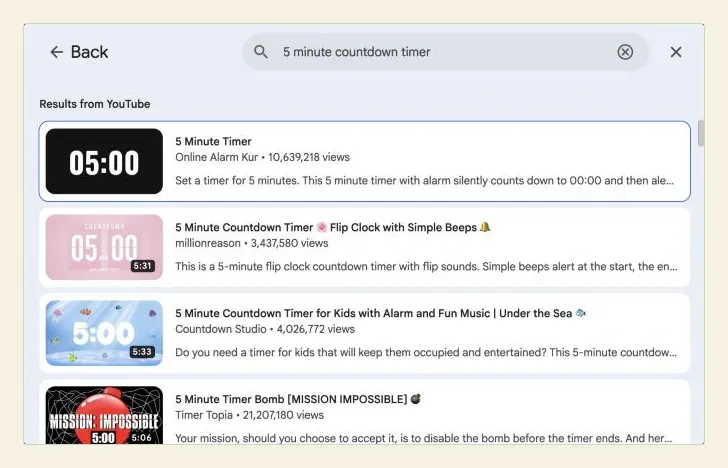
- Go to the slide that needs the timer.
- Click Insert, then Video. In our check, the dialog that opened was a single search box: “Search all of YouTube or paste URL”. Google’s video help also lists inserting a video by URL or from Google Drive.
- Search for the length you need, such as 5 minute timer or 3 minute countdown. Pick a plain one if the slide also has instructions on it; some timer videos have music, animations or a bomb that “explodes” at zero, which suits a class quiz but not a client meeting.
- Select the video and insert it. Resize and drag it into place, for example the top-right corner, leaving the rest of the slide for the task.
- With the video selected, click Format options in the toolbar, or right-click the video and choose Format options. Under Video playback, choose Play (automatically) so the timer starts as soon as the slide appears. The default, Play (on click), waits for your next click; Play (manual) waits until you click the video itself.
- If you don’t want the timer’s music or alarm, mute the video’s audio in the same panel.
- Present the slide once to check it starts by itself.
Trim a longer timer. In the same Format options panel you can set a start and end time, as our video guide explains. That lets one video do several jobs. A 10-minute countdown that starts at 10:00 becomes a 4-minute timer if you start playback at 6:00 into the video: the clock on screen then reads 4:00 as it begins. Check where the video’s own countdown starts; many open with a few seconds of title before the clock appears.
What it can’t do. The video needs an internet connection while you present, so it won’t play in a deck you take offline. Some uploaders turn off embedding, so a video can play on YouTube but not in Slides. For more on settings and a video that won’t start, see why a Google Slides video isn’t playing.
Use a timer GIF instead
An animated GIF is a lighter option for a short visual countdown, such as a 10-second “get ready” before a quiz question. Insert it like a picture: Insert → Image, then Upload from computer, Drive and Photos or By URL. Google’s help mentions a GIFs and stickers search under Insert → Image, but the menu on our test account showed only Generate an image, Upload from computer, Stock and web, Drive and Photos, Camera and By URL, so you may need to find the GIF elsewhere and upload it.
Two limits make GIFs poor for anything longer. Slides has no playback controls for a GIF: no start on click, no pause. And most timer GIFs loop, so a countdown that reaches zero starts again. Test it in slideshow mode before relying on it, and use a video for anything over a minute.
Method 2: Add a countdown with the Slides Timer extension
If you run timed activities often, the Slides Timer Chrome extension is faster than finding a new video each time. It turns a short code in a text box into a live timer while you present. It is made by an independent developer, ClayCodes, not by Google. Teacher and author Alice Keeler has written about it and made a companion add-on; the extension does the counting.
- On the computer you will present from, open the Slides Timer listing in Chrome and click Add to Chrome. Read the permissions it asks for first: it needs to read your Slides pages to find the codes.
- Refresh any Google Slides tab you already have open. The listing says the timer won’t activate until you do.
- On the slide, add a text box (Insert → Text box) and type the timer code between double angle brackets. The listing’s examples include
<<5:00->>for a five-minute countdown: the minus means count down, a plus means count up. - To move to the next slide automatically when the time runs out, the listing says to use
-+after the time. Alice Keeler’s walkthrough gives<<5:00-+>>as the example. - Click Slideshow. Each timer starts when its slide appears.
In the editor, the code shows as plain text. That is expected: the timer only runs in the slideshow, on a computer with the extension installed. If you present from a different computer, or someone opens the deck without the extension, the audience sees the raw code. Keeler’s walkthrough also notes it doesn’t work with File → Publish to the web.
The extension’s examples have changed between versions, so check the current listing if a code doesn’t behave as described here. When we looked on 25 October 2026, the listing was at version 2.13, updated 18 October 2026, with about 100,000 users and a rating of 3.5 from 111 reviews. It also mentions paid “Pro” features; basic countdowns didn’t require them in the listing’s examples.
The companion add-on
The Slides Timer Add-on by AliceKeeler LLC inserts correctly formatted timer text boxes for you, so you don’t have to remember the codes. Install it from Extensions → Add-ons → Get add-ons in Slides and search for “Slides Timer Add-on”. Its listing is clear that it only inserts the text boxes: you still need the Slides Timer Chrome extension for them to count down while you present.
If your school or company manages your Chrome browser, extensions and add-ons may be blocked. Ask your IT team, or use a timer video instead.
Method 3: Use the clock in Presenter view
If you only want to know how long you have been talking, Slides already has a timer. Click the arrow next to Slideshow and choose Presenter view. The presenter window shows your speaker notes, the next slide and a timer in the top corner that counts up from the moment you start, with buttons to pause and reset it. The audience doesn’t see it. Our Presenter view guide covers the rest of that window.
It is a stopwatch, not a countdown. You set no target time, it doesn’t warn you, and you have to do the sum yourself: “I’m at 14 minutes of 20, so six left.” It also lives on the laptop, which isn’t much help if you walk away from it or present on a single screen.
Auto-play isn’t a timer
A common suggestion is to “time” slides with Slides’ automatic advance. In slideshow mode, the ⋮ menu in the bottom-left corner has an Auto-play submenu with fixed speeds.
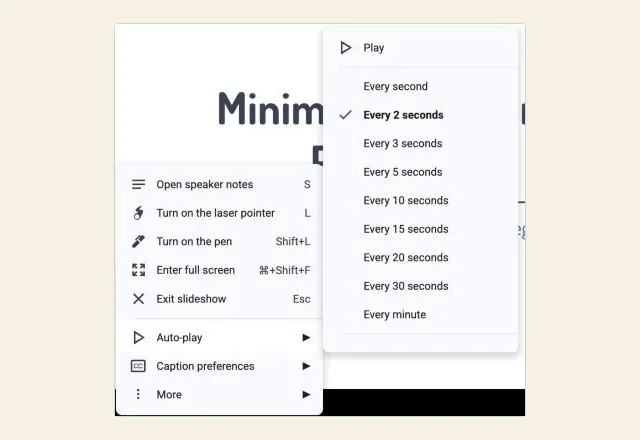
When we checked, the speeds ran from Every second to Every minute, and one speed applies to every slide. Google’s help page also says to set it again each time you present. That makes it right for a looping kiosk or a photo slideshow, and wrong for a timed activity: you can’t give one slide three minutes and the next ten seconds, and nothing on screen shows the time left. If you need one slide to wait and then move on, the Slides Timer -+ code does that.
Keep your own timer off the slides
A timer that helps you pace a talk shouldn’t sit on the slide. The audience starts watching the clock instead of listening, and a running countdown makes you look rushed if you fall behind. Two private options:
A full-screen timer in a browser tab. Our free presentation timer runs in a tab on the laptop, with warnings in words and colour as time runs low, and it keeps correct time even when the slideshow is in front. It suits rehearsal, or a second screen that faces you.
A countdown on your phone, next to your notes. Copresent turns your phone into a remote for Google Slides with your speaker notes and a countdown on the same screen. The host installs the Copresent Chrome extension on the presenting computer, opens the deck and signs in with Google on the phone; there is no app to install. During the talk you can:
- set the countdown in one-minute steps, and add or take away a minute as you go
- pause, resume or reset it
- see it turn amber in the last minute, and red with a minus sign once you are over time
The audience sees only the slides. If you share the talk with co-presenters, each person has their own countdown on their own phone, so the person presenting the second half can time their part without touching yours. Invited co-presenters open a link; they don’t install anything or sign in.
Whichever you choose, don’t depend on the timer alone: our guide to using a countdown in a presentation covers checkpoints and what to cut if you run long.
Example: a timed pair activity in a lesson
Hypothetically, a teacher wants students to discuss a question in pairs for exactly three minutes, in the middle of a 20-slide lesson.
- On slide 9, they put the question in large text on the left and insert a YouTube countdown on the right, found by searching “3 minute timer”.
- In Format options they choose Play (automatically) and mute the video’s audio, because the video has background music they don’t want under the discussion.
- In the speaker notes for slide 9 they write: “Timer starts by itself. When it hits zero: ask two pairs to share.” Reading notes on a phone means they can walk around the room during the three minutes.
- They rehearse slide 9 once in slideshow mode and confirm the timer starts without a click.
The timer is for the room, so it’s on the slide. The teacher’s own sense of how the whole lesson is going comes from the countdown in their hand, which no student sees.
If the timer doesn’t work
| Problem | Likely cause | Fix |
|---|---|---|
| Timer video doesn’t start | Playback is set to Play (on click) or Play (manual) | Format options → Video playback → Play (automatically) |
| “Video unavailable” on the slide | The uploader has turned off embedding, or the video was removed | Choose a different timer video and check it plays in the editor |
| Timer video plays music or an alarm | Most timer videos have sound | Mute the audio in Format options |
| Countdown starts at the wrong time | The video opens with a title before the clock | Set the start time to where the clock begins |
Audience sees <<5:00->> instead of a timer | Slides Timer isn’t installed on the presenting computer, or the tab wasn’t refreshed | Install the extension on that computer, refresh the Slides tab, start the slideshow again |
| Extension timer doesn’t run in a published deck | Publish to the web isn’t supported | Present from the normal slideshow |
| Timer GIF keeps starting over | The GIF is set to loop in the file | Use a GIF that plays once, or a video |
| You can’t find the timer in Presenter view | You opened Slideshow, not Presenter view | Use the arrow next to Slideshow and choose Presenter view |
Check before you present
- Present every slide with a timer once, in slideshow mode, on the computer you will use.
- If it’s a video, confirm the room has internet, and that sound is muted or set at a level you want.
- If it’s the extension, confirm it’s installed on the presenting computer, not just yours.
- Decide whether the audience should see the timer. If not, keep it on your laptop or phone.
- Set your own countdown to the time you actually have, minus any time for questions.