Walk the room
Tap or swipe to change slides from beside a student’s desk. See a preview of the slide on screen without turning around.
Copresent turns your phone into a remote for Google Slides. Change slides, read your notes and take questions from the class without going back to your desk.
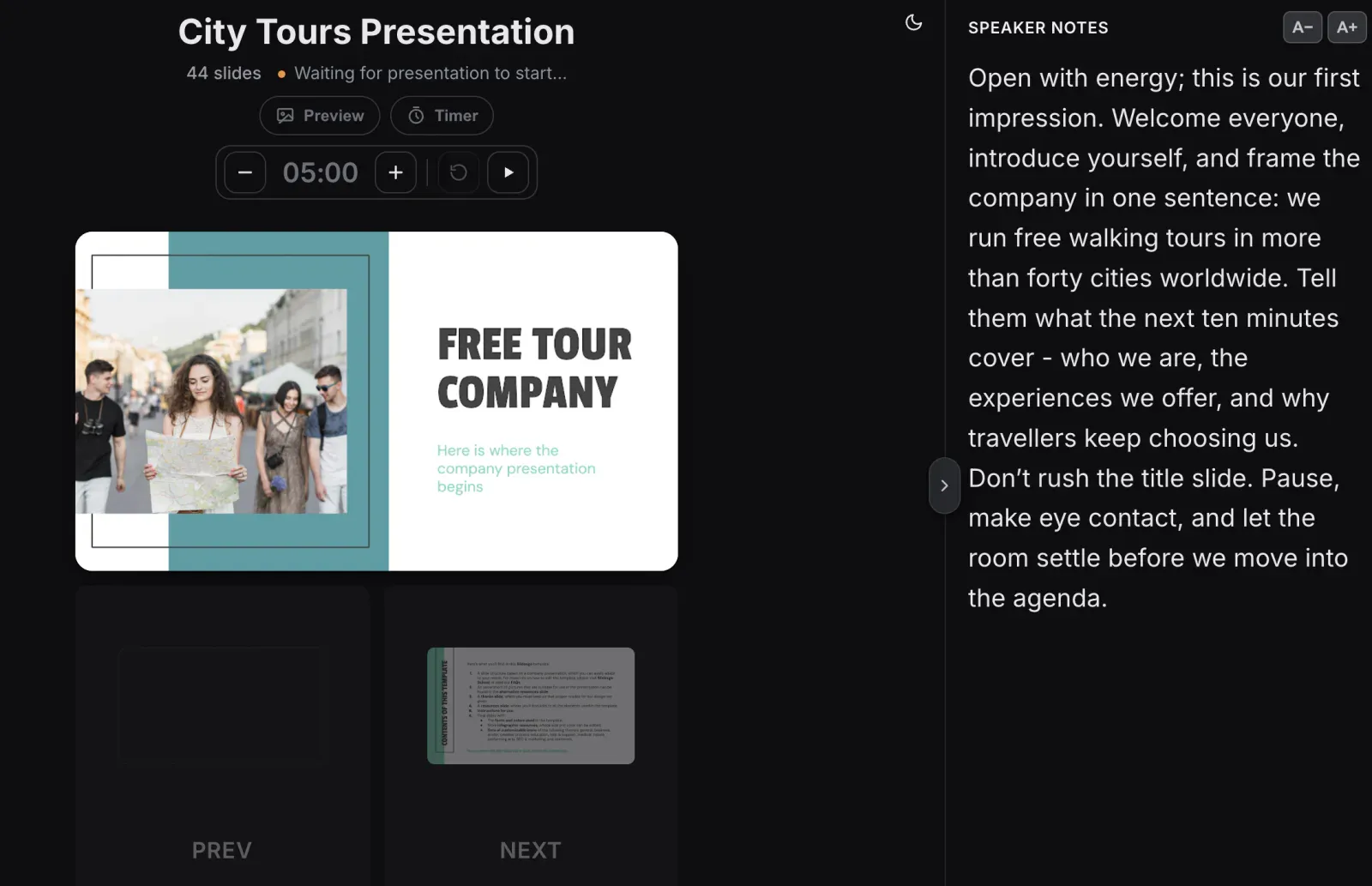
Install the Copresent extension in Chrome on the classroom computer, open your deck and scan a QR code with your phone. Your phone then changes the slides on the big screen. It runs in your phone’s browser, so there’s no app to install.
Tap or swipe to change slides from beside a student’s desk. See a preview of the slide on screen without turning around.
Your speaker notes for each slide show on your phone, including the answers to a class game. Make the text bigger or smaller to read it at a glance.
Show a QR code on your slides. Students ask and vote on questions from their phones, with their name or anonymously.
Pin a question, hide one you don’t want to show, mark questions answered and pause new ones while you teach.
Send a group an invitation link. Each student changes the slides from their own phone or laptop when it’s their turn.
Set a countdown on your phone. It turns amber in the last minute. Pause it, add a minute or reset it.
Add Copresent from the Chrome Web Store on the computer that runs your slides. Only you need it.
The Copresent button sits next to Slideshow in the Google Slides toolbar.
Scan the code with your phone and sign in with Google. Allow access to your deck to see speaker notes and slide previews.
Present on the classroom screen as usual, then teach from anywhere in the room.
No. Students open the question link or a presenter invitation in their browser, on a phone, tablet or laptop. They don’t install anything or sign in.
Only if you send them a presenter invitation. The question link lets them ask and vote on questions, and nothing else. You can pause or remove a student presenter at any time.
No. Both connect to Copresent over the internet, so your phone can use Wi-Fi or mobile data. Both do need a working connection.
It needs the Copresent extension in Chrome on the computer you present from. If your school manages that computer, your IT team may need to allow the extension first.
Yes. Share your Google Slides window in Zoom, Meet or Teams as usual and change slides from your phone. Student presenters can join from home.
No. Copresent works with Google Slides only.
Change slides, read your notes, and take audience questions.