Updated · By Peter Kovalsky
Google Slides Offline: Prepare for Unreliable Internet

A deck that opens on your home Wi-Fi is not yet ready for a room with no internet. The useful question is whether you can open the right version, start presenting, see your cues and reach the end of the talk after the connection disappears.
Google Slides supports offline file access on a prepared computer. Set that up while you are online, then rehearse the presentation without a connection. Keep a downloaded backup as well. Those are separate checks: an offline-ready file is not a guarantee that embedded media, remote controls or your preferred presentation mode will behave exactly as they do online.
This guide covers a laptop running desktop Chrome or Edge. It is a preparation procedure, not a claim that we tested every browser, device or venue setup. For a phone-driven presentation, use the phone remote guide and plan separately for its internet requirement.
Separate the deck from the services around it
Start by writing down what your talk actually needs. The slide file is only one item. You may also depend on a video, a live website, speaker notes, a second display, a remote colleague or a phone controller.
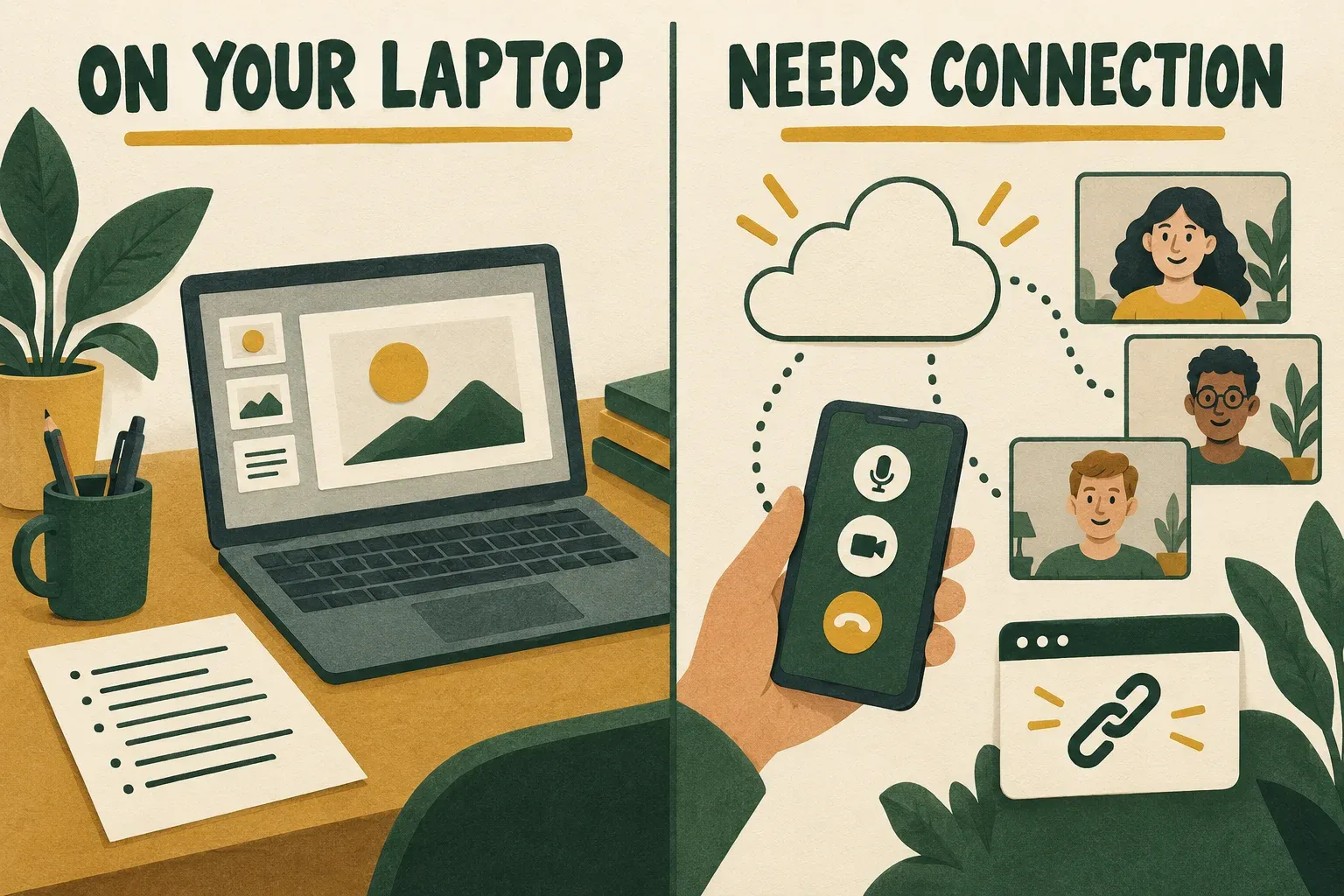
Concept illustration: keeping files locally and keeping live services connected are different tasks.
Use this preparation table to decide what to rehearse:
| Part of the talk | What to prepare | What counts as a pass |
|---|---|---|
| Slide sequence | The specific deck and a downloaded backup | You can start at the first slide and reach the last while disconnected |
| Speaker cues | A local cue sheet or paper notes | You can find the cue for a chosen slide without opening an online document |
| Video or web demonstration | A static explanation you can deliver instead | The audience can still understand the point if playback or the website fails |
| Audience display | The actual cable, adapter and screen where possible | Slides appear on the audience display and private material does not |
| Shared control | A named person who can operate the laptop | The next speaker can continue when a remote controller is unavailable |
This is a suggested rehearsal checklist, not a compatibility chart. A green check beside a file in Drive answers a narrower question than a successful run-through of the talk.
Prepare the specific deck while you are online
Use the laptop and browser profile you will take to the venue. Google’s desktop offline requirements include Chrome or Edge, an initial internet connection, available device storage and the enabled Google Docs Offline extension. Private browsing is excluded.
- Open Google Drive in the intended account and browser profile.
- Open Settings, then enable the Offline option. Follow the extension setup prompt if needed.
- In Drive, right-click the presentation and choose Make available offline.
- Use Ready for offline → Offline preview to check which files are available.
Do not rely on the deck appearing in a recent-files list. Select it deliberately, especially if you have several similar copies. Google’s instructions also distinguish Google-format files from ordinary files managed by Drive for desktop: installing the desktop sync app is not a substitute for checking the Slides offline setup.
Google also provides File → Make available offline inside the presentation and a document-status control beside its title. Check that status; if the file is not ready, read the explanation before leaving. See Google’s offline setup and troubleshooting instructions.
Choose one clearly named version for the event. A practical name might include the workshop and date, such as “Team workshop — 16 October — presentation.” Agree with collaborators when you will stop changing it. A late edit creates more work than changing the deck alone: the offline copy, backup export and speaking cues all need another check.
Create a local fallback you can actually open
Before the rehearsal, open the presentation and use File → Download, then choose a file type. Google documents this in its download instructions. Save the result somewhere you can find without searching Drive, such as a clearly named event folder on the laptop.
For a simple fallback, choose PDF Document (.pdf) and inspect the downloaded pages. Treat it as a static version of the talk. Do not plan to reproduce animation, a live website or an interactive demonstration through a PDF. Instead, make sure the essential explanation is visible on the pages or available in your cues.
If you prefer a PowerPoint export, rehearse it in the installed application you intend to use. Exporting a file is not proof that its layout, fonts, media and presentation controls match the original. This guide does not require buying or installing another presentation app; an export only helps when you already have a suitable way to open and show it.
Open the backup now, not at the lectern. Check the first and last pages, any dense chart, and any slide where objects appear in stages. A static export may reveal too much at once or omit the sequence you intended to explain. Adapt your spoken explanation or create a simpler fallback slide before the event.
To present the PDF, open it in your chosen local viewer and find its full-screen or presentation option if available. Fit one page to the display, advance several pages using that viewer’s controls, and check that small labels remain readable from the audience position. Menu names vary by viewer, so record the working controls in your cue sheet. If the viewer has no suitable full-screen mode, rehearse the window size and page navigation you will actually use. Keep private notes outside the audience output.
Keep a short cue sheet alongside the file. Include slide numbers, difficult names, the point of each demonstration and your closing sentence. Avoid assuming that a slide-only export contains the notes you need. Open whatever you saved and inspect it directly.
Rehearse with the connection deliberately unavailable
The decisive check is a rehearsal on the actual laptop. Do it before travel, when you still have time to reconnect and fix preparation problems. Save your work first and avoid interrupting another call or a shared session.
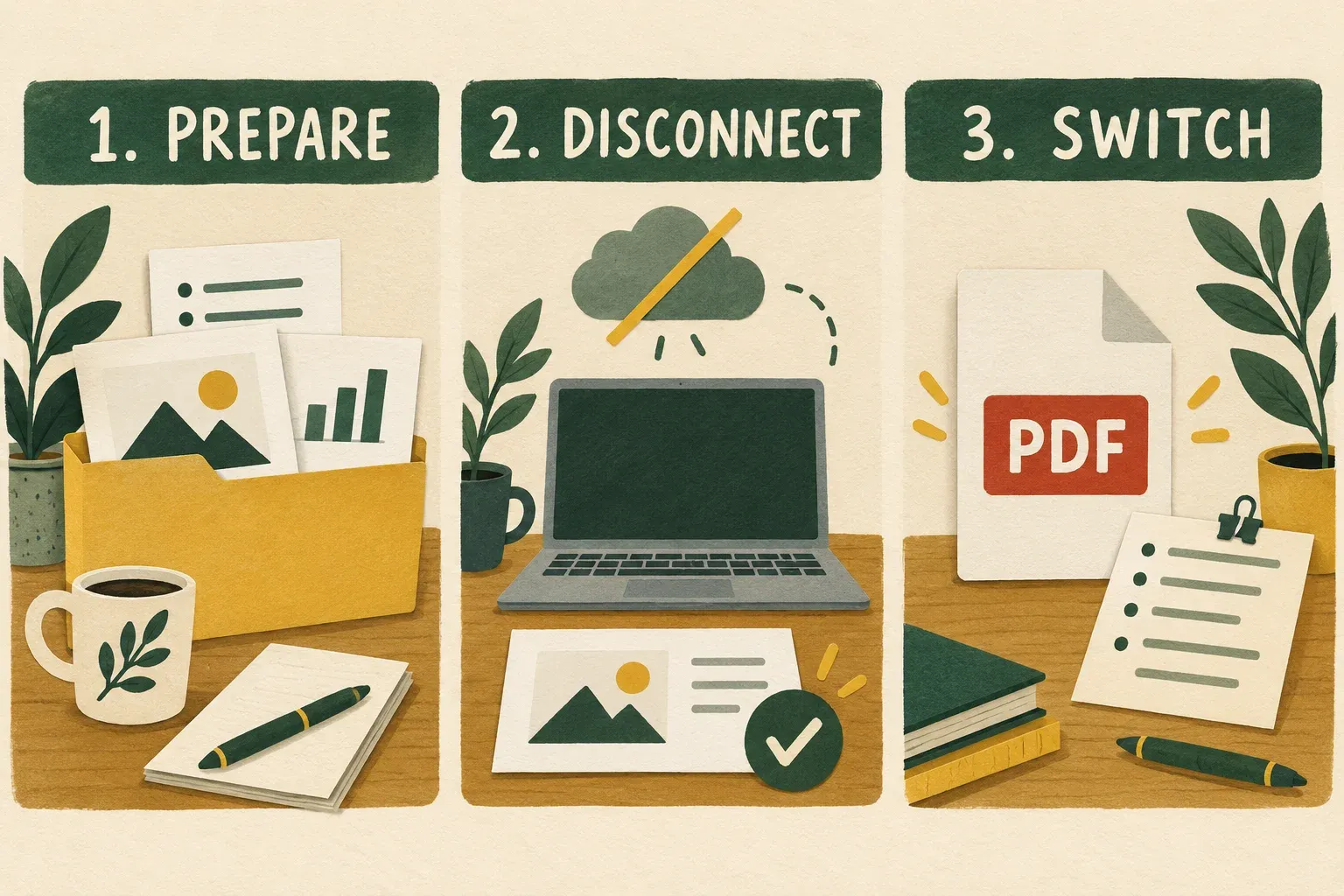
Suggested rehearsal sequence, illustrated conceptually rather than as app screenshots.
- Finish the online preparation. Confirm the latest edits and download the current backup. Record which browser profile contains the prepared deck.
- Disconnect the test laptop from the internet. Account for Ethernet or a hotspot as well as Wi-Fi. An unchanged browser tab is not enough to demonstrate that everything is local.
- Open the prepared presentation and try starting the slideshow. Google’s general desktop controls are Slideshow, arrow keys to advance and Esc to exit. Its presentation help describes those controls, but does not promise every offline scenario.
- Walk through the whole talk. Check slide changes, important visuals and the exact moments when you need notes or media. If a feature fails, write down the slide number and use the alternative explanation.
- Switch to the downloaded backup. Open it from the local folder, find a middle slide and continue speaking from your cue sheet. Check the audience display again after the switch.
- Reconnect after the rehearsal. Resolve failures while online, refresh any changed export, then repeat the relevant disconnected checks.
If the deck opens for editing but slideshow mode fails in your setup, that is a failed presentation rehearsal. Use the local backup you have successfully rehearsed. Do not treat editing access as sufficient proof or spend the opening minutes of a talk experimenting with browser settings.
For example, imagine a ten-slide workshop with a live demonstration on slide six. A useful fallback is a prepared image or diagram on that slide and three cue-sheet bullets explaining the result. During rehearsal, practise saying, “I’ll show the process using this example,” and continue. This is a hypothetical planning example, not a report of a tested workshop.
Keep notes and controls usable during an outage
A connection failure changes how a team delivers the talk, even when its slides remain visible. Choose who operates the presenting laptop and agree a short handoff phrase. Give each speaker their own locally available cues, rather than expecting them to retrieve notes from a shared online document at the last moment.
Copresent’s live phone controls and shared presentation state depend on internet connectivity. Google’s offline file preparation does not turn those services into an offline remote. When the network is available, the host installs Copresent’s Chrome extension and signs in with Google; invited co-presenters join through a link. For that connected workflow, follow shared slide-control setup.
For the outage plan, keep the laptop operator close enough to advance slides directly. If a phone controller stops responding, move to the agreed local controls and verify the audience sees the expected slide. Avoid having several people tap controls while someone else diagnoses the problem.
Similarly, a downloaded deck does not keep a Zoom meeting or a remote speaker connected. An in-room fallback can preserve the local talk while remote participation remains unavailable. Decide beforehand whether you will pause for remote attendees, continue locally or reschedule their section. Offline preparation cannot make that decision for you.
Diagnose preparation failures before you leave
| Problem | Next action |
|---|---|
| The intended account cannot enable offline access | Check the browser profile. Google permits one offline-enabled account per profile; use the correct prepared profile. |
| Offline is disabled by your administrator | Ask your work or school administrator about the approved option. Do not bypass the policy or move restricted files to another account. |
| The deck still reports it is not ready | Reconnect, read the document-status explanation and resolve it before repeating the test. |
| Only an already-open tab works | Test opening the prepared file again and rehearse the separate downloaded backup. Do not depend on keeping one tab alive. |
| Slides work but a demo does not | Use the static explanation prepared for that slide; file access and online content are separate dependencies. |
| The backup is an earlier revision | Export again after the final edits, then recheck the changed pages and cues. |
The account and administrator conditions are described in Google’s offline troubleshooting guide. Organizations can also manage access through Workspace offline policies.
Avoid clearing browser data as an improvised pre-show fix. Your goal at that moment is to preserve a known-working path to the talk. Do disruptive setup repairs while online and with enough time to repeat the disconnected rehearsal.
A final check at the venue
Before the audience arrives, connect the display, open the agreed deck and advance a few slides. Check the audience screen from where an attendee would sit. Open your cue sheet and verify that private notes are not on the public display.
Keep the local fallback folder easy to reach. Confirm who will operate the laptop if shared control fails, and tell co-presenters which demonstration or handoff changes in the offline version. If you make a final correction, update the backup before considering the setup ready again.
A useful offline plan is a rehearsed transition: you know which file to open, where to find your cues and how to continue the next sentence. Preparing that transition matters more than simply turning on an offline setting.