Updated · By Peter Kovalsky
Google Slides Animations: Build and Rehearse Clear Reveals
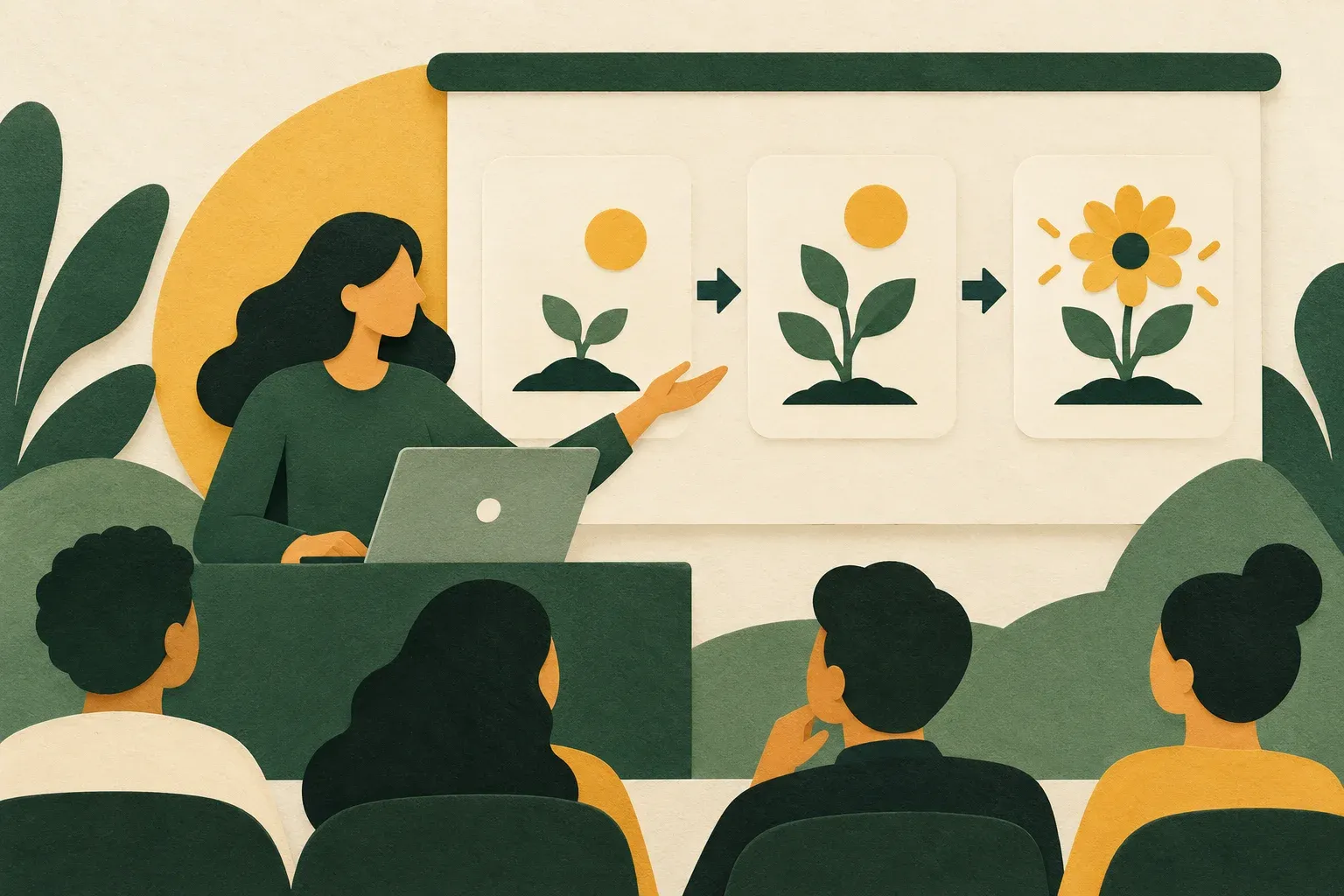
A useful animation answers a simple question: what should the audience see next? You might want to reveal an answer after a discussion, introduce a process one stage at a time, or show a label alongside the image it explains. Choose that sequence before choosing an effect.
In desktop Google Slides, select the text or image, then use Insert → Animation or View → Motion. Set the effect and when it starts, preview it, and rehearse the slide with your spoken explanation. The setup below follows Google’s documentation; the workshop example and cue sheet are suggested preparation, not a report of testing every browser or presentation controller.
Animation or transition: choose the right control
An object animation changes something within a slide, such as the arrival of a text box or image. A slide transition changes how one slide gives way to another. Google’s presentation design guide makes this distinction.
If an answer should stay hidden while people consider a question, plan an object reveal. If a completed section should move smoothly into the next section, consider a transition. Applying a transition will not create a separate reveal for every bullet inside the slide.
Start with a slide that still makes sense without motion. Give it a clear heading and a readable final layout. Animation can control the sequence of explanation, but it should not be the only clue that tells the audience how the ideas relate. Keep labels beside their subjects and use explicit stage names rather than relying only on movement or colour.
Add an effect and choose its start
Use these controls on a computer, with a presentation you can edit:
- Select the intended text or image and open Insert → Animation.
- Choose an effect under Object Animations. New effects default to Appear (On click).
- Use the second dropdown to choose the start relationship; adjust speed with the slider.
- For a list that should reveal line by line, enable By paragraph.
- Use Play to preview.
The official animation instructions define the start options:
| Start option | What starts the effect |
|---|---|
| On click | A mouse click or the space bar |
| After previous | Completion of the previous animation |
| With previous | The start of the previous animation |
For a transition, select the destination slide in the left sidebar, open Slide → Transition, choose the effect and speed, then preview. Google also notes that some animations may not work in certain browsers.
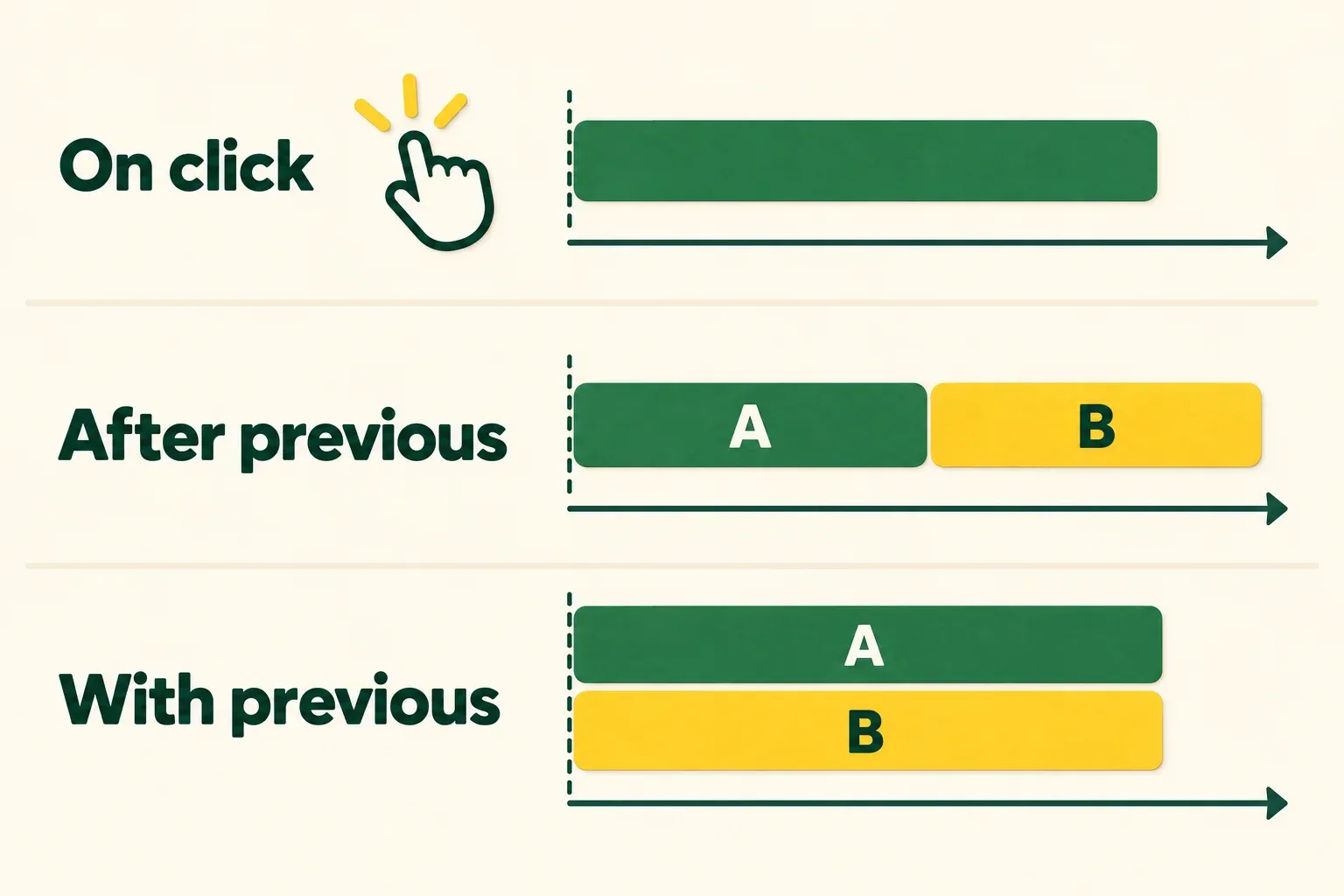
Choose On click when you want room for an explanation or an audience response. Choose After previous for a sequence that should continue once its preceding visual action finishes. Choose With previous when two visual elements belong to the same explanatory moment. These are planning choices: a more automatic sequence is not automatically a better talk.
Do not use a start relationship as a substitute for deciding who operates the deck. If you need a pause for questions, make that pause part of the speaking plan. A chain of visual effects cannot judge whether the room has understood your point.
Example: reveal a workshop answer in stages
Imagine a workshop slide asking participants to diagnose a delayed project. The final slide contains three short lines: Observation, Possible cause, and Next check. This is a hypothetical teaching example, not a claim about measured learning outcomes.
Keep the question visible while the group thinks. Put the three answer lines in their own list so the heading does not need to be part of the reveal. Apply the line-by-line setting to that list, choose On click, and rehearse each reveal alongside a spoken cue.
Your first cue could be “What did we actually observe?” Reveal the observation and discuss it. The next cue introduces a possible explanation, with a reminder that it is still a hypothesis. The last cue asks which check would help distinguish that explanation from an alternative.
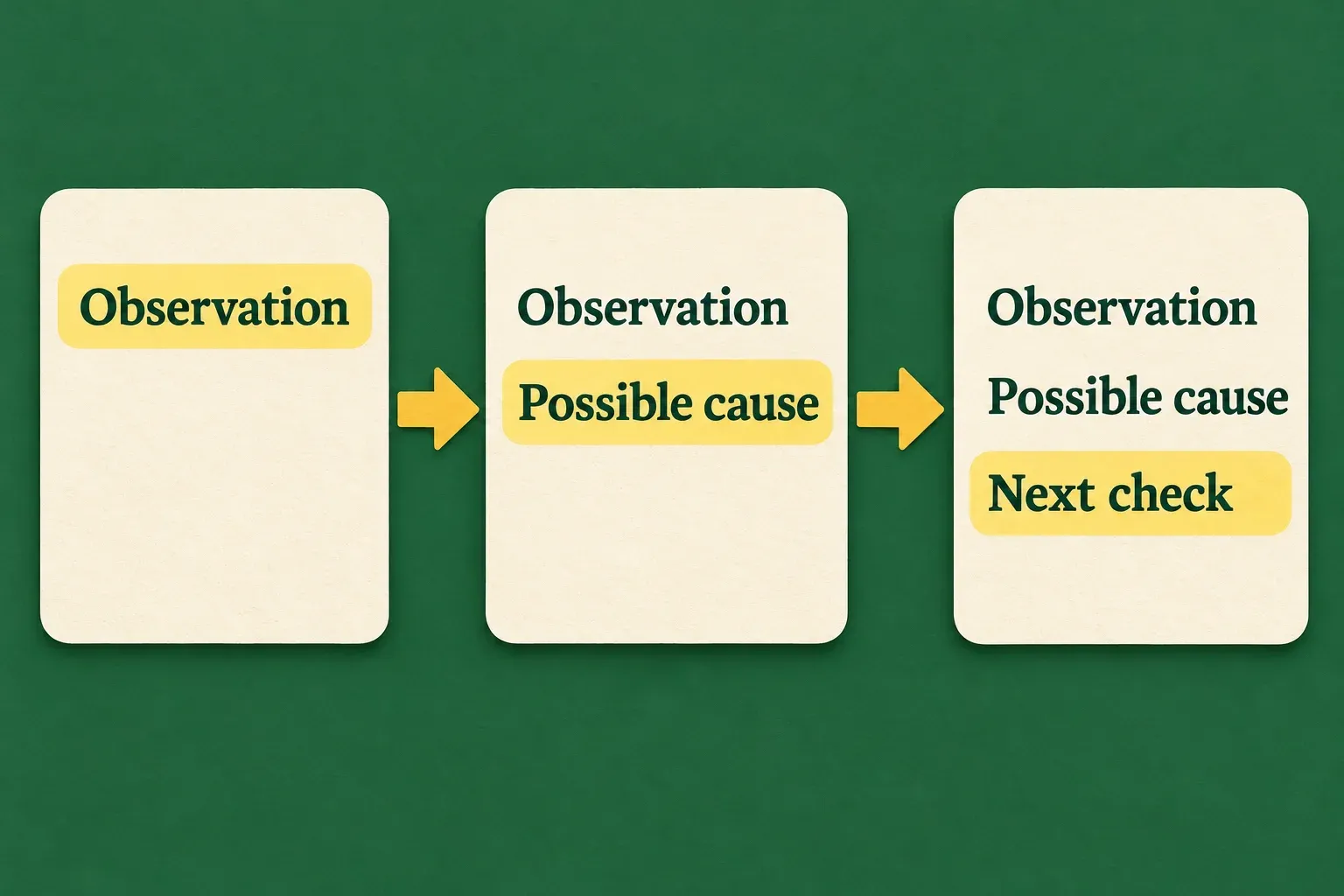
The point is the reasoning sequence, not the animation style. A simple appearance can be enough. If the effect takes so long that you talk over it or wait awkwardly, revise the pace during rehearsal. Do not add extra movements merely to make the slide look busy.
After editing the list, preview it again. A newly added line changes what you need to say and check, even when the slide title stays the same. Keep a short cue sheet beside the deck so the operator knows which visible state belongs with each part of the explanation.
Keep transitions separate from your speaking pace
Use a transition where it helps signal a change of section. For a tightly connected explanation, a plain change of slide may be clearer. Pick a consistent approach so the audience is not trying to interpret a new visual effect on every page. For each transition effect, its speed and how to apply or remove it across the deck, see Google Slides transitions.
Rehearse the boundary between slides as well as the effects within them. Finish your current sentence, move to the next slide, then check that the opening content is visible before continuing. If a transition distracts from that handoff, simplify it.
A transition’s appearance is a different decision from how long a slide should remain on screen. This guide concerns live, speaker-led reveals. Do not assume that choosing an effect sets up a complete unattended presentation or a reliable timed loop.
Rehearse the audience view, not only the preview
A preview is a useful first check, but your talk happens in a slideshow shown to an audience. Start from the preceding slide and deliver the actual explanation. Have a colleague watch the output on the meeting share or room display, rather than only watching your laptop.
Also rehearse an interruption: pause for a question midway through the example, identify the content already visible, and say which point you will resume. Check the displayed state before another input. If you lose your place, move to the prepared static answer rather than guessing how many clicks remain.
Use a small rehearsal record:
| Moment | Speaker cue | Operator check |
|---|---|---|
| Opening | Ask the question | Question is visible; answer is not prematurely revealed |
| First reveal | Discuss the observation | Only the intended next material appears |
| Later reveal | Explain the possible cause | Speaker and displayed material agree |
| Final state | Ask for the next check | Complete answer remains readable |
| Exit | Introduce the next topic | Next slide is ready before the explanation continues |
If two people share presentation duties, name one operator for this sequence. Agree on a short verbal cue and avoid simultaneous inputs. Rehearse any remote controller you intend to use; do not assume its navigation action behaves exactly like the documented mouse or keyboard action for object effects.
Use the keyboard controls guide for ordinary slideshow navigation and focus checks. For a meeting, verify the actual Zoom audience view. Neither a successful preview nor a responsive remote button proves the audience saw the intended reveal.
When a reveal does not behave as expected
Stop after one deliberate input and identify what changed. Repeated clicks can make it harder to tell which part of the sequence you are seeing.
| Symptom | Check before adding more effects |
|---|---|
| The whole answer appears at once | Confirm the selected text object and line-by-line setting |
| Several elements arrive together | Inspect their start relationships and whether that grouping is intended |
| Nothing changes | Confirm the slideshow has focus, then test the documented local input |
| Preview works but the audience misses it | Recheck the presenting browser and actual shared/displayed output |
| The next speaker starts too early | Rewrite the handoff cue and rehearse the completed slide state |
Change one thing, then repeat the same sequence. If you cannot make an important reveal dependable on the event setup, use the static alternative you rehearsed. A live audience does not need to watch you investigate every browser difference.
If the failing element is an embedded video, use the video playback troubleshooting guide. Video access, processing and playback settings are a separate diagnosis from text or image animation.
Prepare a static version of the explanation
Keep a version of the slide with the complete explanation visible and no object effects. Make sure it still supports your talk: the question, evidence and answer should be understandable without watching a sequence unfold. Use headings or numbered stages to preserve the order of reasoning.
For an exercise where revealing the answer early would spoil the activity, prepare separate question and answer slides instead. That gives you a straightforward fallback with a clear speaking cue between them. Keep the fallback easy to find and rehearse how you will return to the planned deck after using it.
Before presenting, check the opening state, each intended reveal, the final readable state and the exit to the next slide. Keep only the effects that help that sequence. You should be able to explain the same idea clearly even if you decide to leave the animations out.