Updated · By Peter Kovalsky
How to Present Google Slides on Zoom Without Showing Notes
To present Google Slides on Zoom with private speaker notes, open the slideshow and notes in separate windows, then share only the slideshow window. Before you begin speaking, check the view received by someone else in the meeting. Opening Presenter View alone does not decide what Zoom broadcasts.
This guide covers the Zoom desktop app on Windows and Mac, with Google Slides running in your browser. The key is to separate three jobs: Slides displays the deck, your notes help you speak, and Zoom chooses which window the audience receives.
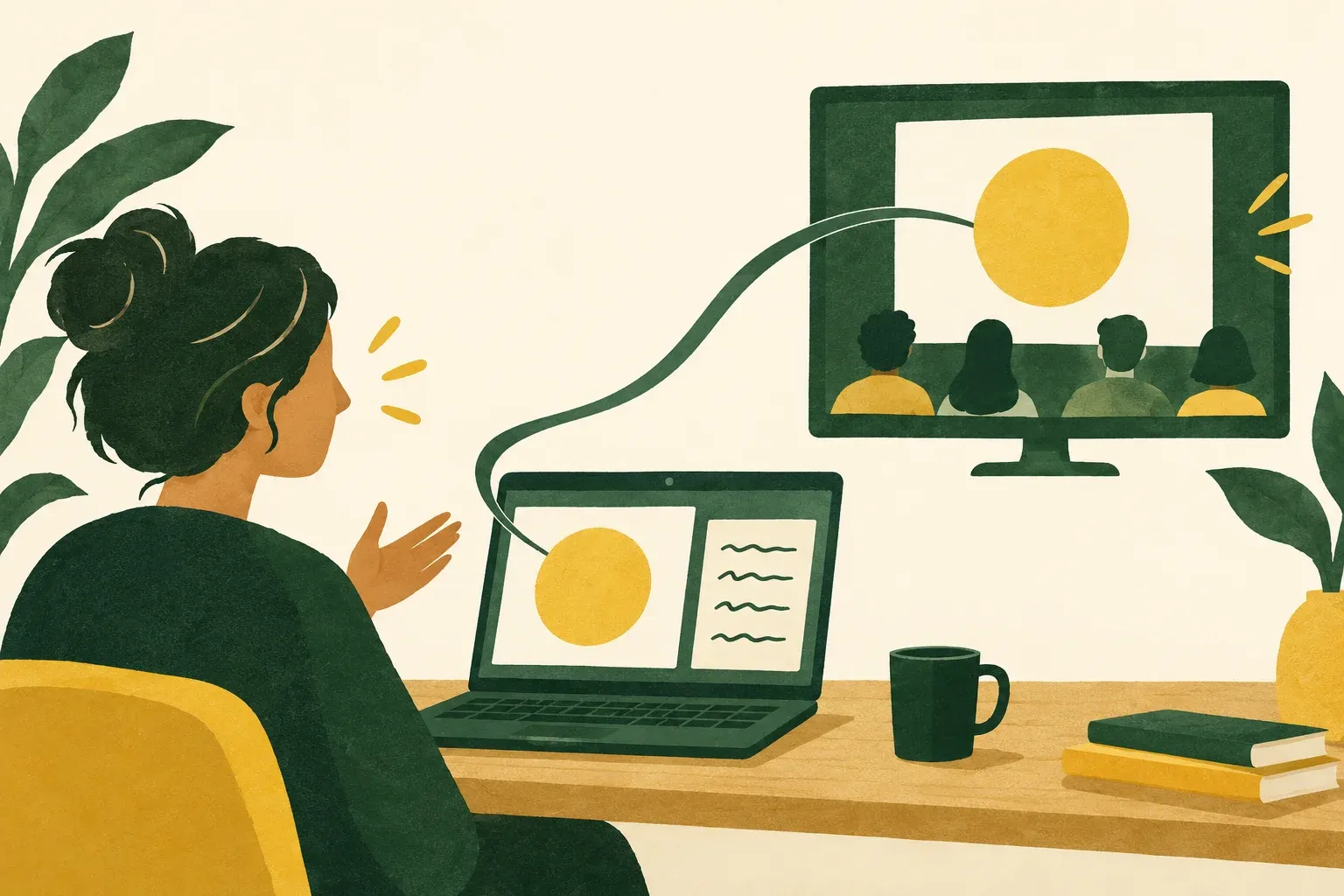
The illustrations show sharing concepts, not screenshots of Google Slides or Zoom. Instructions follow the linked documentation; they are not a claim of testing every computer or Zoom version.
Prepare the deck before sharing anything
Open the intended presentation and check the opening slide and its notes. Close other copies of the deck so you will not accidentally select an old version in the sharing chooser. Give yourself a harmless practice cue, such as “Pause before the example,” for the privacy check.
In Google Slides, use the arrow beside Slideshow, choose Presenter view, then Speaker notes. These are the steps in Google’s presentation guide. Keep track of the slide window and the separate notes window before opening Zoom’s sharing controls.
Decide where each will live. With one monitor, arrange the windows so you can read your cues and reach the slides. With two monitors, put the notes on your private display. A second monitor gives you room; it does not replace checking the sharing selection.
Before the meeting, also confirm that you are allowed to share. The meeting host can restrict screen sharing. If you are a guest, agree on who will run the deck and ask the host to enable your sharing before your section starts.
Select the slideshow window in Zoom
- Start or join the meeting in the desktop app.
- Click Share in the meeting controls. Older interfaces may call it Share Screen.
- In the current desktop chooser, open Screens and select the specific window showing your slideshow. Check its thumbnail carefully: the editor, notes and slideshow can look similar at a glance.
- Click Share. Confirm the audience sees the intended slide before proceeding.
Zoom’s screen-sharing documentation lists both whole screens and specific application windows under Screens. Do not look for a separate “Window” tab just because an older tutorial uses that wording. Browser-based Zoom has a different sharing flow; these steps describe the desktop app.
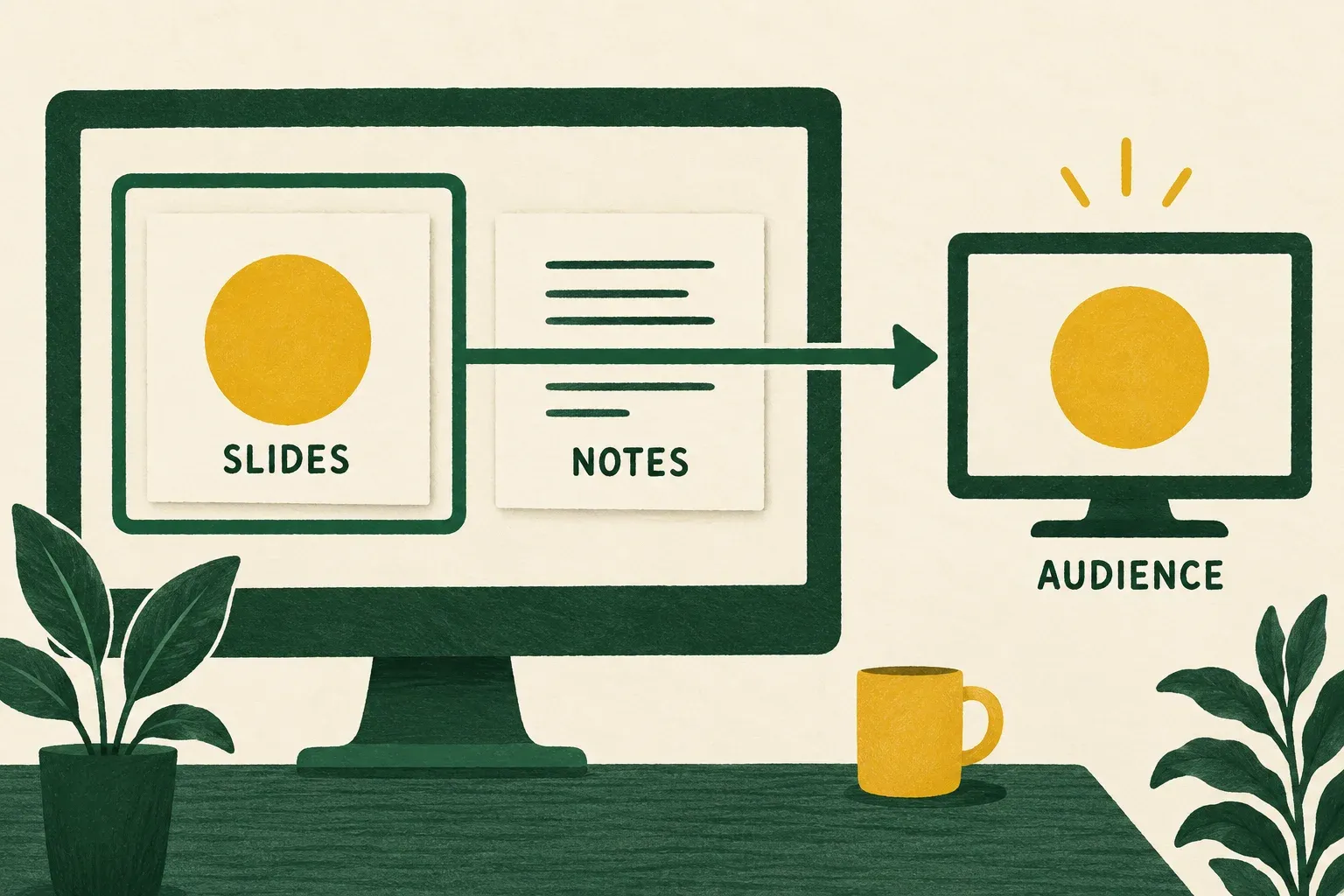
Make the selection by content, not by the browser icon alone. If the preview contains your notes, slide thumbnails or editing controls, stop and identify the presentation window again. Do not open confidential notes while experimenting with the selection.
Choose a layout for one screen or two
One laptop screen: keep both windows accessible
Resize the slideshow and notes windows so you can use them together. You may see browser tabs or an address bar around the slide; that is a different issue from exposing private notes. The University of Minnesota’s Google Slides sharing instructions describe this single-monitor arrangement and its visible browser chrome.
Use a dedicated browser window for the deck, without unrelated tabs you might accidentally open during the talk. Keep the slide large enough to read from the receiving side. If you make it too small just to fit your notes, the practical fix may be shorter cues or a separate notes device, rather than squeezing more windows onto the laptop.
Google’s Presentation display options do not allow Presenter view and Full screen together with one monitor. Do not plan your talk around that combination. A windowed slideshow is a reasonable starting point when you need the notes beside it.
Two monitors: separate the workspaces
Place the slide window on one display and the notes on the other. If you want to hide the browser chrome, the university guide describes using the slideshow’s lower-left options menu to enter full screen after arranging the windows. Recheck Zoom’s selected content after changing the layout.
Write down your intended arrangement before rehearsal: “Slides on external display; notes and meeting controls on laptop.” That makes recovery easier if you unplug a monitor or the windows move. If you change the physical setup later, repeat the audience check rather than trusting yesterday’s arrangement.
Phone notes: leave the laptop focused on the slides
If the laptop feels crowded, Copresent can put the current slide’s notes and navigation controls in your phone’s browser. The presenting computer needs the Chrome extension; the host signs in with Google and selects the deck. Follow the phone remote setup before your call, then use Zoom to share the laptop’s slideshow window.
The phone controls the deck; it does not choose what Zoom shares. Keep both devices online and compare a distinctive note with the current slide before starting. For notes-specific checks and alternative mobile presentation modes, see Google Slides speaker notes on your phone.
Check video sound separately from your microphone
A clear microphone does not prove that an embedded clip will be audible. If your deck includes audio, enable Share sound when selecting content. Zoom also documents enabling it later from More in the sharing toolbar. See its computer-audio instructions.
Rehearse the actual clip, including its opening seconds. Ask a listener whether they hear the recording, then check that your voice remains understandable when you speak again. Close unrelated sources of sound before enabling computer audio.
Use Optimize for video sharing for the video segment, then turn it off for ordinary slides. Zoom warns that leaving video optimization enabled can distort static text and images. Treat a slide containing a dense chart differently from a full-screen video.
Run an audience-side rehearsal
Ask a colleague to join as an ordinary participant. If you use a second device yourself, keep its microphone and speaker muted to prevent feedback, and use a separate listener for the audio check. Looking at your own notes window cannot tell you what another participant receives.
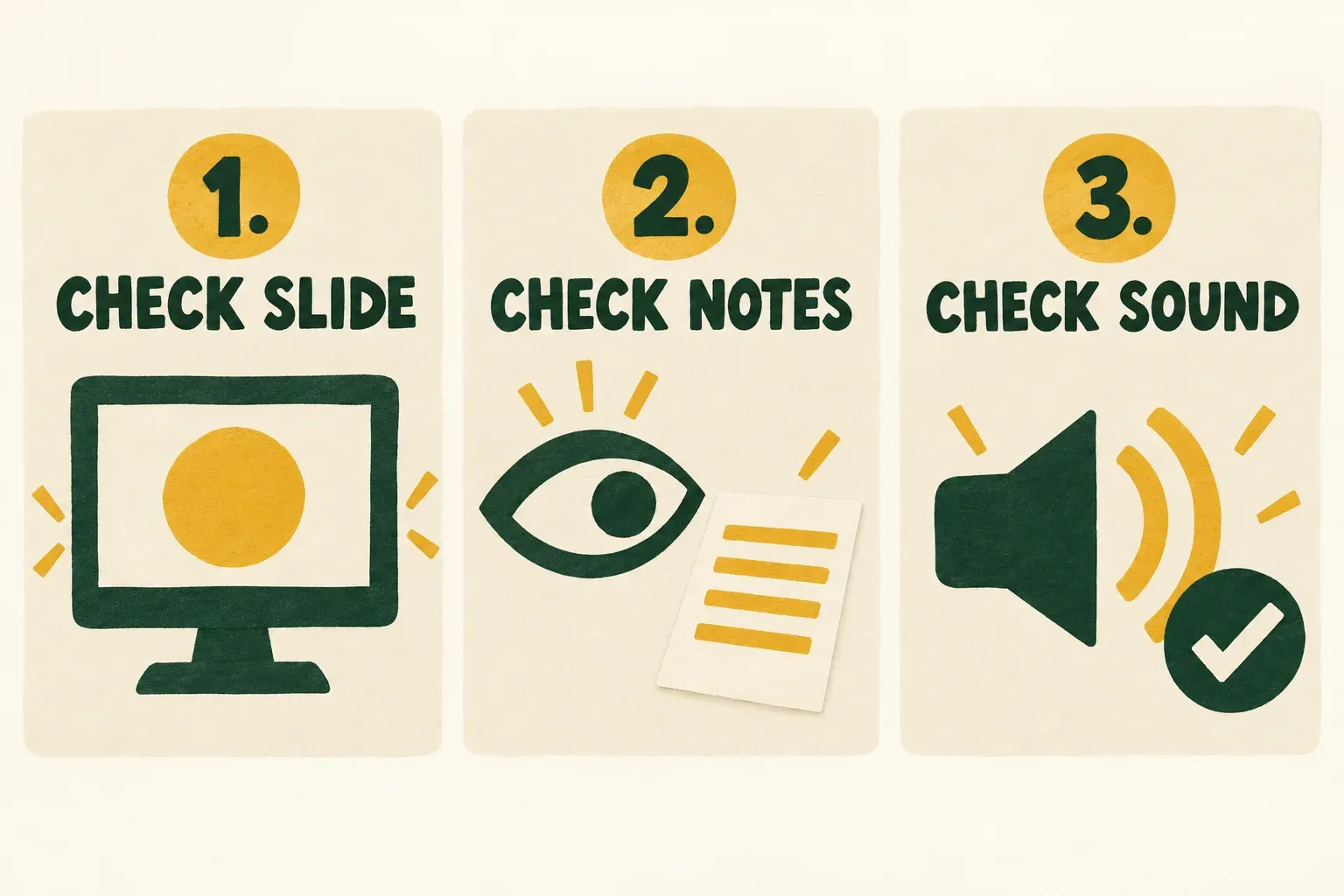
Here is a sample rehearsal to adapt to your deck:
| Action | Ask the viewer | Pass condition |
|---|---|---|
| Show a slide titled “Opening” | “What title can you read?” | They identify the actual slide, not the editor |
| Reveal the harmless practice note | “Can you see any of my cue text?” | The cue stays private |
| Advance once, then return | “Did the title change both times?” | The received presentation follows your controls |
| Play the clip you intend to use | “Can you hear the recording clearly?” | Both clip sound and subsequent speech are understandable |
| Open the meeting controls you will need | “Is the slide still the only content?” | Your normal meeting actions preserve the intended view |
Make these questions specific. “Can you see my screen?” can get a yes even when the viewer sees the wrong window. After the check, return to the opening slide and leave the arrangement in place.
If the presentation also needs visible speech captions, follow the Google Slides captions setup and audience checks. Test caption readability in the shared window separately from your microphone audio and private notes.
Fix the symptom you can actually observe
The audience can see notes or the editor
Stop sharing immediately. Identify the clean slideshow window, select it again, and repeat the harmless-note test. Do not try to conceal private text by dragging windows around while it remains visible to the meeting.
If you cannot establish a private notes view, leave sharing stopped while you switch to a simple backup: a numbered paper outline beside the laptop. Restart only the slideshow share and verify it again. Prepare that outline before the meeting, with slide titles as well as numbers, so you can find your place after a question or an unexpected jump.
Sharing is unavailable on a Mac
First distinguish meeting permission from operating-system permission. If the host has allowed sharing but macOS blocks capture, check System Settings → Privacy & Security → Screen and System Audio Recording for Zoom. Enable the required access and restart Zoom if prompted, following Zoom’s macOS permission guide. Allow time to rejoin and repeat the sharing check.
The audience is stuck on an old slide
Check the slide on the presenting computer first. If it has not changed, restore the intended slide controls and try one deliberate advance. If it has changed locally, check whether sharing is paused or whether Zoom is still sharing a different window. Resume the intended share, or stop and select the current slideshow again. Ask the viewer for the slide title before continuing.
You can hear a clip but the audience cannot
Check the clip’s own playback and volume, then the shared-audio setting. Do not repeatedly increase your microphone volume: that is a separate sound path. If the clip remains unavailable, explain its key point verbally and continue with a prepared still or summary slide.
Plan slide control before a co-presenter takes over
Sharing a presentation and letting someone else advance it are separate choices. Zoom’s native Slide Control has its own requirements: its documentation specifies Google Slides Slideshow view, says Presenter view is unsupported, and requires the slideshow window to retain focus. Read Zoom’s slide-control requirements before assuming a notes layout will also support delegated control.
If you use Copresent for shared navigation, invite speakers through its controller and rehearse each handoff while the same computer continues sharing in Zoom. Choose one person to be responsible for the screen share even when several people can advance the deck. Agree on a recovery cue, such as “Please go to the slide titled Results,” so a missed advance does not become a string of competing clicks.
At the end, stop sharing before leaving the slideshow, opening editing controls or reviewing private notes. That final transition belongs in rehearsal too: the presentation is not finished until the audience is no longer receiving your working window.