Updated · By Peter Kovalsky
How to See Google Slides Speaker Notes on Your Phone
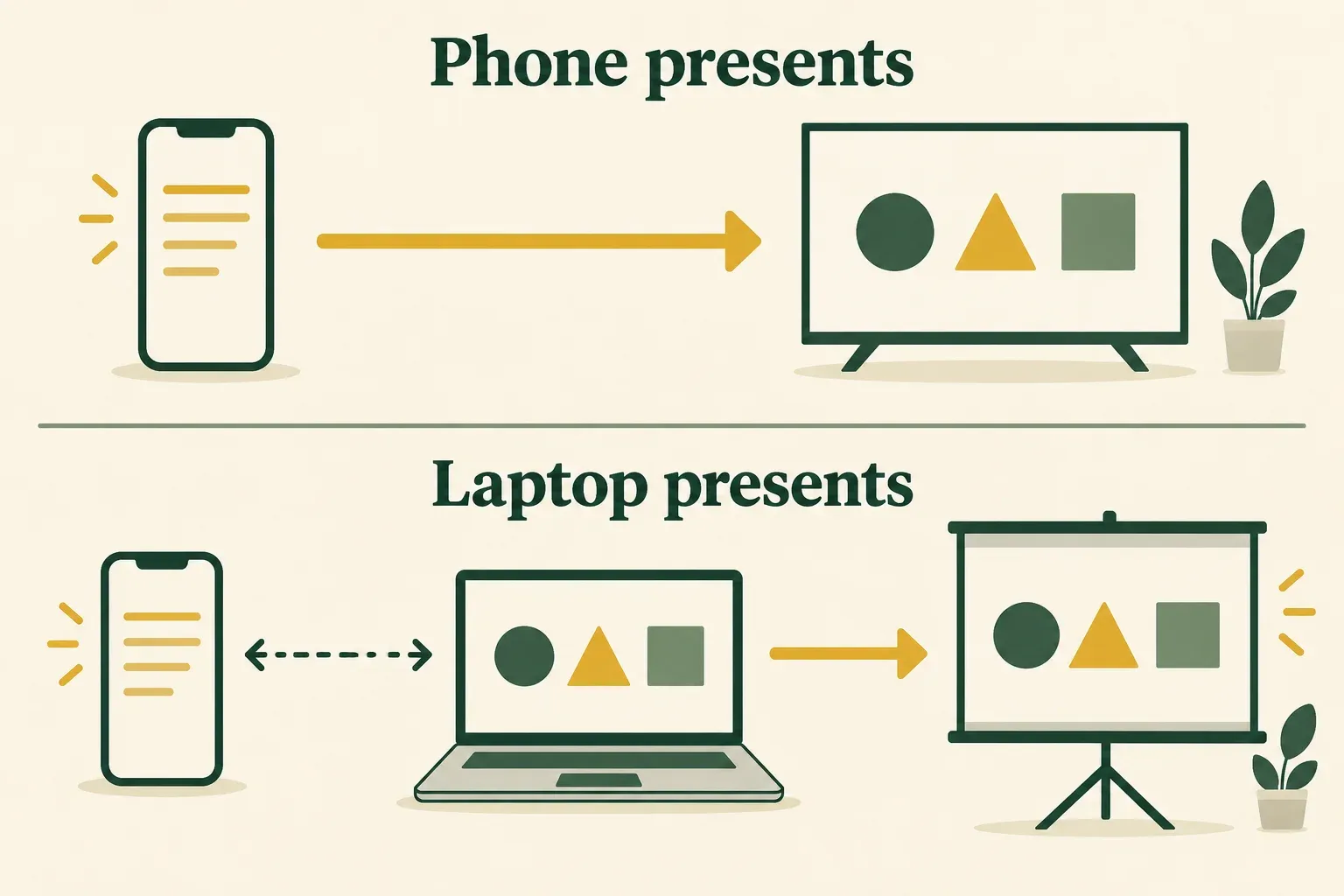
You can read Google Slides speaker notes on a phone, but the right steps depend on which device is running the presentation. Google’s mobile app documents a Speaker notes control when casting to Chromecast, and its iPhone/iPad guide also lists notes for AirPlay presentations. If your laptop runs the slideshow, a connected phone controller such as Copresent gives you a separate notes screen.
The important distinction is between opening a deck on your phone and connecting that phone to the presentation your audience is watching. Opening the same file twice does not establish a shared live session.

Conceptual illustrations in this guide show the relationship between screens; they are not app screenshots.
First, choose the setup you actually have
Before looking for a hidden button, answer one question: does the presentation start on the phone, or on the computer? That tells you which instructions to follow.
| Your setup | Where to look for notes | What to verify |
|---|---|---|
| Android or iPhone casting a deck to Chromecast | Google Slides’ casting controls | The receiver shows slides while you can read your cues |
| iPhone or iPad presenting through AirPlay | Slides’ presentation controls after connecting | The TV output after entering the slideshow, not just before it |
| Laptop running the deck, phone used privately | A connected phone notes/controller session | The phone’s notes correspond to the slide on the laptop |
| Reviewing a deck alone on the phone | Your editing or review workflow | Reading notes here is a different task from presenting them privately |
If you are preparing a venue setup, write down the devices before rehearsal: “laptop to projector; phone for cues,” for example. This small decision avoids mixing phone-casting instructions with laptop-remote instructions halfway through the talk.
See notes in the Google Slides app while casting
Android or iPhone with Chromecast
If the room display is a television, first choose a compatible cable, Cast or AirPlay connection. That guide covers TV inputs, extended displays and receiver troubleshooting before you arrange private phone notes.
For a compatible Chromecast setup, connect the phone and receiver to the same Wi-Fi network. Open the deck in the Google Slides app, choose Cast, and use Speaker notes to show or hide your cues while presenting. Swipe to move through the deck; use Close to end casting. Google documents this flow for both Android and iPhone/iPad.
Chromecast guest mode is not supported for Slides presentations. On iPhone or iPad, a missing receiver can also mean Slides lacks Local Network access; check that permission in the device’s Settings. Resolve discovery before troubleshooting the notes themselves.
iPhone or iPad with AirPlay
Connect to a compatible receiver on the same Wi-Fi network. Open Control Center, choose Screen Mirroring, and select the receiver; enter its displayed code if prompted. On newer iPhones, Control Center opens with a swipe down from the upper-right corner. Follow Apple’s device-specific AirPlay instructions if your controls differ.
Return to Slides and start Present. Google’s iOS presentation guide lists a Speaker notes control for this AirPlay workflow. Inspect the TV before reading anything private: screen mirroring alone is not a promise that notes are hidden.
Why “Present on this device” can be confusing
Google documents local playback separately from casting. Its local-playback steps do not specify the same notes control. If you cannot find it there, use the documented casting route or the laptop-and-phone setup below rather than assuming every mobile presentation mode works alike.
This guide follows the linked documentation; it does not claim a hands-on test of every phone, app version or receiver.
Read notes on your phone while a laptop presents
A different arrangement is useful when the computer already has the projector connection or is sharing the slides in a video call. Leave that computer responsible for the audience’s presentation. Use your phone for your own cues.
Copresent provides this through a Chrome extension on the presenting computer and a controller in the phone’s browser. There is no Copresent mobile app to install. The host signs in with Google and selects the deck so its notes can be read. You can follow the illustrated phone remote setup guide for the complete installation and connection steps.
For a notes-focused rehearsal:
- On the presenting computer, open the intended Slides deck and click Copresent beside Slideshow.
- Scan the controller QR code with your phone. Sign in as the host and select that same deck when prompted.
- Start the slideshow on the computer. On the phone, show the notes and check the first slide’s cue.
- Advance to a slide with different notes. Confirm the audience slide and the phone’s note belong together.
- Adjust the note text with A− or A+ until you can read it from your normal speaking position.
Before the audience arrives, run the same notes check from the position where you will speak. Advance once from the phone, then once from the computer, and compare the cue with the visible slide each time. This gives you a useful rehearsal of both controls before you need to switch between them during the talk.
Keep both devices connected to the internet. Place the phone where a quick glance is enough; a tiny screen at the far end of a lectern is not much help, even when the software is connected correctly. For a long note, rehearse scrolling to the next cue before changing slides so the movement feels deliberate.
When the notes are missing or on the wrong slide
Treat a missing note as a specific symptom. Repeatedly restarting every device makes it harder to tell which change helped.
The notes area is visible but empty
Check the selected slide in the source deck first. A presentation can have notes on some slides and none on others. Compare with one slide you know contains a cue. In Copresent, an empty current slide can show No notes for this slide; that does not by itself prove the whole deck failed to load.
After changing a cue in the source deck, verify that exact text on the phone before starting. Do not assume a previously opened notes screen has picked up your last-minute edit; reopen the intended session and check again if the old wording remains.
Then confirm the deck you authorized is the one being presented. Similar file names and copies are easy to confuse. Use the same file link during preparation and rehearsal rather than relying only on a title such as “Final presentation.”
The phone’s note does not match the audience slide
Check whether the phone is connected to the live session or simply displaying another copy of the file. In a Copresent setup, confirm you opened the controller for the current presentation. Keep the controller tab active and check the connection before advancing again.
Use a distinctive slide title and opening cue to compare the two screens. If they disagree, pause and restore the intended session before continuing. Avoid tapping several times to catch up: once communication resumes, you may no longer know which slide your audience is seeing.
Notes are present, but too awkward to read
Increase the notes text size, then shorten individual cues during preparation without removing the detail you need. A short opening phrase followed by a concrete example is easier to find at a glance than an uninterrupted script. Keep exact figures, names and quotations where you need precision.
If a note still needs several screens of scrolling, split its speaking cues into separate paragraphs. Test it while standing, holding the phone as you would during the talk. Reading comfortably at a desk is a different test from finding your place after answering an audience question.
Rehearse privacy with three slides
Do not judge privacy only from your own screen. Ask a colleague to watch the projector, TV or meeting output while you use the phone. If rehearsing a call alone, an audience-side device can help you check what is actually shared; mute it to avoid feedback.
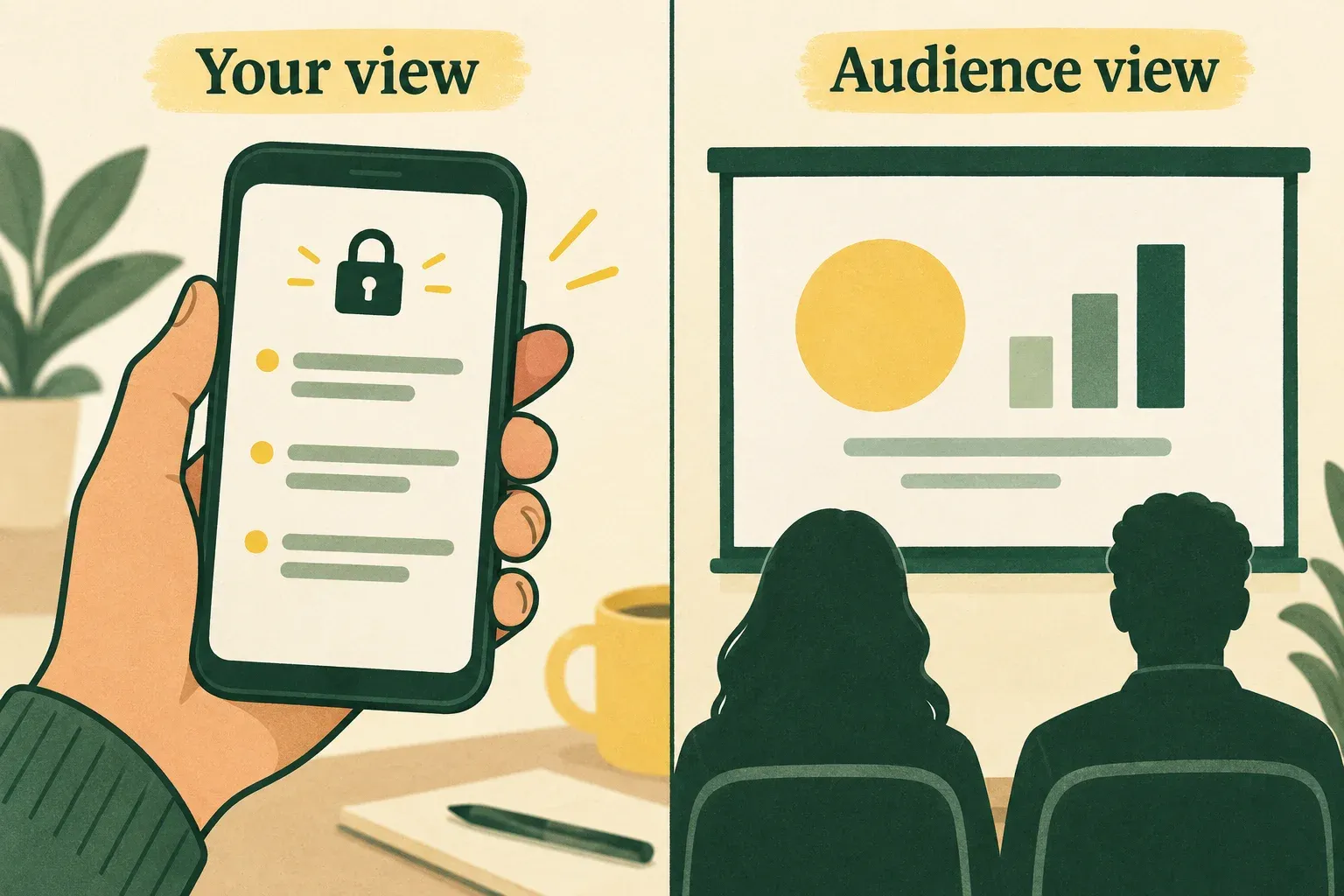
Here is an example rehearsal you can adapt:
| Test slide | Put in your private notes | Check from the audience side |
|---|---|---|
| Opening | A greeting and the first transition cue | Only the opening slide is visible |
| Main explanation | Several paragraphs, including a cue near the end | Scrolling your notes does not expose them |
| Closing | The final question and the next action | Returning to this slide brings up the matching cue |
Use harmless practice text for this test. Start the slideshow, reveal the notes, advance, go back, and check again. If you change your screen-sharing selection or reconnect a display, repeat the check. The goal is a verified audience view in the setup you will actually use.
If the audience can see notes, stop sharing or end the cast before opening private material again. Return to the selected setup, reconnect, and repeat the test with harmless text. If you cannot establish a clean audience view, use your backup cues instead of troubleshooting confidential notes in front of the room.
Keep a simple fallback ready
For a talk you cannot easily restart, keep a short backup outline with slide numbers and the cues you most need. It could be a paper card or a separately available note you have checked before the session. A backup is useful only if you can find the right section quickly when the main display stops helping.
If the phone route is unavailable, Google’s desktop alternative is Slideshow → Presenter view → Speaker notes, as described in its computer presentation guide. Recheck what the audience sees before moving private notes onto the presenting computer.
Choose one working arrangement, rehearse the transitions, and keep it consistent through the session. The successful result is simple: your audience sees the intended slide, and you can find the next cue without losing your place.