Updated · By Peter Kovalsky
How to Show Google Slides on a TV
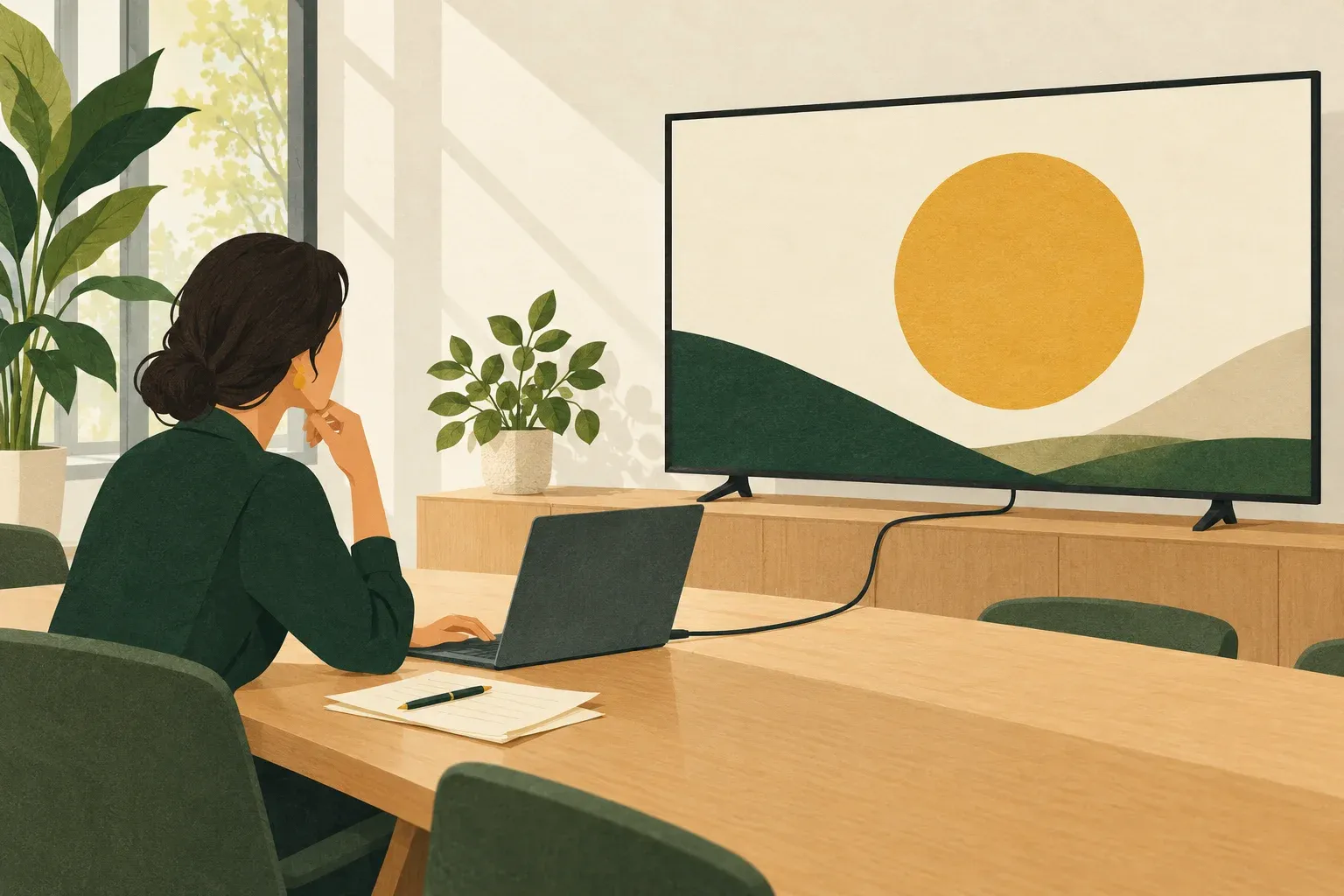
A TV can be your audience display, but “smart TV” does not identify the connection you need. Start with the device running your presentation and the input or wireless receiver available on the TV. Then choose a cable, Google Cast or AirPlay workflow that those devices support.
For a meeting room with an accessible video input, a laptop connected by a suitable cable is a practical starting point. If the TV has a compatible wireless receiver, you can instead send a Chrome tab or present from a supported phone setup. In every case, check the actual TV before opening private notes.
This guide follows the linked platform documentation. It is not a report of testing every TV model, adapter or network. Its illustrations explain the connections; they are not software screenshots.
Choose the connection before opening the deck
Ask the venue which TV input is available, whether a receiver is installed, and whether you can join its network. A product family name alone does not confirm Cast or AirPlay support. Check the specific model and the receiver settings rather than assuming all TVs from a brand work alike.
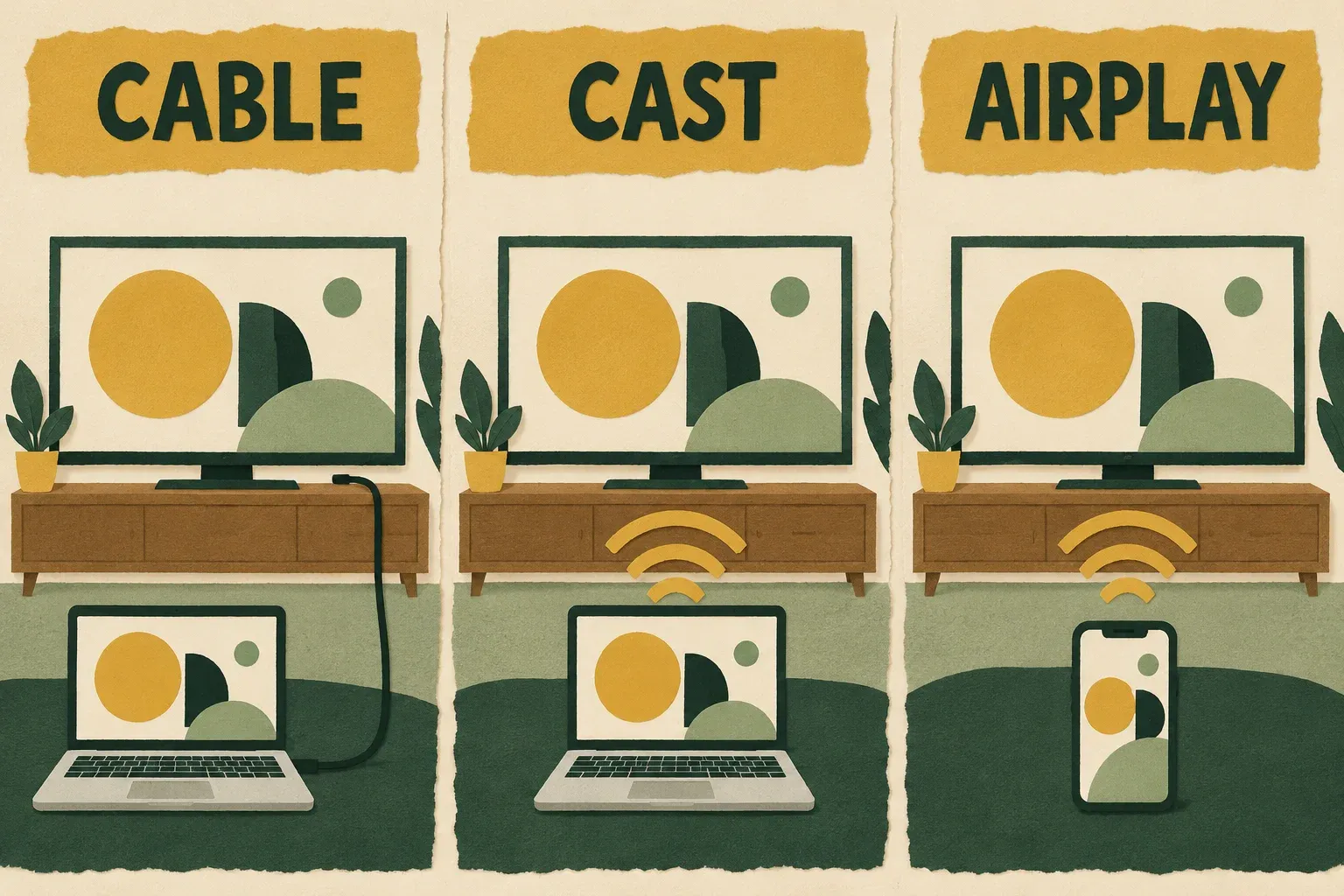
| What you have | Starting method | Check before the event |
|---|---|---|
| Laptop with a compatible video output and a TV input | Cable, with an adapter if needed | Actual ports, cable, selected input and display mode |
| Computer running Chrome and a Google Cast receiver | Cast the presentation tab | Receiver support and the shared Wi-Fi connection |
| iPhone or iPad with an AirPlay receiver | AirPlay presentation workflow | Receiver compatibility, network and audience view |
| Phone with the Slides app and Chromecast | Slides’ Cast controls | Receiver discovery and the intended presentation |
Do not start by installing apps on an unfamiliar room TV. First establish whether a cable or an already configured receiver can show the slides. This keeps setup focused on the equipment you can verify.
A useful venue note has five fields: presenting device, TV input or receiver name, connection method, notes location, fallback. Fill them in before rehearsal. For example: “Laptop; HDMI 2; cable; paper cues; local PDF.” That is a hypothetical planning example, not a compatibility guarantee.
Method 1: connect a laptop to the TV
Bring a cable that matches the computer’s video output and the TV’s video input. If an adapter is needed, check that it supports the required video connection for your computer. Apple documents HDMI connections from a Mac, including the use of adapters; Windows provides external-display troubleshooting.
- Connect the laptop to the TV and select the matching input using the TV’s controls. Note the port label rather than trying inputs at random.
- Confirm the computer recognizes the display before troubleshooting Google Slides. If the TV says “No signal,” check the input, cable and adapter first.
- Decide whether the TV should mirror the laptop or act as a separate display. For private laptop notes, use an extended desktop and keep the notes window on the laptop.
- Open the deck in desktop Chrome, choose the audience display and start the slideshow.
- Advance to another slide and look at the TV. Confirm both the slide and the boundaries of the image are correct.
On Windows, press Windows + P and choose Extend for separate display space. Duplicate shows the same desktop on both screens. Microsoft’s multiple-monitor guide explains these choices.
On a Mac, open System Settings → Displays, select the display and use Use as to choose the appropriate arrangement. Apple’s extend-or-mirror guide distinguishes those modes. Do not assume connecting the cable automatically puts private windows on the correct screen.
Google’s current desktop instructions include Slideshow dropdown → Presentation display options. With an extra monitor attached in Chrome, allow the requested multi-display permission if you want to use that feature, select the monitor and start the slideshow. Google notes that these options reset after a presentation reload. See its presentation guide.
If you use Presenter View, check the notes window and slideshow separately. The TV should show the slide, while your cues remain on the laptop. A familiar-looking laptop screen is not evidence that the TV is correct.
Method 2: cast the presentation from Chrome
For desktop casting, Google lists compatible Chromecast devices, Google TV Streamer and TVs with Google Cast. The computer and receiver need a strong connection to the same Wi-Fi network, and Chrome should be updated. Follow Google’s Chrome-to-TV instructions.
Open the slideshow you want the audience to see. In Chrome, use More → Cast, save, and share → Cast, then choose the intended receiver. Keep the source limited to the presentation tab when that is the intended audience content. Sources → Cast screen instead shares the computer screen, which is a different privacy choice.
Check the TV immediately after connecting. A receiver may already be showing someone else’s content; selecting it can replace that content. Agree which screen you are using before starting in a shared space.
On macOS 15 or later, Chrome also needs the system access described in Google’s casting guidance. If the receiver appears but casting fails, check that permission rather than repeatedly opening new presentation tabs.
For clips, test the exact audio you need. Google distinguishes tab casting, where cast media sound plays on the TV, from screen casting, where audio may remain on the computer. End the session with the Cast control and Stop casting.
If the TV is missing from the receiver list
Confirm that the intended receiver supports Google Cast and is powered on. Then check the network connection on both devices. If this is a managed venue network, ask the venue to help establish a supported connection. Do not assume that any wireless screen-sharing feature is interchangeable with Google Cast.
If you cannot discover the receiver during rehearsal, switch to the cabled plan while there is time to test it. Repeatedly changing the Slides file will not resolve a missing receiver.
Method 3: use a phone with a compatible receiver
For iPhone or iPad, Apple’s AirPlay instructions require a compatible receiver and the same Wi-Fi network. Open Control Center → Screen Mirroring, choose the TV and enter its displayed passcode if prompted. Return to the Slides app and use its presentation controls. When finished, return to Screen Mirroring and select Stop Mirroring.
Mirroring can expose the phone screen before or after the slideshow. Check what the TV shows when you open controls, switch slides and finish presenting. Keep unrelated private material closed during this check.
For Chromecast, Google’s mobile Slides guides describe casting from the app. Use the documented Android presentation flow or iPhone/iPad flow, rather than treating local playback on the phone as a connection to the TV.
On Android, join the Chromecast’s Wi-Fi network, open the deck in the Slides app and tap Cast. Swipe to change slides; Speaker notes toggles your cues and Close ends casting. Google says this does not work in Chromecast guest mode. Confirm the expected slide appears on the TV before continuing; if it does not, return to receiver and network checks rather than choosing Present on this device.
The existing phone speaker-notes guide covers those mobile controls and notes visibility in more detail. Decide whether the phone is actually presenting the deck or only acting as your private controller for a laptop. Those are different arrangements.
Keep slide control separate from the TV connection
The TV connection determines what the audience sees. A remote determines who advances the presentation. Solving one does not automatically solve the other.
If the laptop runs Google Slides, Copresent can provide phone controls and speaker notes while the laptop remains responsible for the TV output. The host installs the Chrome extension and signs in with Google; invited co-presenters join through a link. Follow the phone remote setup guide for that connected workflow.
Copresent requires internet connectivity. A working video cable does not establish that connection, and an offline deck does not turn the phone into an offline remote. For unreliable venue internet, prepare the offline presentation fallback and identify someone who can operate the laptop directly. Rehearse the Google Slides keyboard controls with that person, including a slide jump and a return to the planned sequence, before relying on this fallback.
Check the audience view before presenting
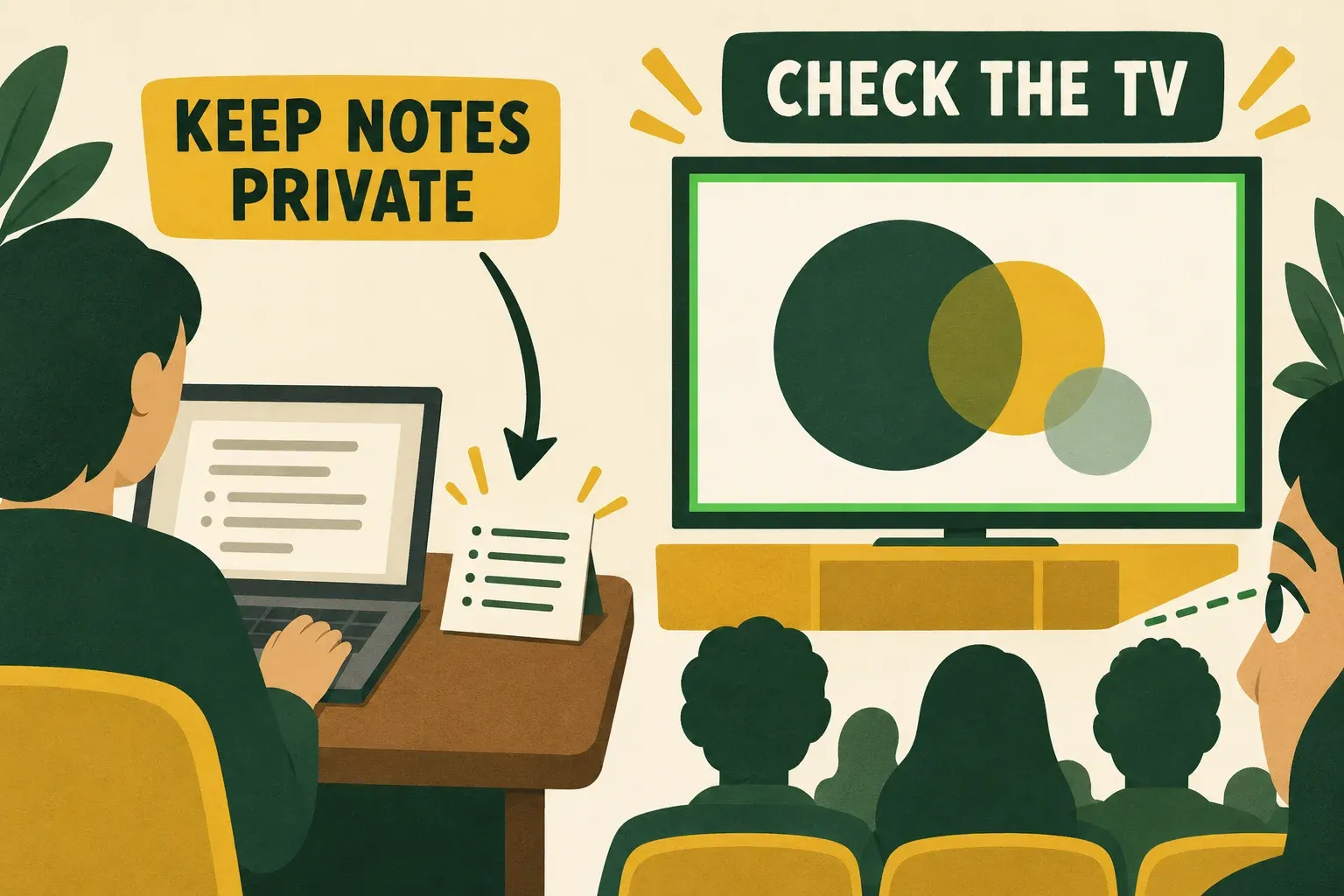
Ask a colleague to watch the TV while you perform three checks. Use harmless sample notes so a failed test does not reveal confidential material.
- Slide check: advance, go back and open a middle slide. Ask your colleague to name the visible slide so you know you are controlling the intended output.
- Privacy check: open and scroll your notes, then close them. The TV should continue showing only the intended presentation. If private material appears, stop the cast or hide the audience output before correcting the arrangement.
- Sound check: play the actual clip or sound used in the talk. Confirm which device produces it and whether people at the back can hear it.
Check a dense chart from the back of the room too. A slide that is readable on the laptop may still be awkward on the TV because of distance, image scaling or the way its edges are displayed. Adjust the slide or display setup before the audience arrives.
Troubleshoot the symptom you can see
| Symptom | First check | Next move |
|---|---|---|
| TV says No signal | Selected input and physical connection | Verify the port, reseat the cable, then check computer display detection |
| TV shows your desktop or notes | Mirror/extend mode or casting source | Restore the intended slideshow output and repeat the privacy check |
| Receiver is absent | Supported receiver, power and network | Ask venue staff or use the rehearsed cable fallback |
| Edges of the slide are cut off | TV picture sizing and computer display settings | Check overscan/underscan options for the specific equipment |
| Picture works but sound does not | Selected audio output and cast source | Test the same clip after changing the relevant output setting |
| Slides stop responding to a phone | Laptop slideshow and controller connection | Use local laptop controls while you restore the remote connection |
Apple’s HDMI troubleshooting specifically covers picture boundaries and missing HDMI audio. Names for TV picture-size settings vary, so consult the model’s instructions instead of assuming every television has the same menu.
At the end of the talk, stop casting or mirroring before opening your inbox or another private document. For a cable setup, verify what the TV displays when you exit the slideshow. Finish the presentation deliberately: a successful setup includes knowing how to end the audience output.
For a shared room, tell the next presenter when your connection has ended and which input or receiver you used. Leave the TV on a neutral screen before disconnecting your equipment. This handoff avoids the next person guessing whether an old casting session or their own connection is responsible for what the room sees.