Updated · By Peter Kovalsky
Google Slides Keyboard Shortcuts for Live Presentations
During a talk, a useful shortcut is one you can remember and recover from. You might need to revisit a chart during questions, hide the slide while people discuss an exercise, or get back to your planned sequence without clicking through half the deck.
Start with the arrow keys, a slide number followed by Enter, and the blank-screen controls. This guide focuses on presenting a Google Slides deck on a computer. Editing shortcuts and embedded video controls belong to different contexts; a long list that mixes them can be less useful at the lectern.
The key mappings below follow Google’s documentation. The examples and rehearsal sequence are suggested preparation, not a report of testing every keyboard or browser. The illustrations explain the workflow rather than reproduce the Google Slides interface.
The shortcuts to keep beside your laptop
Open the deck and start Slideshow before using these presentation controls. Google’s presentation instructions describe this mode and its toolbar alternatives.
| During the slideshow | Key to use |
|---|---|
| Move forward | Right arrow |
| Move back | Left arrow |
| Jump directly to a numbered slide | Type its number, then Enter |
| Open speaker notes | S |
| Switch the laser pointer on or off | L |
| Replace the slide with a black display | B |
| Replace the slide with a white display | W |
| Restore the slide after blanking | Any key |
| Leave the presentation | Esc |
These single-key controls do not need Ctrl or Command. Google’s keyboard reference also warns that some combinations vary with keyboard or language. In the editor, Ctrl + / on Windows or ChromeOS, or Command + / on Mac, opens the shortcut list for reference.
Keep a small cue card with only the actions your talk needs. If you never use a laser pointer or a white screen, you do not need to memorize those controls just because they are available.
Check which window is receiving your keys
A slide visible somewhere on the desktop does not mean the slideshow is the active window. Before diagnosing a broken shortcut, check where your input is going. The address bar, a notes field, a meeting chat box and an embedded video can each be a different place to interact.
Bring the slideshow window to the foreground and try one deliberate forward movement. Check the audience screen as well as the laptop. Avoid repeated presses while you are unsure: once you regain control, a series of rapid inputs can leave you farther through the deck than intended.
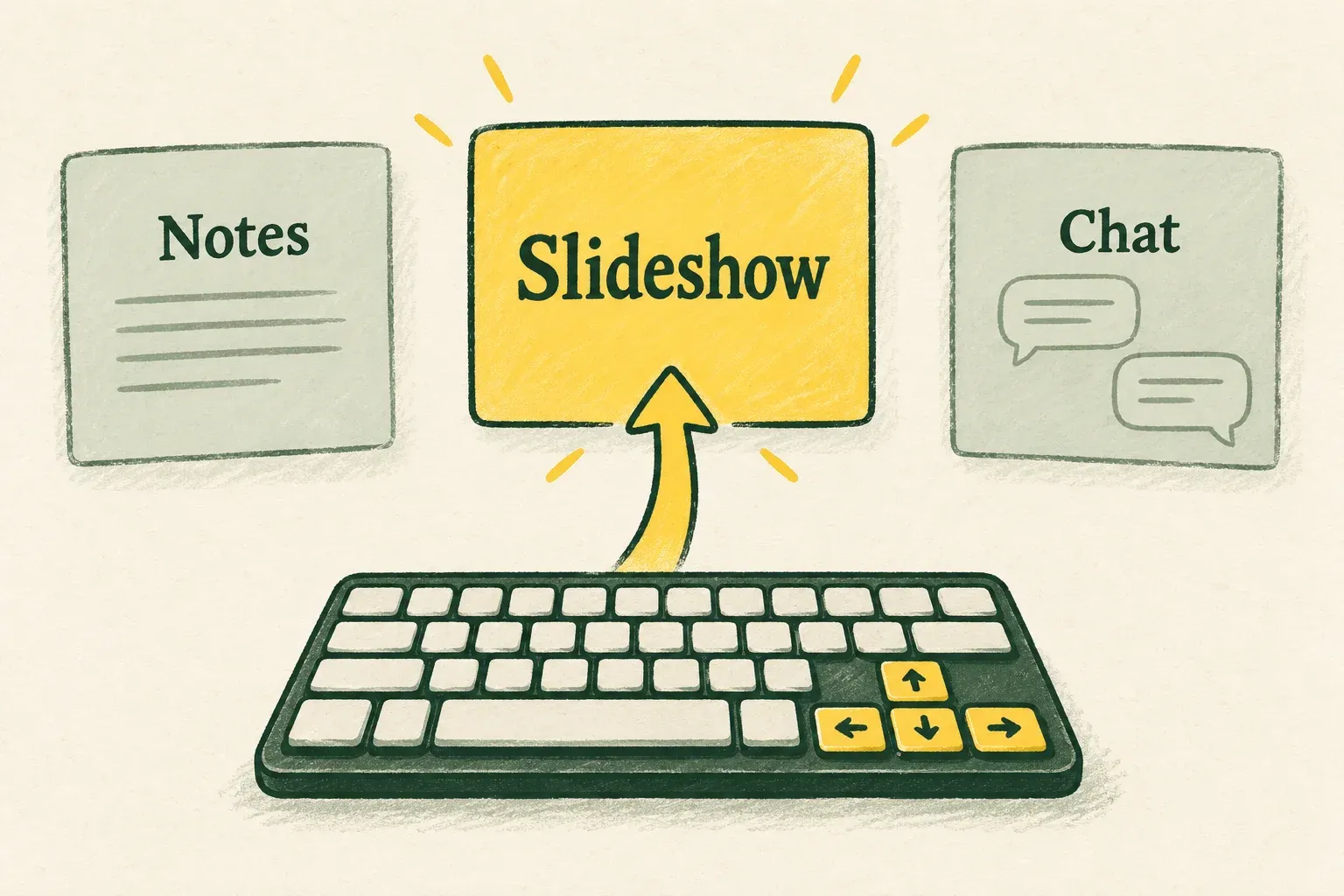
If you are still in the editor, start the slideshow first. If you have opened a video, return attention to the presentation before using slide navigation. Treat the visible response as the diagnostic clue: text appearing in a field means you are typing there, rather than issuing a presentation command.
For a TV or projector setup, ask someone to identify the slide visible on the audience display. For a Zoom presentation, verify the shared view with a participant. A working local keyboard is only one part of a successful presentation.
Jump to a slide and plan the return
Suppose a hypothetical workshop has its main chart on slide 12 and its discussion prompt on slide 19. You are on slide 19 when someone asks about the chart. Your cue can read:
Question about chart → 12, Enter → explain → 19, Enter → resume discussion.
The important preparation is the return destination. Without it, you may reach the requested chart quickly and then lose your place. Write both slide numbers in your private cue sheet before presenting.
Use the deck’s slide positions for this plan. A number typed into a slide’s artwork may be a section number or an old label, so check it against the actual deck order. Rehearse the jump after the final rearrangement of slides, especially when another presenter is editing the file.
Do not assume the number you wrote yesterday still points to the same content today. In a shared deck, agree when the order is final and update everyone’s cue sheet together. A small list of destinations is easier to maintain than a complete second copy of the slide outline.
Blank the display for a discussion
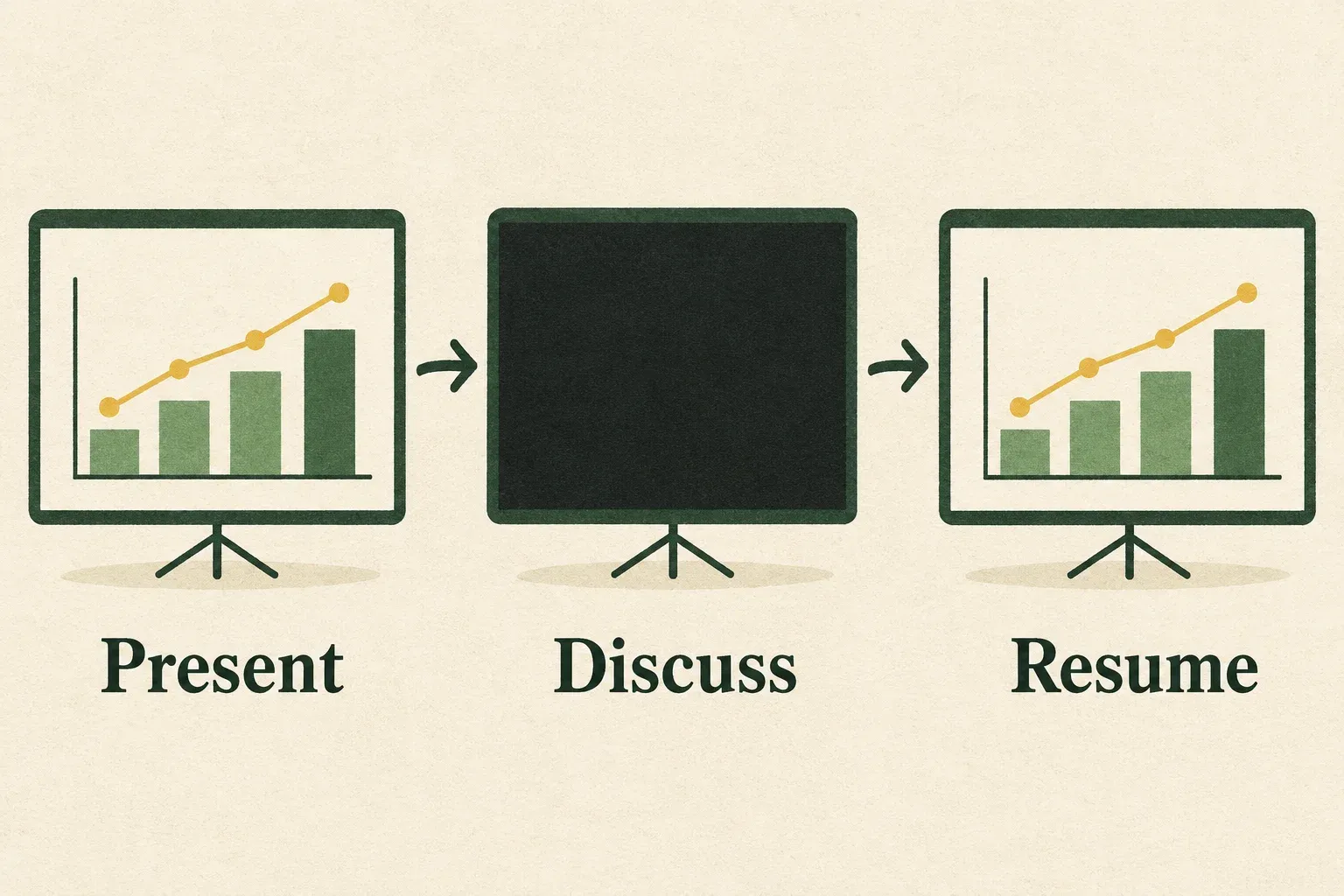
A temporary blank display can give an exercise or conversation a clear start. Rehearse the blank-and-return sequence before using it in front of the audience, and tell your co-presenter what you intend to do so they do not treat the blank screen as a connection failure.
Choose a restore key during rehearsal and confirm that the original slide returns before giving a separate advance command. Keep restoration and navigation as two deliberate actions so you can see whether the display is back where you expect.
For example, a facilitator might say: “Take a moment to discuss that question with your neighbour.” They can blank the slide, leave the discussion prompt on a private cue card, then restore the presentation when it is time to regroup. This is a suggested facilitation pattern, not a measured engagement technique.
Blanking a slide is not a privacy plan for the rest of your computer. Before opening confidential material or changing the shared source, stop or hide the audience output using the relevant meeting or display controls. Verify what the audience sees instead of relying on the laptop’s appearance.
Open notes without losing the audience view
Use the notes shortcut only after checking your display arrangement. Opening a useful presenter window does not establish that it is private. Practice with harmless sample notes and have someone watch the audience output while you open them.
If the notes appear to the audience, restore the intended slide output before continuing. In a call, check the selected sharing source; on an external screen, check your window placement and display mode. Keep that setup question separate from whether the shortcut itself responded.
For spoken captions, use the dedicated Google Slides captions guide to check the microphone and audience output. Do not treat a caption control responding as proof that everyone can see readable speech text.
When a shortcut does not do what you expected
Work through the symptom once, then use the visible presentation controls if you need to keep talking. Troubleshooting in the middle of a sentence is harder than a short, deliberate pause.
| What happened | Practical next check |
|---|---|
| Letters appeared in a field | Stop typing and bring the slideshow back into focus |
| Nothing visibly changed | Confirm the active window and inspect the audience display |
| The wrong slide appeared after a jump | Verify the destination against the current deck order |
| The screen went blank unexpectedly | Check whether a blank-display key was used before investigating the cable |
| A video responded instead of the deck | Return to slideshow control and retry a single navigation action |
| Notes appeared publicly | Correct the sharing/display arrangement before reopening private material |
If a particular key combination is unreliable on the equipment you will use, choose a rehearsed alternative. You do not need to solve every keyboard-layout or system-shortcut conflict to deliver the talk. Move the pointer toward the bottom of the slideshow to find its toolbar; the navigation arrows provide a visible fallback. If one careful retry after restoring focus still fails, use those controls and postpone further diagnosis until a break. Keep the mouse or trackpad available.
Rehearse a short control sequence
Use this suggested check after connecting the actual audience display or starting the meeting share:
- Start the slideshow and confirm the opening slide with someone watching the audience output.
- Move forward once and back once. Confirm the intended change at both ends.
- Jump to a prepared question slide, then return to the planned starting point.
- Blank and restore the display. Explain the cue to anyone sharing presentation duties.
- Open sample notes and check privacy, then restore your presenting focus.
- End the slideshow and check what remains visible before opening anything else.
If you will move away from the keyboard, plan who controls the laptop. Copresent can provide phone navigation and speaker notes: the host installs the Chrome extension and signs in with Google, while invited presenters use a browser link. Follow the Copresent setup steps and rehearse the handoff separately.
Agree on one person to advance at a time. Keep the laptop controls available as a fallback, and say when you are taking over so a remote presenter does not advance at the same moment. The goal is a predictable sequence that the whole presenting team understands.