Updated · By Peter Kovalsky
How to Turn On Google Slides Captions and Check They Work
Google Slides captions put your spoken words on the presentation screen. To enable them during a slideshow, open More options → Captions preferences → Toggle captions. Then speak and check the audience display: turning on a control is only the first part of making captions useful.
This guide covers desktop Slides captions and the microphone feeding them. It separates that setup from private speaker notes and your meeting application’s captions. The instructions follow Google’s documentation; the rehearsal examples are suggested checks, not results from a device test. The illustrations are conceptual, not software screenshots.

Set up the computer that is presenting
Use a current Chrome, Edge or Safari browser. Google expanded captions support beyond Chrome, so older Chrome-only instructions are incomplete. Its browser-support announcement also explains that the browser controls speech recognition and sends the resulting text to Slides. This is useful context if your organization has rules about processing meeting speech.
Write down which computer is running the deck, which microphone it will use and which display the audience will watch. For a room presentation, that could be a laptop, a connected microphone and a projector. For a remote session, add the selected screen-sharing window. This small setup note helps you avoid debugging a microphone connected to the wrong device.
Captions need an internet connection and a working computer microphone. An external microphone connected to that computer is also supported. An administrator may disable the feature. Google’s Slides captions guide is the reference for these requirements and the controls below.
Turn captions on, adjust them and turn them off
- Open the intended deck and start its slideshow.
- At the lower left, choose More options → Captions preferences → Toggle captions.
- Speak. Text should appear along the bottom of the presentation.
- Use the dropdown beside CC to change caption position or text size.
- Use CC again when you want to stop captions.
The toggle shortcut is Ctrl + Shift + C on Windows or ChromeOS, and Command + Shift + C on Mac. Captions are not saved, omit punctuation and may be inaccurate. Google also notes they stop with the microphone after 30 minutes of computer inactivity. Recheck after a long break.
Before presenting, practise the on/off action with an ordinary sentence. Avoid testing with confidential material. Leave enough time to return to the opening slide and confirm the captions are active when the audience arrives.
Check the microphone separately from the display
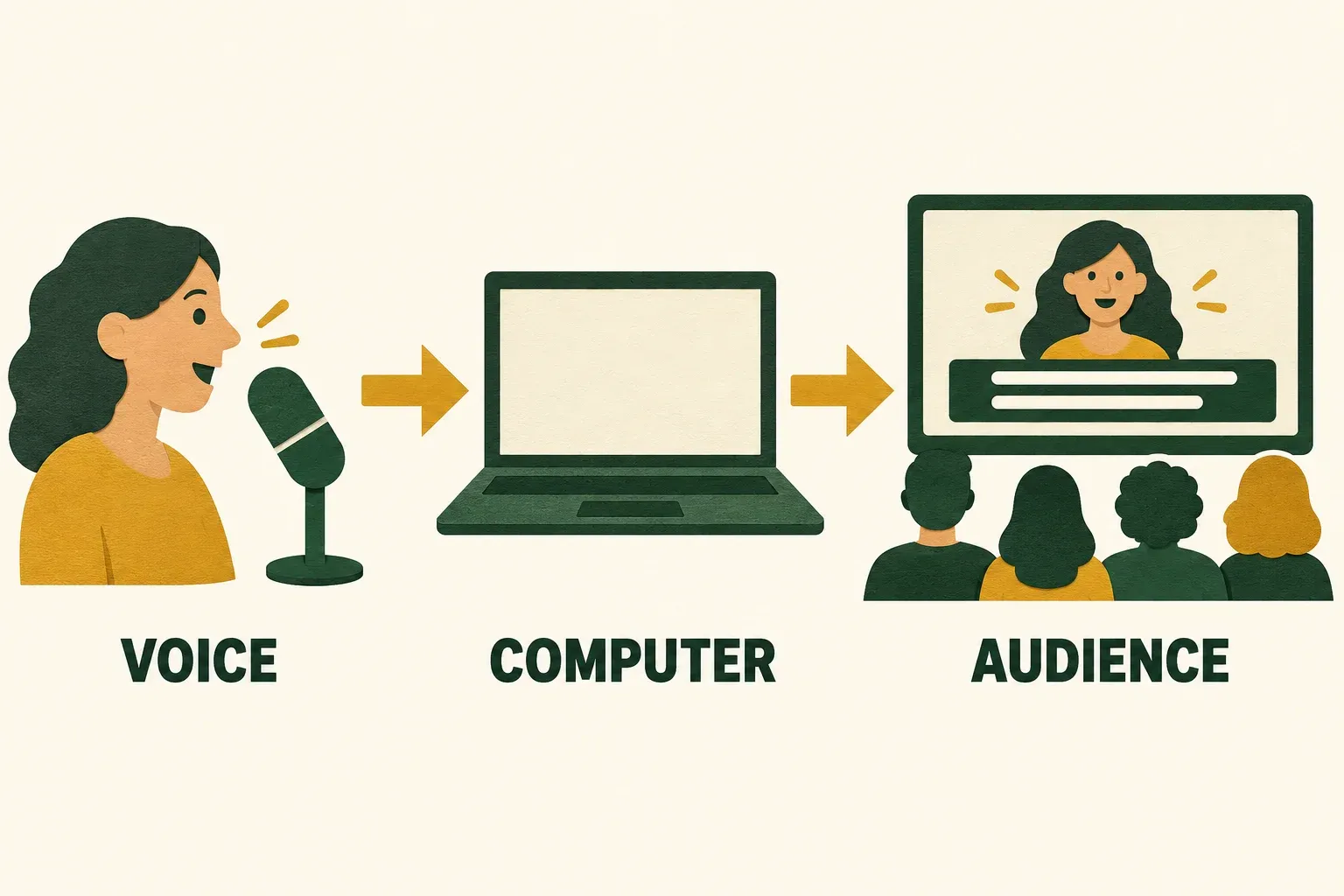
A useful diagnosis follows the path in order: speech → microphone → presenting computer → audience display. Do not change every setting at once. Make one change, repeat the same test sentence and see whether the result changes.
In Chrome, open Settings → Privacy and security → Site settings → Microphone. Review the presenting site’s permission and the selected default microphone. Google also advises checking the headset’s mute switch and the operating system’s recording device and levels. Follow its microphone access guide, including any restart prompt after a system permission change. On a managed computer, some settings require an administrator.
When the presenting site asks to use your microphone, allow access if you intend to use speech captions there. If you previously blocked it, change that site’s microphone permission rather than broadly enabling unrelated sites.
Choose the microphone by its device name, then rehearse from where you intend to stand. A check made leaning over the laptop does not establish that the same arrangement will work when you move to the front of the room. If you change microphones or move the presenting computer, repeat that check.
For a remote co-presenter, avoid assuming that control of the slides means their voice reaches the presenting computer’s microphone. Assign someone to verify captions during the handoff. If another speaker will use a different captioning arrangement, decide that before the meeting and explain it to participants.
Verify captions from the audience’s side
Ask a colleague to watch the actual projector, TV or shared window. Give them a specific task: read back the test sentence and tell you whether they can still see the slide’s main information. “Can you see my screen?” is too broad to catch a caption problem.
Use the busiest slide in the deck as well as the title slide. A caption band that is harmless on an empty opening slide can compete with labels on a chart. Adjust the caption position or size, then ask the viewer to check both the words and the visual explanation again.
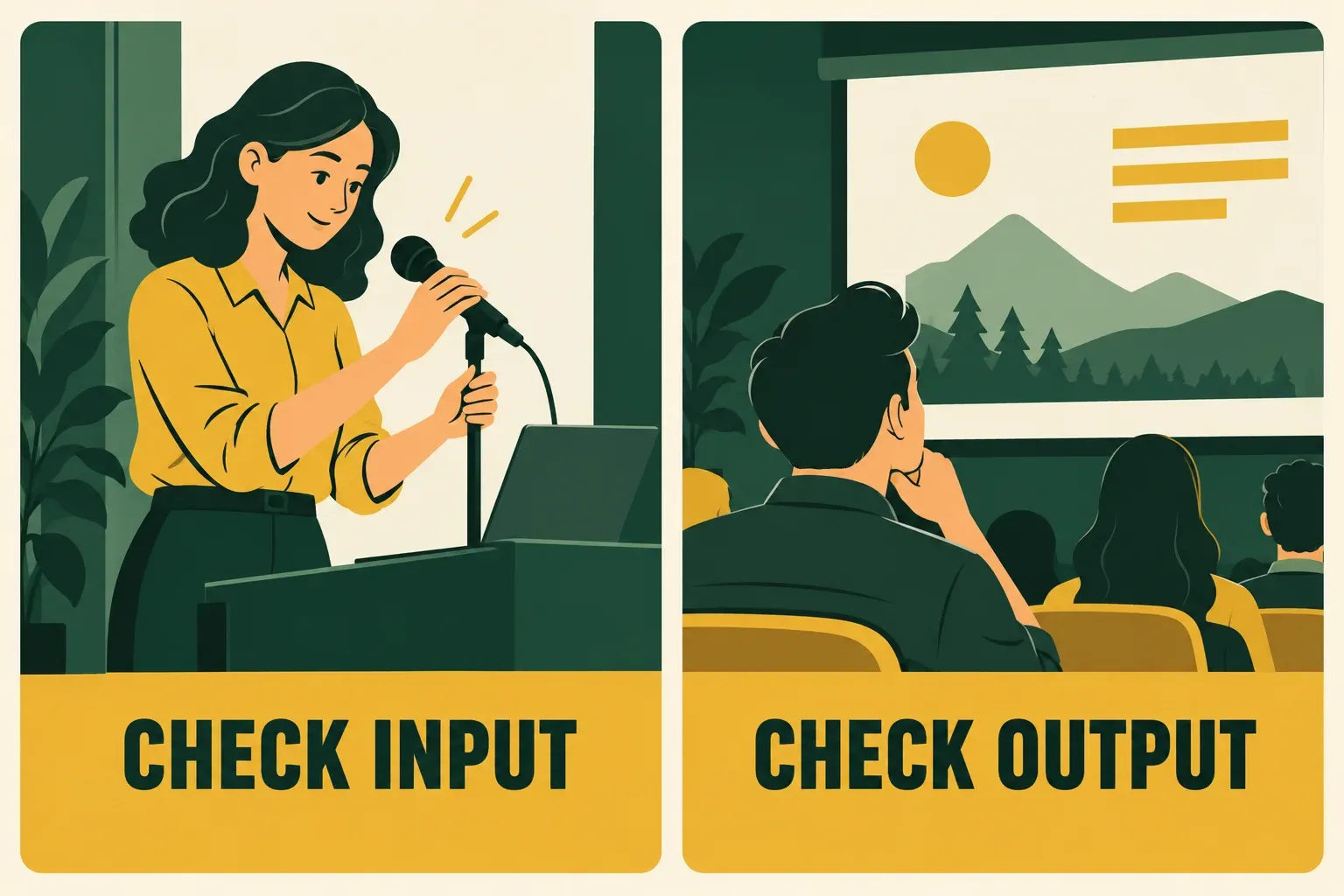
Here is a hypothetical rehearsal sheet for a workshop. Replace the examples with terms and actions from your own presentation.
| Check | Example action | What the observer reports |
|---|---|---|
| Ordinary speech | Say “We will compare three examples” | Whether the phrase appears and is readable |
| Important details | Say a product name and a figure from your deck | Any mismatch that could change the meaning |
| Slide layout | Open a dense chart while speaking | Whether captions obscure a label or explanation |
| Presenter movement | Speak from your actual standing position | Whether text continues appearing |
| Handoff | Let the next speaker deliver a short introduction | Whether their speech reaches the intended captions |
Record the problem you actually see, rather than marking the whole rehearsal as “captions broken.” Missing text, incorrect text and hidden text lead to different next steps.
Keep captions, notes and meeting controls distinct
Private speaker notes are prompts for you; captions are text for viewers. Do not place information in your notes expecting it to become the audience’s caption stream. Google’s original Slides captions announcement describes captions being generated from microphone audio. It also explains that Slides captions can appear within a shared presentation during a video meeting.
For a call, decide whether you are using the presentation’s captions, the meeting’s captioning feature, or an arrangement requested by participants. Tell viewers where to look. Do not assume that enabling Slides captions turns on every participant’s meeting captions or covers every voice in the call.
Keep the sharing boundary clear. Our Google Slides on Zoom guide explains selecting the slideshow window while keeping notes private. If your audience is watching a television, the TV connection guide helps establish the display before you assess caption readability.
Copresent can help you control the slides and read notes on your phone while the computer runs the presentation. The host uses the Chrome extension and signs in with Google; invited co-presenters join through a link. That control arrangement does not replace the captions microphone setup. Use the phone remote guide for navigation, then run the audience check described here.
Troubleshoot the observed symptom
| What happens | What to check next |
|---|---|
| No caption text appears | Verify captions are enabled, then check the presenting computer’s microphone selection and permissions |
| Words appear but are wrong | Repeat a short phrase from your normal speaking position; compare important terms with the slide |
| Captions work locally but viewers cannot see them | Inspect the actual audience display or shared window, not just the laptop |
| A new speaker is not captioned | Verify that speaker’s voice reaches the microphone used by the presenting computer |
| Caption text makes the slide hard to read | Try a different caption size or position and recheck the busiest slide |
| The setup stops working after a break | Check the captions control again before changing the deck or reconnecting equipment |
When an important name, date or number is wrong, pause and clarify it. Put crucial details in the slide or a prepared written summary so the audience has something deliberate to refer to. A correct sentence a moment ago is not a guarantee that the next sentence will be correct.
If the captions remain unavailable, tell participants what has failed and agree on a workable alternative. A written outline may help with reference, but it does not automatically replace the live access someone needs. Decide whether to pause or change the session with the people affected. Do not quietly continue on the assumption that everyone can follow without captions.
For example, you could say: “The captions have stopped. Let’s pause while we restore them or agree on another way to continue.” Assign a colleague to handle the check while you explain the pause. Once the setup is restored, ask the viewer to confirm a fresh sentence before restarting the explanation. This is a suggested recovery script, not a guarantee that a particular alternative meets everyone’s needs.
End with the same care as you start: turn captions off when the public presentation ends, then stop screen sharing before returning to private work. Keep the microphone, audience display and slide-control checks as separate items in your rehearsal notes so you can repeat the setup next time.