Updated · By Peter Kovalsky
How to Add Music and Audio to Google Slides
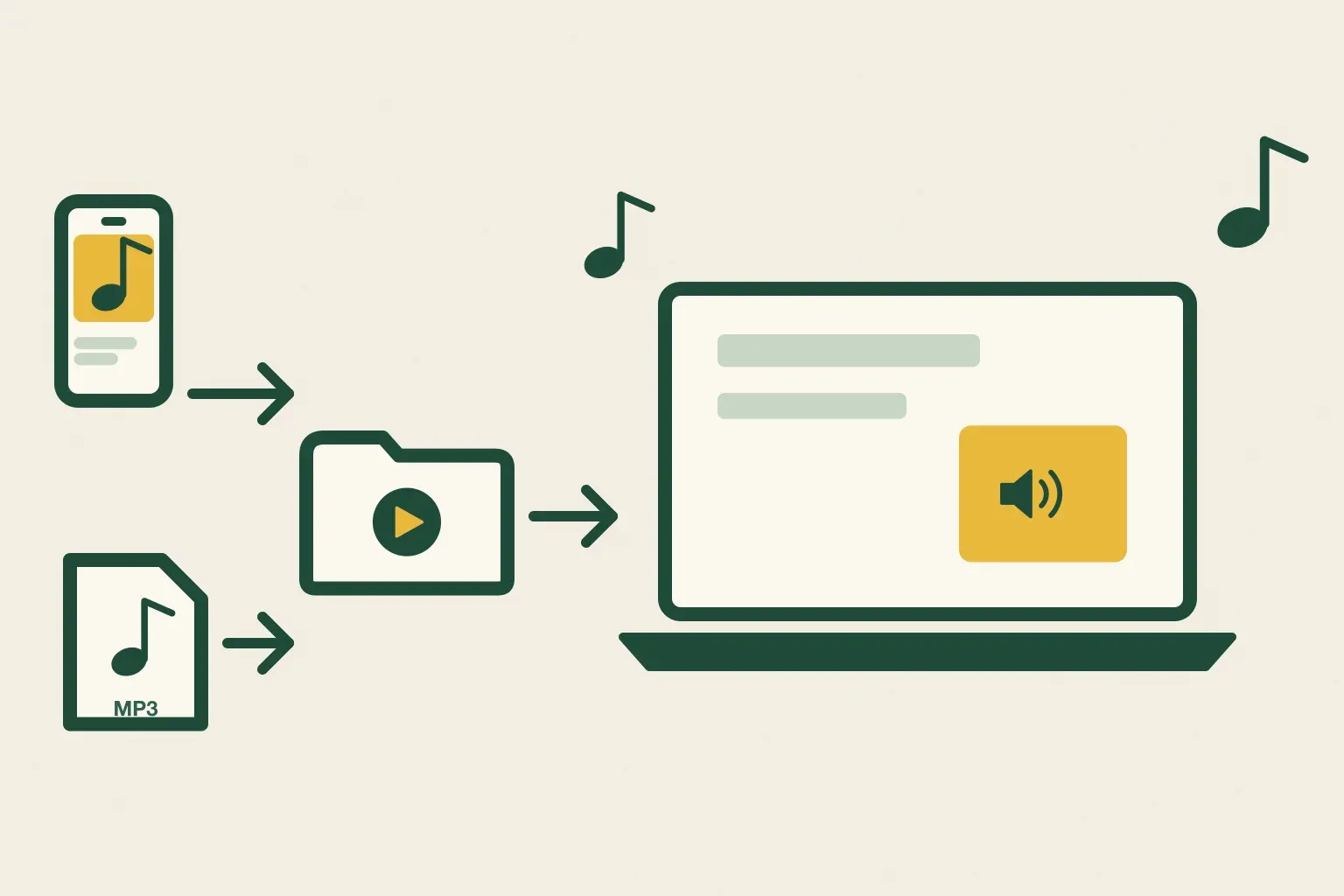
To add music to Google Slides, upload an MP3 or WAV file to Google Drive, open the presentation on a computer and click the slide where the sound should start. Choose Insert → Audio, pick the file and click Select. A speaker icon appears on the slide; click it and open Format options to choose whether it plays on click or automatically, whether it keeps playing on the next slides and how loud it is.
Those are the steps in Google’s Slides media help. The rest of this guide covers what decides whether the sound actually works in the room: getting a song or recording into Drive in the right format, background music that runs across several slides, what to do about Spotify and YouTube, and a short check for audio that won’t play.
What you can add, and from where
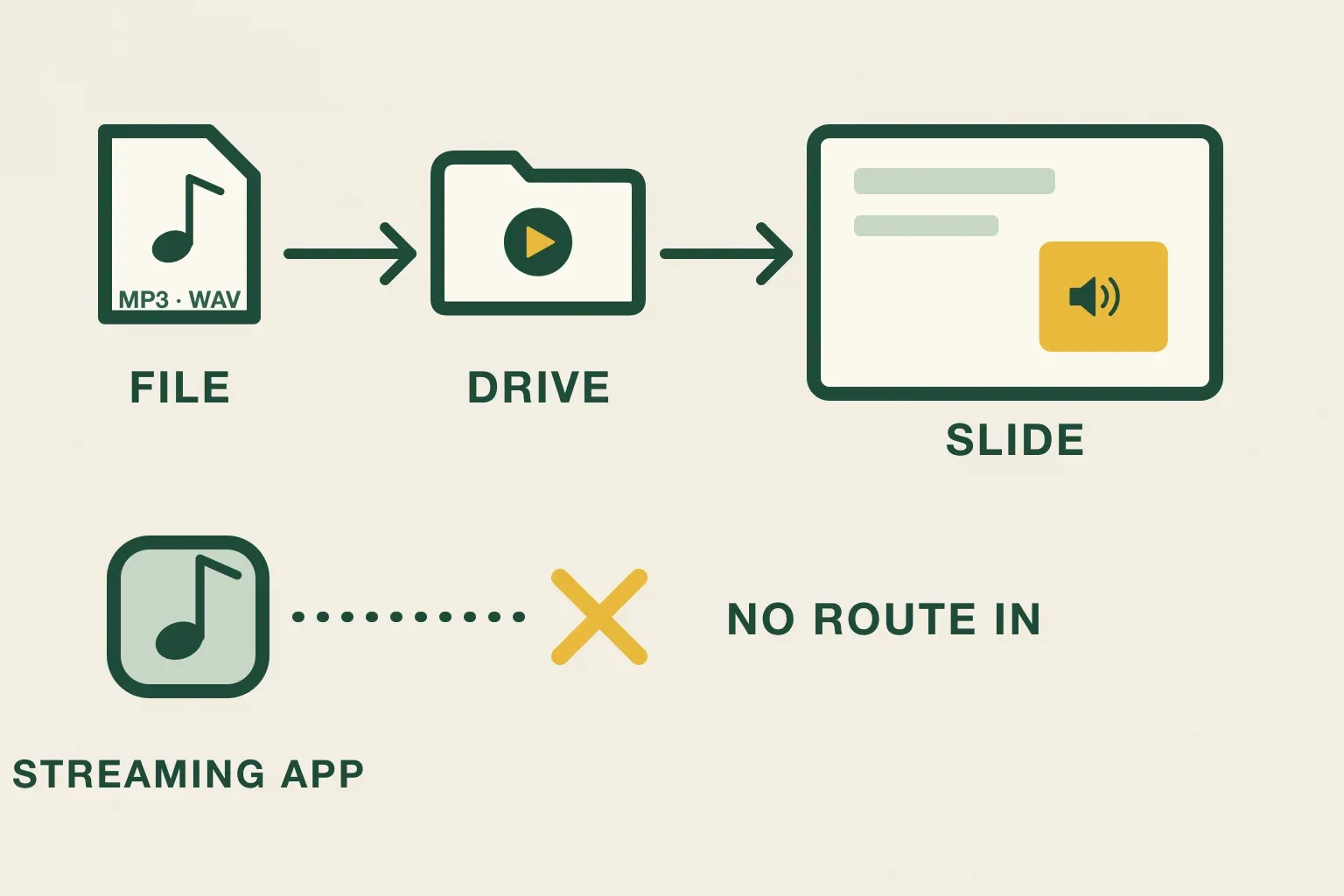
Slides plays audio from one place: Google Drive. Google’s help says you can add .mp3 and .wav files stored in your Drive. There is no option to paste a Spotify, Apple Music or SoundCloud link, and no recorder that puts a sound on a slide.
| Your sound is… | Route into Slides | Good to know |
|---|---|---|
| An MP3 or WAV file on your computer | Upload to Drive, then Insert → Audio | The simplest case |
| A voice memo or recording on your phone | Upload with the Drive app; convert first if it isn’t MP3 or WAV | iPhone Voice Memos saves .m4a, which Slides does not list |
| A song on Spotify or Apple Music | Not directly | Streaming downloads stay inside the app; use a file you own or a licensed track |
| A track or clip on YouTube | Insert it as a video instead | It shows as a video player, not a speaker icon |
| A voice-over you still need to record | Record it with another app, save as MP3, upload | Slides’ Record button makes a video, not a sound on the slide |
Add an audio file to a slide
- Upload the MP3 or WAV file to Google Drive. Give it a name you will recognise, such as “Intro music — slide 1”, because the Insert dialog shows Drive file names.
- Open the presentation on a computer and click the slide where the sound should begin.
- Choose Insert → Audio.
- Find the file in the Drive list, using search or My Drive if it isn’t under recent files, click it and click Select.
A speaker icon lands on the slide. Hover over it in the editor and a small player appears with play, a progress bar and volume, so you can check it is the right file. You can drag the icon anywhere on the slide or resize it like any other object.
Adding audio is a desktop task. Google’s Android and iPhone help for Slides covers inserting images, not audio, and the launch report on 9to5Google said audio could only be added on the web on a computer, although it plays wherever the deck is opened.
Choose how the audio plays
Click the speaker icon, then click Format options in the toolbar, or right-click the icon and choose Format options. The Audio playback section holds these settings. Google’s help page doesn’t list them; the names below follow the 2019 launch report, and may shift slightly as Google updates Slides:
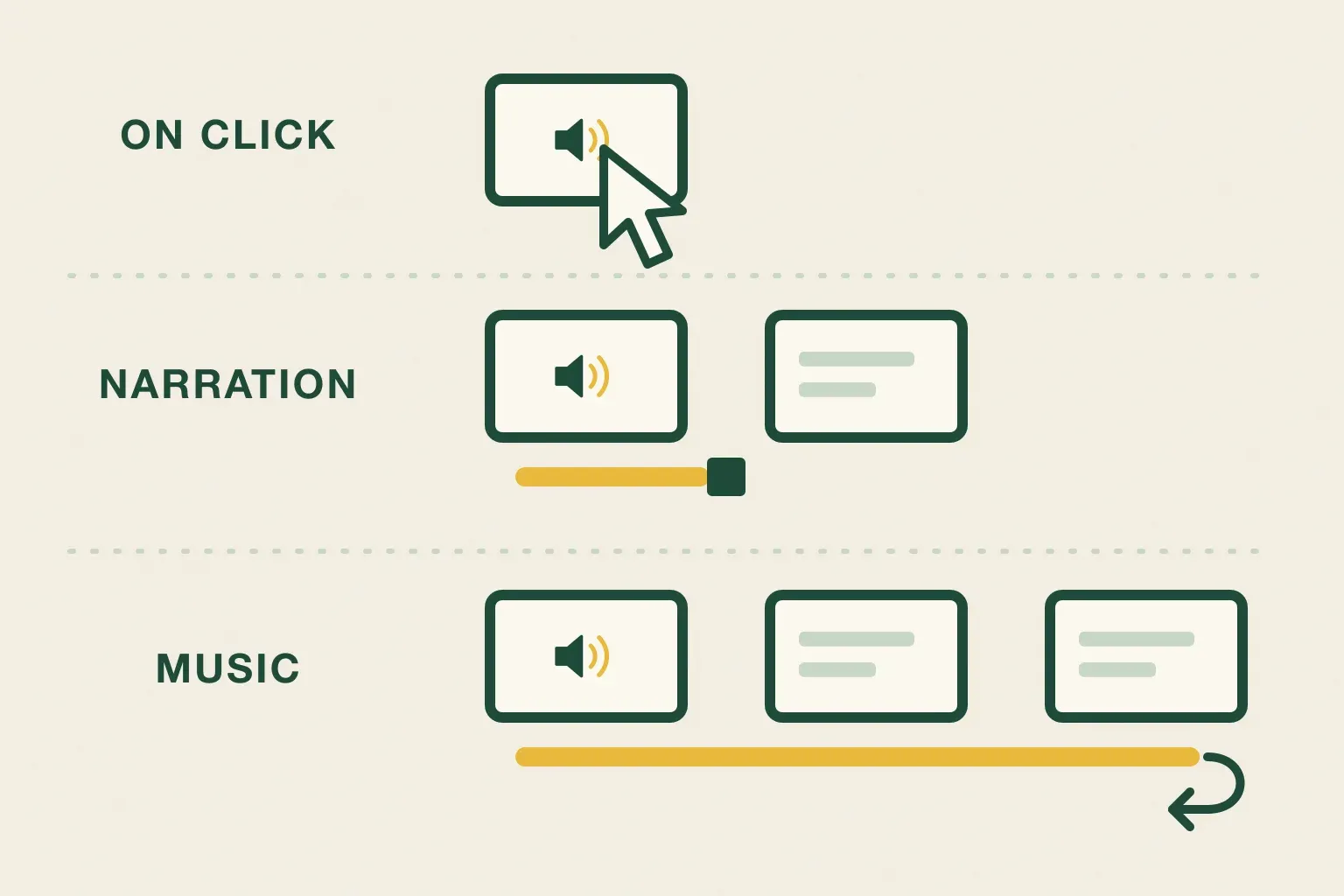
- Start playing: On click plays when the speaker icon is clicked during the slideshow.
- Start playing: Automatically starts the sound as soon as the slide appears.
- Volume when presenting sets the level relative to the file.
- Hide icon when presenting removes the speaker from the audience’s view.
- Loop audio restarts the file when it ends.
- Stop on slide change ends the sound when you move to the next slide. Turn it off to let music carry on.
One combination to avoid: On click with Hide icon when presenting. With the icon hidden there is nothing to click, so the sound never starts. If you hide the icon, set the audio to play automatically.
Play background music across several slides
Background music is the most common reason people add audio, and it takes three settings:
- Insert the music on the first slide that should have it.
- In Format options, set Start playing to Automatically.
- Untick Stop on slide change, tick Loop audio if the track is shorter than the section, and tick Hide icon when presenting if you don’t want the speaker on screen.
The music now starts when that slide appears and keeps going as you move forward, until it ends or the slideshow closes. There is no setting to stop it at a particular later slide. If the music should end partway through, choose a track about as long as that section, untick Loop audio, and time it in a rehearsal. Keep the volume low enough that you can talk over it: try Volume when presenting at about half, then adjust after hearing it through the real speakers.
For a deck that runs on its own, such as a slideshow on a screen at an event, music pairs with Slides’ auto-advance and looping options. Set those in the slideshow’s Auto-play options, then test that the music does what you expect when the deck loops back to the start. Our guide to making Google Slides play automatically and loop has the steps.
A worked example
Hypothetically, a teacher wants calm music under a five-slide photo recap at the end of term, and a single applause sound on the final “Thank you” slide. They upload both files to a Drive folder called “End of term audio”. On slide 1 they insert the music, set it to start automatically, untick Stop on slide change, tick Loop audio and hide the icon. On slide 5 they insert the applause, leave it on On click and keep the icon visible, so they can choose the moment. In the speaker notes of slide 5 they write: “Click the speaker for applause.” Because the music doesn’t stop on slide change, it carries on quietly under the applause, which suits an ending. If they wanted silence before the applause, they would pick a music track about as long as the four photo slides and turn off looping, since Slides has no “stop at slide 5” setting.
Add a voice-over or a recording from your phone
Slides cannot record a sound onto a slide. Its Record button makes a video of the whole presentation in Google Vids instead; if a video is what you need, follow how to record a Google Slides presentation. For narration inside the deck, record in another app, save the result as MP3 or WAV and insert it on the slide it belongs to. One file per slide is easier to fix than one long recording: if you rewrite slide 3, you only re-record slide 3. Set each narration to start automatically and leave Stop on slide change ticked, so it never talks over the next slide.
To get a recording from your phone into Drive:
On Android: open the Google Drive app, tap New, then Upload, and choose the file. Google’s Android upload steps say it lands in My Drive unless you move it.
On iPhone or iPad: open the Google Drive app, tap Add, then File upload, choose the file and tap Upload, following Google’s iPhone and iPad steps. Voice Memos saves recordings as .m4a, which is not one of the two formats Slides lists, so convert it to MP3 or WAV with an audio app or converter you trust before you insert it.
What about Spotify, Apple Music and YouTube?
Streaming apps. Songs you download in Spotify or Apple Music are stored for playback inside those apps, not as MP3 files you can upload, so there is no supported way to put them in Slides. Playing the song from the app on the same computer while you present works for a room, but it is a separate player you have to start and stop yourself.
YouTube. Slides embeds YouTube as video, not audio. If the sound you want only exists on YouTube, use the video steps and set the video to play automatically, trimming it to the part you need. The player stays visible on the slide, and a video stops when you leave its slide, so this suits a clip on one slide rather than music across a whole section.
Music you are allowed to use. Whatever the source, use a track you have the right to play. Playing a song in a classroom is different from playing it at a public event or in a recorded talk that will be posted online, so check the licence for anything beyond a private room. Royalty-free music and sound-effect sites state their terms per file; read them for presentations, not just videos.
Share the deck so the audio still plays
The audio file stays in your Drive; the presentation only points at it. When you share the deck, Google’s access checker can suggest giving the new people access to the audio as well, according to the Slides media help. Read that prompt rather than dismissing it, especially if someone else will present.
If a co-presenter will run the deck from their own computer, ask them to open the presentation and play each sound in their account before the day. A sound that plays for you can be silent for them if they can’t open the file.
Present with audio, including from your phone
Automatically is the safer setting when you aren’t standing at the laptop. Google’s help says an advance starts an on-click video, but it documents nothing similar for audio, so treat an On click sound as needing a click on its speaker icon. If you present from your phone with Copresent’s phone remote, the remote sends the same forward and back as the arrow keys on the presenting computer; it doesn’t click objects on the slide. Put a sound you need on cue on its own slide, set it to play automatically, and the advance that brings up that slide starts it. Rehearse the run once with the real deck.
The same note-taking habit from the worked example helps here. Write “music starts here” or “pause for the recording” in the speaker notes, and read your notes on your phone or in Google’s presenter view so the cue is in front of you.
Plan where the sound comes out. Music that is loud on your laptop may be silent in a video call or on a TV. For calls, follow the Zoom sharing steps and turn on shared sound. For a room screen, use the TV and audio checks.
If the audio won’t play
Work from the file outward:
| What you see or hear | Likely cause | Check |
|---|---|---|
| The file isn’t in the Insert dialog | Wrong format, or not in Drive yet | Confirm it is MP3 or WAV and uploaded; search Drive by name |
| Nothing happens on the audio slide | Set to On click with no click, or the icon is hidden | Set it to start automatically, or show the icon and click it |
| Music stops on the next slide | Stop on slide change is ticked | Untick it on the slide where the music starts |
| Plays for you, silent for someone else | They can’t open the audio file in Drive | Share the file with them, then ask them to retest |
| Plays in the editor, quiet in the room | Low presenting volume or wrong output | Raise Volume when presenting; check the computer’s sound output |
| Plays on the laptop, silent in a call | Computer sound isn’t being shared | Turn on shared sound in the meeting app |
If the file plays when you open it straight from Drive but not on the slide, delete the speaker icon and insert the file again; that resets its settings. Browsers can also mute a tab, so check that the slideshow tab isn’t muted. For a clip that is a video rather than sound alone, the video not playing guide goes through those causes in order.
Check before you present
Run this on the computer and account that will present, in slideshow mode, not just in the editor:
- File: each sound plays when opened from Drive in the presenting account.
- Start: each one starts the way you planned, automatically or by a click you know you will make.
- Across slides: background music carries on, loops and stops where you expect.
- Level: you can talk over the music, and recordings are clear at the back of the room or in the call.
- Fallback: the talk still works if the sound fails, and you know what you will say instead.
Adding audio to Google Slides takes a minute. A full run-through in slideshow mode, through the speakers or call you will actually use, is what makes it play at the right moment.