Choose Mentimeter when
You want polls, quizzes or word clouds, you are happy to build your slides in Mentimeter, or you also present in PowerPoint.
Copresent lets your audience ask questions from their phones while you present Google Slides. Your deck stays in Google Slides. You read and answer questions on your phone, where you also change slides and read your notes.
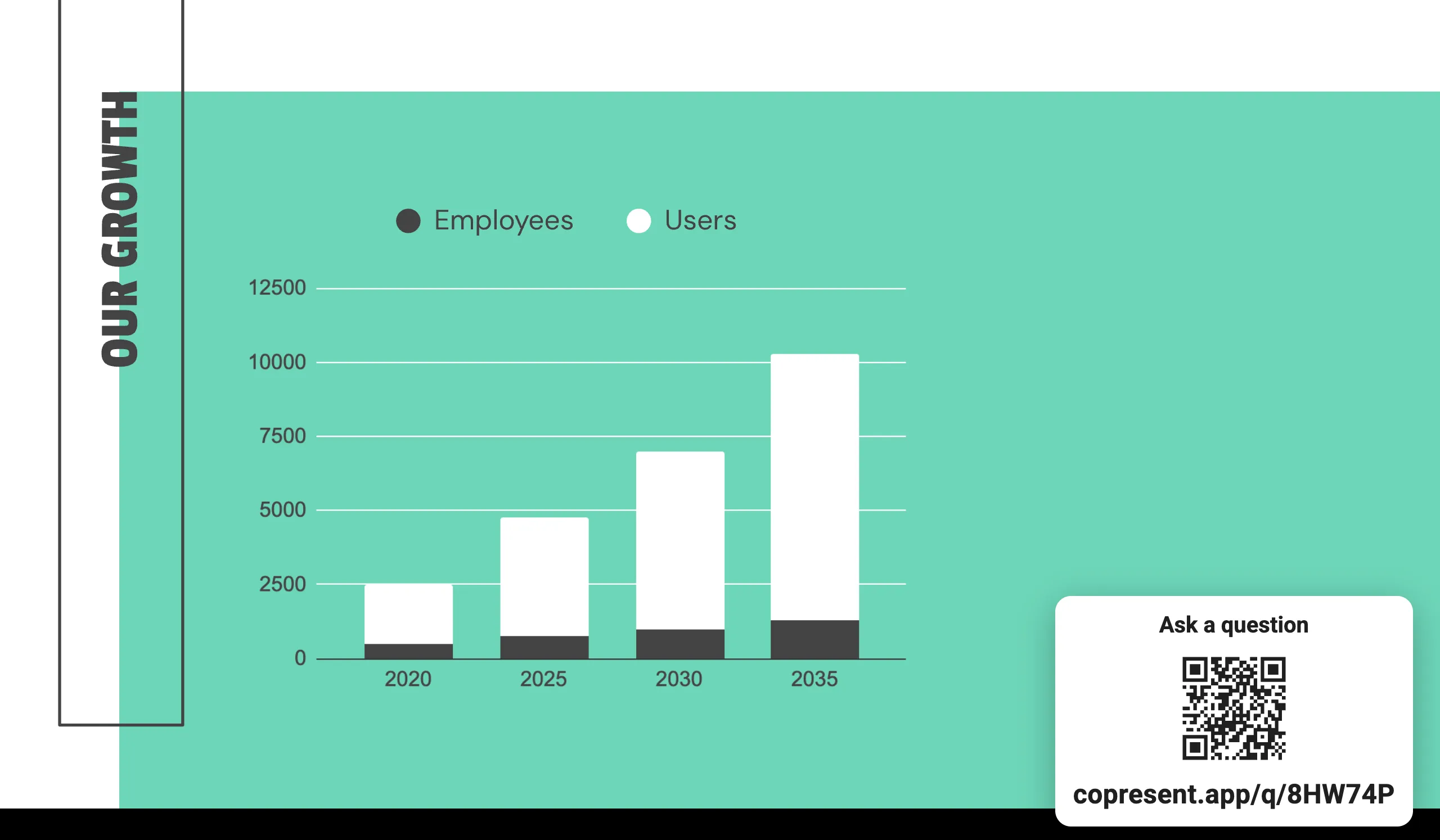
It depends on what you use Mentimeter for. Mentimeter is an interactive presentation tool: you build slides in its own editor, with polls, quizzes, word clouds and Q&A, and your audience joins at menti.com with a code or a QR code.
If your slides live in Google Slides and you mostly want questions from the room, you don’t need a second presentation tool. Copresent adds audience Q&A to the deck you already present.
Mentimeter does many kinds of audience activity in its own slides. Copresent does one, audience questions, inside Google Slides.
| Copresent | Mentimeter | |
|---|---|---|
| Audience asks questions and votes on them | Yes | Yes |
| Audience joins without an app or account | Yes, by QR code or link | Yes, by code at menti.com, QR code or link |
| Live polls, quizzes and word clouds | No | Yes |
| Where you build and present | Your Google Slides deck, as it is | Mentimeter’s own editor and presentation view |
| Using an existing Google Slides deck | Present it in Google Slides as usual | Publish it to the web and embed it in a Menti, or import it as images |
| Change slides and read speaker notes from your phone | Yes, your Google Slides notes | Yes, with Mentimote, for notes written in Mentimeter |
| Works with PowerPoint | No, Google Slides only | Yes |
You want polls, quizzes or word clouds, you are happy to build your slides in Mentimeter, or you also present in PowerPoint.
You present Google Slides and want questions without moving your deck into another tool. Each question shows the slide it was asked on, next to your notes and slide controls.
Copresent lets each co-presenter change the slides from their own phone or laptop, with no account or extension.
Also comparing Slido? See Copresent vs Slido.
Add Copresent from the Chrome Web Store on the computer that runs your presentation. Only the host needs it.
Click the Copresent button next to Slideshow, scan the QR code with your phone and sign in with Google.
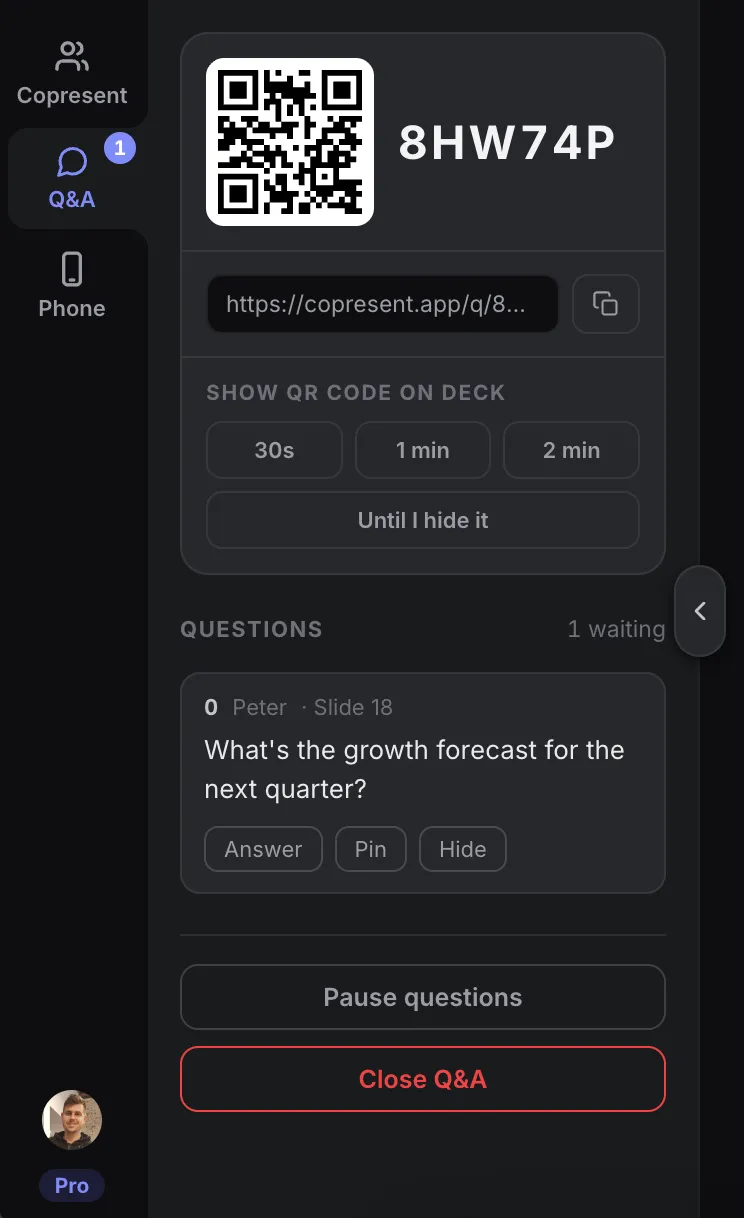
Open the Q&A tab in your controller and tap Start Q&A. Then tap a time under Show QR code on deck.
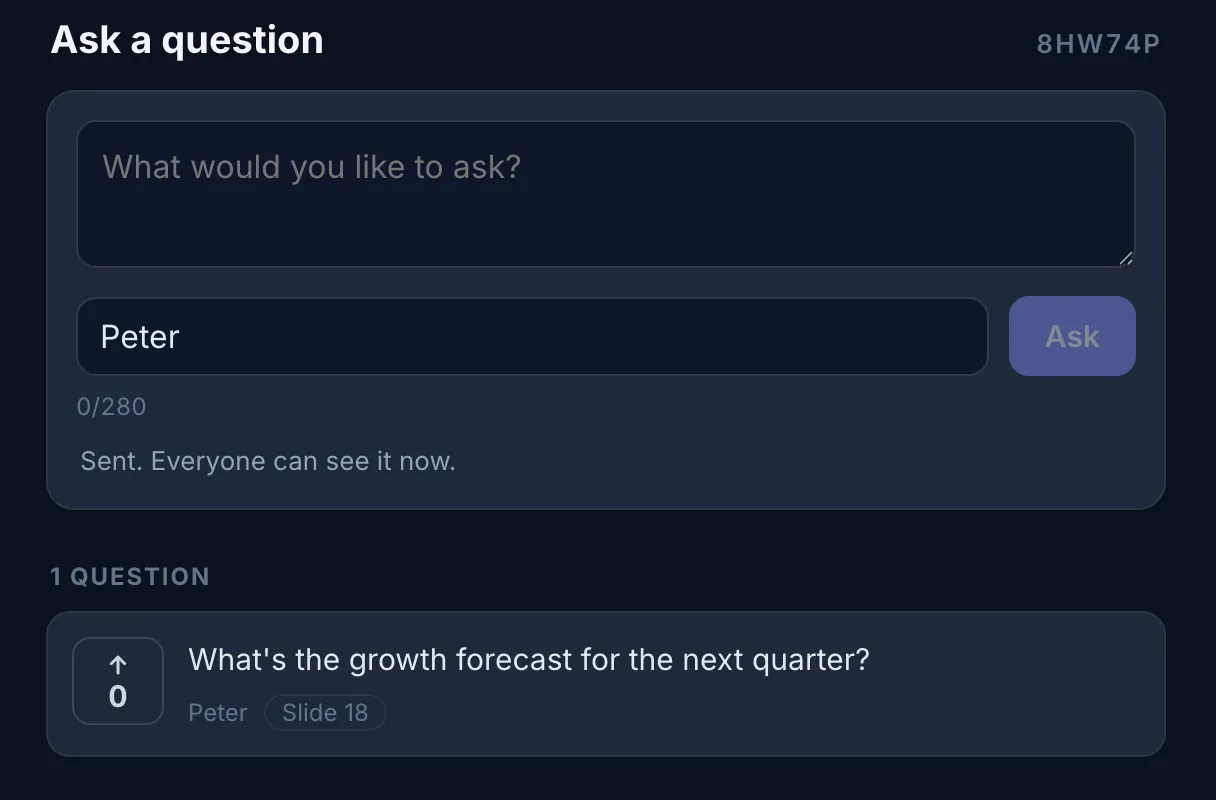
People scan the code and ask from their phones. Questions arrive on your phone, next to your slide controls.
Only if you mainly need audience questions. Copresent has Q&A with voting, but no polls, quizzes or word clouds. If you run those, keep using Mentimeter.
Yes, in two ways. You can publish your deck to the web and embed it in a Menti, then switch to it while presenting. Or you can download it as a PowerPoint or PDF file and import it, which turns each slide into an image. With Copresent you present the deck in Google Slides as it is.
No. People scan the QR code or open the link in their phone’s browser. They can add their name or ask anonymously.
No. Copresent shows the QR code over your presentation for 30 seconds, one minute, two minutes or until you hide it. Your deck stays as it is.
Yes. Pin a question to keep it in view, hide one you don’t want to show, mark questions answered, and pause new questions while you present.
No. Copresent works with Google Slides only.
Change slides, read your notes, and take audience questions.