Updated · By Peter Kovalsky
How to Add Speaker Notes in Google Slides
To add speaker notes in Google Slides, open the presentation on a computer, select a slide, and click the box under the slide that says Click to add speaker notes. Type your notes there. They save automatically with the slide, and the audience doesn’t see them when you present in presenter view.
If there is no notes box under the slide, click View → Show speaker notes. If that is already ticked and you still can’t see it, the box has been dragged shut: drag the small bar at the bottom of the slide area upwards. The rest of this guide covers adding notes in the phone and tablet app, formatting them, what to write, who can read them, and how to see them while you present.
Add speaker notes on a computer
- Open the presentation in Google Slides in your browser.
- In the slide list on the left, click the slide you want to add notes to.
- Click in the box under the slide that says Click to add speaker notes. The placeholder disappears and a cursor appears.
- Type your notes. Press Enter to start a new line.
- Click the next slide and repeat. Each slide has its own notes box, so a note stays with its slide when you reorder, copy or duplicate slides.
There is no save button. Google Slides saves notes as you type, the same as anything else in the deck.
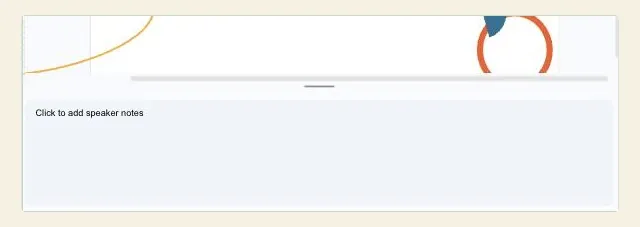
To make the notes box bigger, drag the bar between the slide and the notes box upwards. The slide shrinks to fit and the notes get more room, which helps when you are writing longer notes. Drag it back down when you want to focus on the slide.
Can’t see the notes box?
When we checked the Slides editor on 25 October 2026, there were two separate reasons the notes box could be missing, and they need different fixes.
- Speaker notes are switched off. Open the View menu. If Show speaker notes has no tick next to it, click it. The notes area comes back under the slide.
- The notes box is dragged shut. Show speaker notes can be ticked while the box is closed down to nothing. Look for a short grey bar at the bottom edge of the slide area and drag it upwards. When we opened our test deck, Show speaker notes was already ticked but the box was closed; dragging the bar opened it. With the option switched off, the editor shows no notes box at all until you tick it again.
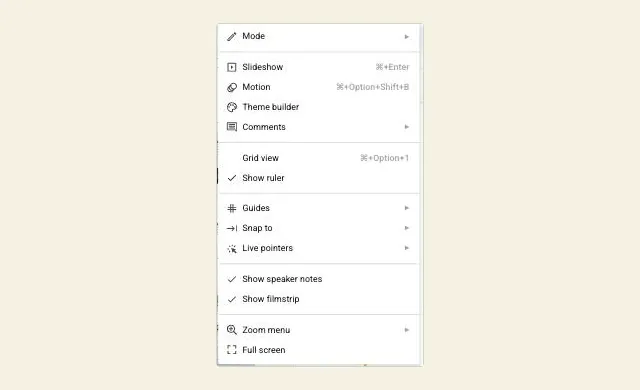
Both fixes only change how the editor is laid out on your screen. Neither adds, removes or hides anyone’s notes.
Format your speaker notes
Click in the notes box and the toolbar changes to text tools. In our check it showed the font (Arial), the size (11), bold, italic, underline, text colour, highlight colour and a link button, with more options under the three-dot menu at the end of the toolbar.
A few formatting habits make notes easier to use mid-talk:
- Put the cue first, in bold. The first few words are what you glance at. Make them the point you must not forget.
- Break long notes into short lines. Press Enter between ideas rather than writing one block of text.
- Highlight timings or hand-offs. “2 min” or “Over to Sam” in a highlight colour is easy to spot.
- Keep links for yourself. A link in your notes is useful for a source you might be asked about; the audience won’t see it.
Formatting stays in the editor and Google’s presenter view. Other places that show your notes may not keep it. Copresent’s phone view, for example, shows the notes as plain text: line breaks carry over, but bold and colours don’t. If a cue matters, make it stand out with words and line breaks, not formatting alone.
Add speaker notes in the Google Slides app
Google’s help pages for Android, iPhone and iPad only describe showing notes while casting a presentation, not adding them. Third-party guides, such as SlashGear’s walkthrough from January 2025, describe these steps in the app:
- Open the presentation in the Google Slides app.
- Tap a slide, then tap Edit slide.
- Tap the three-dot menu at the top right.
- Turn on Speaker notes. A notes area appears under the slide.
- Tap the notes area and type.
App menus change between versions and between Android and iOS, so the exact labels may differ on your device. If you can’t find the option, add the notes on a computer instead: they sync to the same file, so they are there on every device.
What to write in speaker notes
Speaker notes work best as cues, not a script. You will glance at them for a second or two while you talk, so they need to tell you what to say next, not every word of it.
- One main point per slide. Start with the sentence you want the audience to remember.
- Numbers and names you might forget. Figures, dates, a customer’s name, the source of a statistic.
- The transition. End with a few words that lead into the next slide, such as “Which brings us to cost…”.
- Timing. A rough time mark (“aim to be here by 10 min”) helps you notice when you are running long.
- Hand-offs. If you are presenting with someone else, note who takes the next slide. Our co-presenter guide covers how to split a deck.
- Backup answers. Short answers to the questions you expect, so you don’t need an extra slide for them.
Moving the detail into your notes also leaves room on the slides themselves. Our guide on how to make Google Slides look good covers the rest: themes, fonts, layouts and alignment.
A worked example
Hypothetically, a teacher has a 12-slide lesson on the water cycle. On slide 3 the notes say:
Evaporation: sun heats water → vapour Ask: where have you seen this happen? (puddles drying, kettle) Show the diagram, point to the arrows. 3 min. Next: condensation, “so where does the vapour go?”
The bold first line is the only thing the teacher needs at a glance. The question, the action and the time mark are there if they lose their place, and the last line sets up slide 4.
Who can see your speaker notes
Speaker notes are part of the presentation file. That has a few consequences worth knowing before you write anything private:
- People you share the deck with can read them. Anyone who can open the file in the editor, including commenters and viewers, can show the notes box under each slide.
- Copies keep them. File → Make a copy copies the notes along with the slides, so a copy you send to a client includes them unless you delete them first.
- Your audience doesn’t see them if you present correctly. In presenter view the notes open in a separate window; the slideshow window shows only the slides. On a video call, share only the slideshow window, as in our guide to presenting on Zoom without showing notes.
If a deck will be shared after the talk, read through the notes first, or make a copy and clear its notes.
See your notes while you present
Writing notes is half the job; the other half is seeing them at the right moment. There are three common ways.
Presenter view on your computer. Click the arrow next to Slideshow at the top right and choose Presenter view, which the menu describes as starting the slideshow with speaker notes and audience Q&A. Your notes, a timer and the next slide appear in a separate window while the audience sees the slides. Google’s presenting help lists S as the shortcut to open speaker notes during a slideshow. Our presenter view guide covers setups with one or two screens.
Your notes on your phone. Presenter view works best when you stand at the laptop. If you want to move around, Copresent shows the current slide’s notes on your phone and turns it into a remote for Google Slides. The presenting computer runs a Chrome extension and you sign in with Google on the phone; there is no app to install. The notes follow the slide as it changes, and you can make the text bigger or smaller.
A printed copy. Paper doesn’t run out of battery. Choose File → Print preview and the 1 slide with notes layout; our guide to printing Google Slides with speaker notes walks through it.
Whichever you use, rehearse once with the real notes. You will find the notes that are too long to read at a glance before your audience does.
If your speaker notes aren’t working
| What you see | Likely cause | Fix |
|---|---|---|
| No notes box under the slide | Show speaker notes is off | Click View → Show speaker notes |
| Show speaker notes is ticked but there’s still no box | The notes box is dragged shut | Drag the grey bar at the bottom of the slide area upwards |
| You can see notes but can’t type in them | You have view or comment access only | Ask the owner for edit access, or make your own copy |
| Notes are on the wrong slide | They were typed while another slide was selected | Cut the text and paste it into the right slide’s notes box |
| The audience can see your notes | The whole screen or the editor is shared | Use presenter view and share or project only the slideshow window |
| Bold or colours are missing somewhere else | That view shows notes as plain text | Use short lines and clear words for key cues |
| No notes option in the phone app | It sits under Edit slide → three-dot menu, and labels vary by app version | Add the notes on a computer; they sync to the app |
Checklist before you present
- Every slide you’ll talk over has notes, starting with the main point.
- Notes are short enough to read at a glance; long ones are split into lines.
- Timings and hand-offs are marked.
- Nothing in the notes would embarrass you if the deck is shared later.
- You have opened presenter view, your phone or a printout and checked the notes match the slides.
Adding speaker notes takes a click on the box under each slide. Writing them as short cues, and checking how you will see them on the day, is what makes them useful when you’re in front of a room.